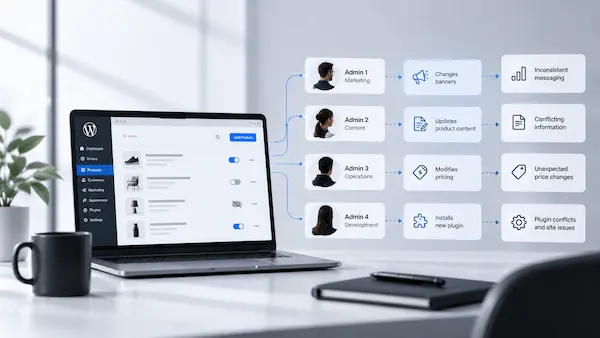



| Quick Answer WordPress security is about more than blocking attacks—it’s about ensuring your website consistently supports your business. This guide examines eight silent site failures that can impact conversions, search visibility, customer experience, and operational continuity. Along with explaining the warning signs and their underlying causes, it outlines practical security, monitoring, backup, and maintenance measures that help businesses prevent downtime and keep their websites performing reliably. |
If you’re a founder, part of your job is noticing what everyone else misses.
Your team is focused on campaigns, sales targets, customer support tickets, and day-to-day operations. You’re the one looking across the business, connecting patterns, spotting risks early, and asking questions before a small issue becomes an expensive one.
That’s why founders often spot trouble before the rest of the team does.
Not through technical reports, but through business signals.
A dip in enquiries that doesn’t match traffic levels. A customer complaint that seems isolated. A checkout experience that feels slightly slower than it used to. Search visibility starts eroding for no clear reason.
These moments are easy to write off as one-offs. But they’re often the earliest warning signs of deeper security, maintenance, or operational issues.
The eight failures below are the kinds of problems founders tend to spot first. Use them as a quick reality check: are you seeing any of these warning signs, and if so, is your team already addressing the root cause?
Because by the time a website problem becomes obvious to everyone, it has usually been costing the business for longer than anyone realised.
That’s why a traditional WordPress security checklist is often not enough. Most checklists focus on technical tasks: updating plugins, enabling two-factor authentication, reviewing firewall settings, and running backups. All important, but they rarely help you identify the operational warning signs founders notice first.
It’s also why growing businesses eventually move beyond maintenance and start thinking about website management. Keeping a website updated is one thing. Understanding whether leads are being captured, customer journeys are functioning properly, and revenue-impacting issues are developing behind the scenes is something else entirely.
This article approaches WordPress website security from the opposite direction. Instead of starting with technical checks, we’ll start with the subtle business signals that often indicate something is already wrong and show you the security or maintenance gap hiding underneath each one.

Failure 1. Your Contact Form Is Dropping Leads Silently
You have traffic. You have a strong offer. But the inquiry volume does not match what the numbers suggest it should be.
There is no error message. No bounce notification. The form submits, from the user’s end at least, and nothing arrives.
What is this costing you?
Silent form failures are one of the cleanest ways to lose revenue on a working website.
A visitor fills out your contact form, assumes you will follow up, and moves on. You never received the submission. The lead is gone before the conversation starts.
This happens more often than most businesses expect. Security plugins have been documented in WordPress.org support threads, blocking legitimate form submissions as false positives, particularly when file uploads or certain browser configurations are involved.
Caching mismatches are another cause. If your caching layer serves a static version of your form, the nonce (the session token WordPress uses for security) can expire before the user submits. The submission fails. No log entry. No notification.
| What your WordPress security audit should check here
Review your form plugin’s submission logs, not just your inbox. Test every active form from a device that is not yours. Check whether your security plugin is logging blocked form requests. Confirm your email routing is working by sending a test submission and verifying delivery at both ends. |
Failure 2. Your Checkout Is Slower Than It Was Six Months Ago
You have not changed anything major. But checkout feels heavier. A beat longer before the payment fields load, another pause before the confirmation page. You’ve noticed it. Probably a few customers have too, even if they have not said anything.
What is this costing you?
Checkout latency is one of the most direct revenue losses on an eCommerce site. According to DEV Community’s analysis of WordPress downtime costs, eCommerce sites can lose more than $5,600 per minute during full downtime, and even sub-downtime slowdowns drive measurable cart abandonment.
The issue is rarely a single cause. It is usually an accumulation.
A plugin added six months ago loads scripts on every page, including checkout. A security plugin scans payment requests in real time and adds 400ms to the response. A third-party integration was never configured to load asynchronously. Each adds a little. Together, they add a lot.
Use our Website Speed Analyzer to get a checkout-specific baseline. Then check which scripts are loading on that page specifically, not just sitewide.
| What your WordPress security audit should check here
Run a page-specific speed test on your checkout URL. Audit which third-party scripts load there and whether each one is necessary. Review your security plugin’s real-time scanning settings for rules that apply to payment pages specifically. |
Failure 3. A Plugin Appeared That You Didn’t Install
You are reviewing your installed plugins, and you see one you do not recognise. Maybe it is named generically. Maybe it is deactivated. Maybe it has been there long enough that you cannot be certain when it appeared.
What is this costing you?
An unrecognised plugin is one of the clearest indicators of active site compromise.
Attackers who gain access to a WordPress installation commonly install plugins to establish persistence: a way to keep access even after passwords are changed and surface-level issues are cleaned up.
This is not rare. According to Colorlib’s 2026 WordPress hacking statistics, approximately 13,000 WordPress sites are compromised daily, with plugin vulnerabilities accounting for the vast majority of entry points.
As one business owner described in a WordPress.org support forum thread, discovery often comes late: the plugin was already there by the time the more visible warning sign surfaced.
| What your WordPress security audit should check here
Cross-reference your current plugin list against a backup from 30 or 60 days ago. Run a file integrity check to identify changes to core WordPress files. Our WordPress Vulnerability Scanner checks for known vulnerabilities in your active plugins and flags unusual file changes. If you are unsure where this falls on your priority list, What a $1M+ Site Actually Costs to Run is worth reading before you move on. |
Failure 4. There’s an Admin User You Don’t Recognise
You are in the WordPress dashboard, checking Users. There is an account you did not create and cannot place. It might be named something generic. It might have full Administrator access.
What is this costing you?
An unknown admin user means someone outside your team has full control of your website.
They can install plugins, modify code, export your customer database, or redirect pages. Often they do nothing visible for weeks, which is how many compromised sites stay compromised long after the initial breach.
This comes up repeatedly in the WordPress community. Users report finding accounts named “wp-system,” “admin_backup,” or random strings after a plugin vulnerability was exploited.
As one site owner noted in a widely cited WordPress.org support thread: “Strange admin user ‘wp-system’ appeared on my site. I got a security alert and now I don’t know how long it’s been there.”
| What your WordPress security audit should check here
Audit every account with Administrator or Editor access. Remove any you cannot verify. Change all admin passwords immediately. Then assess what was actually monitoring user creation on your site, because if no alert fired when this account appeared, your monitoring has a real gap. The questions in How to Vet a Website Management Agency That Won’t Disappear in 6 Months are worth running through if you are evaluating whether your current setup actually catches this kind of change. |
Failure 5. Your Transactional Emails Are Failing Quietly
Order confirmations. Password resets. Invoice receipts. These are the emails your customers expect within seconds of an action. When they do not arrive, most customers do not email to ask. They assume something is wrong with your business and move on.
What is this costing you?
A broken transactional email chain does not look like a WordPress website security problem until you trace it.
A plugin update changed an SMTP setting. Your hosting provider rotated its mail relay. A spam filter blacklisted your sending IP after a bot used a form on your site. Each of these is a maintenance or security event with a direct customer-journey consequence.
Renewals stall. Customers cannot reset their password and abandon the process. A new customer does not receive their access credentials and assumes they have been charged for nothing. Each failure quietly chips away at trust, retention, and revenue.
| What your WordPress security audit should check here
Send a test transaction from your live environment, not a staging site. Check your email sending logs. Verify that your SPF, DKIM, and DMARC records are current. Confirm your mail relay has not been blacklisted. This is one of the operational gaps covered in Website Maintenance vs Management: Your $99/Month Plan Is Keeping Your Site Alive But Not Keeping Your Business Moving. |
Failure 6. Pages That Used to Rank Are Slipping Without Any Changes
Your traffic is down on specific pages. You have not touched the content. You have not changed the SEO. But search performance has declined steadily over several weeks.
What is this costing you?
When rankings drop without content changes, check the page’s source code before looking at your content strategy.
Google’s crawler will find injected content before your team does.
Injected spam links, hidden redirects to external sites, and malware that serves different content to Googlebot than to human visitors are documented outcomes of a compromised WordPress installation.
By the time the ranking drop is visible in Search Console, the damage has already been indexed. Recovery requires cleaning the injected content and waiting for Google to recrawl, which can take weeks.
| What your WordPress security audit should check here
Run a malware scan with specific attention to file changes in your theme files and active plugins. Check Google Search Console for manual actions or security warnings. View your top-traffic pages as Googlebot using a crawl testing tool. This check does not belong on a quarterly review cycle. It belongs on a weekly monitoring schedule. |
Failure 7. Customers Are Complaining About Something You Can’t Reproduce
A customer emails: the checkout button did not work for them. Another says a page returned an error. You check, and everything looks fine. Your developer checks and gets the same result. Nothing is logged. But it happened.
What is this costing you?
Intermittent failures that appear only for specific users, on specific devices, or at specific times are among the hardest to catch and the most damaging to trust.
When a customer encounters an error and cannot easily report it, they rarely follow up. They do not come back.
This is often a caching or session conflict introduced by a security plugin or a misconfigured firewall rule that aggressively blocks requests resembling bot behaviour. Real users with certain browsers, VPN configurations, or cookie settings can trigger those same rules.
These are the problems that don’t announce themselves. Nothing has broken, so nothing alerts you, until the cost has already compounded for weeks or months.
At WisdmLabs, we see this most often with clients who have a maintenance plan but no active monitoring. The difference between the two is larger than most people expect.
The Distinction $1M+ Founders Learn the Expensive Way: WordPress Maintenance Is Not Website Management covers that gap in detail.
| What your WordPress security audit should check here
Enable detailed logging on your security plugin, not just blocked threats but all rule triggers. Test your site with a VPN active and across different browsers. Review firewall rules for false-positive patterns on checkout and form submission paths. |
Failure 8. You’re Seeing SSL or Trust Warnings on Specific Pages
Your main site shows the padlock. But a customer screenshotted a “Not Secure” warning on your checkout page. You check on your own laptop and it looks fine.
What is this costing you?
SSL failures on specific pages are almost always a mixed content problem. A plugin update or theme change introduced a resource (an image, script, or iframe) loading over HTTP rather than HTTPS. The page itself is secure. One element is not. The browser flags the whole page.
A customer who sees a security warning at the moment they are about to enter payment details will leave.
| What your WordPress security audit should check here
Run your checkout, form, and key landing pages through an SSL checker that reports on mixed content specifically. Check for hardcoded HTTP links in your theme files and widget areas. Confirm your SSL certificate covers all subdomains used by your site. |
Quick WordPress Security Checklist: Which of These Apply to You?
Answer each question honestly: yes or no. Eight questions, one per failure.
1. Do you have a log of form submissions independent of your inbox? (Yes / No)
No? Go back to Failure 1: Your Contact Form Is Dropping Leads Silently.
2. Has your checkout page’s load time been tested on mobile in the last 30 days? (Yes / No)
No? Go back to Failure 2: Your Checkout Is Slower Than It Was Six Months Ago.
3. Can you name every active plugin on your site and confirm when each was last verified? (Yes / No)
No? Review Failure 3 to investigate unrecognised plugins and potential security risks.
4. Can you name every active admin-level user on your WordPress site right now? (Yes / No)
No? Review Failure 4 to audit administrator access and remove unknown users.
5. Have you sent a test transactional email from your live site in the last month? (Yes / No)
No? Review Failure 5 to verify that transactional emails are being delivered correctly.
6. Is someone monitoring your organic rankings for unexpected drops on key pages? (Yes / No)
No? Review Failure 6 to investigate unexplained ranking drops and potential site compromise.
7. Do you have uptime and error monitoring that alerts you before a customer does? (Yes / No)
No? Review Failure 7 to identify monitoring gaps that could leave customer-facing issues undiscovered.
8. Have your checkout and form pages been checked for mixed content or SSL issues in the last 90 days? (Yes / No)
No? Review Failure 8 to check for SSL and mixed-content issues that may be undermining trust.
YOUR SCORE AND NEXT ACTION
| Score | What it means | What to do next |
| 7–8 Yes | Strong operational visibility | You’re already monitoring most of the areas where costly website issues tend to hide. Review your remaining “No” answers and close those gaps before they become future risks. |
| 4–6 Yes | Some blind spots exist | A few critical areas aren’t being actively monitored or tested. Prioritise your “No” answers first—they’re the most likely sources of future lead, revenue, or customer experience issues. |
| 0–3 Yes | Multiple risks may be going unnoticed | Your immediate priority isn’t fixing everything at once—it’s gaining visibility. Start by identifying which website functions aren’t being monitored so problems can be caught before customers discover them. |
Frequently Asked Questions About WordPress Website Security
How often should a WordPress security audit actually happen?
For most revenue-generating sites, light checks (user accounts, plugin inventory, form testing) should happen monthly. A thorough WordPress security audit should happen quarterly. Malware scanning should run continuously or at a minimum, weekly. Waiting until something breaks means the gap has already cost you something.
Can a WordPress security plugin cause my forms or checkout to stop working?
Yes, and it happens more often than most businesses expect. Security plugins with aggressive firewall rules have been documented in WordPress.org support forums, blocking legitimate form submissions and checkout requests as false positives. If your leads dropped after installing or updating a security plugin, that is the first place to look.
What’s the real difference between WordPress maintenance and WordPress website security?
Maintenance keeps the site running: updates, backups, and uptime monitoring. Security keeps it safe: vulnerability scanning, access control, threat detection. Most WordPress maintenance services cover the first, and only partially cover the second. The gap between them is where most of the silent failures in this list tend to live.
How do I know if my WordPress site has already been compromised?
Signs include admin users you did not create, plugins you did not install, ranking drops without content changes, and customer complaints about errors you cannot reproduce. If you are unsure, a WordPress vulnerability scan is a reasonable starting point: it checks for known vulnerabilities in active plugins and flags unusual file changes.
What does a WordPress maintenance service cover for security that a plugin doesn’t?
A plugin scans. A maintenance service responds. The plugin will flag a suspicious file, but it will not investigate the source, remove the backdoor, patch the entry point, and restore your settings. The human layer is what turns a detection into a resolution. That is the gap most businesses discover after their first serious incident.
The challenge with these eight failures is that they’re easy to spot once you know what to look for.
The harder part is consistently keeping track of them while running a business.
As a founder, your job isn’t to monitor plugin updates, test form submissions, check for SSL issues, investigate ranking drops, or verify that every critical website function is working as expected. Your job is to grow the business.
That’s where proactive website management becomes valuable.
At WisdmLabs, we help businesses stay ahead of the issues discussed in this article through ongoing monitoring, security checks, maintenance, performance reviews, bug fixing, and technical support. Instead of waiting for a customer to report a problem or a revenue-impacting issue to surface, we help identify and address risks before they affect your business.
If you’re wondering whether any of these silent failures are already affecting your website—or you simply want confidence that someone is keeping an eye on them for you—let’s talk.