


| Quick answer: WordPress user roles are permission sets, Administrator, Editor, Author, Contributor, Subscriber, plus WooCommerce’s Shop Manager, that control what a logged-in user can view, edit, or change on your site.
For a growing WooCommerce store, the default roles rarely map cleanly onto real jobs. A content manager, a support lead, and a marketing agency each need narrower access than any single default role grants, so assign access by job, not title. |

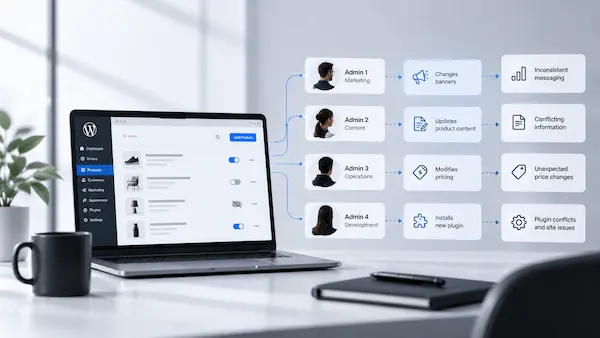
More departments touching the store means more ways for admin access to go wrong
A scaling WooCommerce store typically has people across ecommerce, content, marketing, and customer support logging into WordPress each week. Each of them needs access to something. Almost none of them need access to everything.
Give a content writer Administrator rights and they can technically deactivate a plugin, change a payment setting, or edit another user’s account.
None of that is their job, and none of it is something they’re likely to do on purpose.
Too much access creates room for mistakes, even when everyone has good intentions.
Related Read: WordPress Security Checklist: 8 Silent Site Failures
WordPress user roles: what each default role actually lets someone do
Before deciding whether you need custom roles, it helps to understand what the default roles already give people access to. The problem isn’t that these roles are inherently wrong. They’re designed to cover common WordPress and WooCommerce tasks. The issue is that an established store often has responsibilities that don’t fit neatly into one of them.
At a glance, the six roles break down like this:
• Administrator – full control of the entire site: settings, plugins, themes, and other users.
• Shop Manager – runs the store: products, orders, coupons, reports, and general store settings.
• Editor – publishes and manages all posts and pages, including other people’s.
• Author – writes, edits, and publishes only their own posts.
• Contributor – writes and edits their own posts, but can’t publish them.
• Subscriber – manages their own profile and little else.

At first glance, Shop Manager might seem like the obvious role for anyone who works on the store. It covers products, orders, coupons, reports, and other WooCommerce functions. But that broad access can become a problem when someone’s job only covers one part of the store.
WooCommerce’s own roles and capabilities documentation confirms Shop Manager grants broad configuration access alongside store management, often more than a content manager or support lead genuinely needs.
The role name doesn’t tell you everything the user can actually access, which is why default roles can become too broad as the store grows.
If you’re not sure where your own store’s exposure currently stands, use WordPress Vulnerability Scanner Tool, a free tool that gives you a quick baseline before you start reassigning anyone’s access.
Run a Free WordPress Vulnerability Scan
Free security check in under 2 minutes. Analyze SSL, security headers, WordPress configuration, and server setup — all from a single scan.

When default WordPress user roles aren’t enough for a growing store
Default WordPress roles can work when your team is small and responsibilities overlap.
As the store grows, that gets harder. Different people start handling products, content, orders, marketing, and operations, but the available roles don’t always match those responsibilities.
| Consider a growing ecommerce store preparing for a major seasonal launch. The merchandising team needs to update hundreds of products, change prices, replace product images, and manage variations before the campaign goes live. They don’t need access to payment settings, plugins, users, or other site-wide controls.
Giving them Shop Manager access solves the product-side problem, but also gives them access to areas they don’t need. Giving them Editor access avoids those settings, but leaves out the product capabilities they need to do their work. The fix: Create a custom role with the product, variation, category, and media capabilities the merchandising team needs, while leaving administrative and store configuration capabilities out. |
The same issue can appear elsewhere in the business. A customer support lead may need to handle orders and refunds without changing product prices. A marketing team may need to publish landing pages and update content without accessing customer or order data.
Once responsibilities become this specific, assigning a default role simply because it is the closest match can give people more access than their work requires.
For more technical ways to restrict dashboard access, see How to Limit Access to Your WordPress Dashboard.
A practical access model for your scaling WooCommerce store
Every store’s team looks a little different, but a growing WooCommerce business tends to have a recognizable set of roles touching the site. The table below is a starting point, not a fixed rulebook. Treat it as a model to adapt to how your own team actually splits responsibilities.
| Team member | Typical actions | Appropriate access | What they shouldn’t have |
| Store owner | Full oversight of the business and site | Administrator | N/A, this is the one role that reasonably stays broad |
| Ecommerce manager | Products, orders, coupons, reports | Shop Manager, or a custom role if settings access should be narrower | Ability to add or remove other admin users |
| Content manager | Pages, posts, media, product descriptions | Editor, or a custom role scoped to content and product info | WooCommerce settings, payment gateway configuration |
| Customer support | Viewing and editing orders, processing refunds, customer lookups | Custom role scoped to orders and customers | Product pricing edits, plugin or theme access |
| Developer | Code, plugins, themes, technical settings | Administrator, time-limited to the engagement | Standing access after the project ends |
| SEO/marketing team | Blog posts, landing pages, meta content, campaigns | Editor, or a custom role scoped to content types | Order data, customer records, store settings |
| External agency | Scoped project work, such as a landing page build | Custom role limited to the project’s specific needs | Any access beyond the project’s scope or timeline |
Note: The exact capabilities depend on your store’s setup, your plugins, and how your team actually divides work. Use the table as a framework for the conversation, not a spec to copy exactly.
So far, you have a model for the people who work inside your business day to day, your ecommerce manager, your content team, your support lead, each scoped to what their role needs on a catalog running active promotions and subscription renewals.
But not everyone accessing the store is a permanent member of the team.
In practice, permissions should reflect the task, not just the person’s job title.
Also Read: WordPress Site Audit: What It Is, Why You Need One, and How It Works
Keep Your Growing Store Easier to Manage
From user access and updates to ongoing WordPress maintenance, a growing WooCommerce store needs clear processes behind the scenes.
When managing access becomes another job, consider ongoing website management
User roles are easier to manage when one person or team has clear ownership of the WordPress environment. But as a WooCommerce store grows, access reviews become just one of many things that need attention. New team members need accounts, agencies need temporary access, old permissions need to be removed, and roles need to change as responsibilities shift.
| For a store that has been running for three or more years, the most common access problem is often not current access, but historical access that was never revoked.
A freelancer who was brought in to upload products, an SEO agency that managed content a year ago, or a developer who worked on the last site rebuild may all still have active WordPress accounts even though none of them work with the business anymore. They are all potentially still sitting in the Users list, with no one on the current team aware that those accounts exist or what level of access they still have. The fix is not just to review access once, but to have someone regularly audit user accounts, verify who still needs access, and remove outdated permissions as the business changes. For a growing store, an ongoing website management team can take ownership of that process alongside the other technical work the site requires. |
A website management team can help with tasks such as:
- Reviewing user accounts and permissions as your team changes
- Setting up appropriate access for employees, contractors, and agencies
- Removing or adjusting access when projects or engagements end
- Managing WordPress core, plugin, and theme updates
- Monitoring security, backups, and site health
- Handling ongoing technical changes without giving every team member Administrator access
The goal is to have a clear process for granting access, limiting what each person can change, and removing access when it is no longer needed.
If your store has multiple teams, external partners, frequent changes, or no clear owner for these tasks, Website Management can take this responsibility off your internal team’s plate.
Explore Website Management Services →
| Where does your WordPress access actually stand? A 6-question check
1. Does more than one person share a single Administrator login? (Y/N) 2. Does anyone outside your core team, an agency, a past contractor, still have active access? (Y/N) 3. Can your content or marketing team edit WooCommerce settings, payment gateways, or shipping zones? (Y/N) 4. Is there a role or account whose exact purpose nobody on your team can explain? (Y/N) 5. Has it been more than six months since anyone reviewed the full Users list? (Y/N) 6. Did the last person who left your team or agency keep their account active past their last day? (Y/N) 0–1 yes: Your access controls are in reasonably good shape, with limited signs of unnecessary exposure. A periodic review is still worth scheduling as your team and store operations change. 2–3 yes: There are specific access gaps that create meaningful security and operational risk. Permissions may already be broader than they need to be, or access may not be consistently reviewed as people and responsibilities change. These gaps are worth addressing now, before they contribute to an accidental change, a difficult offboarding, or a more serious store disruption. 4+ yes: Your access model has likely grown without a clear owner. At this store size, that is a security and operational liability, not just a hygiene issue. A former agency, departed employee, or role with unnecessarily broad permissions can create real operational damage. This warrants a proper access audit before the next team change or external engagement. |
Conclusion
Treating user roles as a one-time setup task, something you configure once and forget, is the same mistake as treating updates or backups that way. Teams change, agencies come and go, and responsibilities shift as the business grows.
Access needs the same ongoing attention as everything else that keeps a store running, a point covered in more depth in Website Maintenance vs Website Management Outsourcing for Growing Businesses.
We at WisdmLabs see this pattern often: a store with reasonably solid user roles that were set up correctly two years ago and never revisited since, while the team, the plugins, and the risk have all moved on.
Managing a growing WordPress store well means treating access, updates, security, and performance as connected parts of the same job, not separate checklists handled by whoever has time.
If that’s the gap in your own setup, our website management services are built around exactly that kind of ongoing ownership.
FAQ
What is the difference between the Shop Manager and Administrator roles in WooCommerce?
Administrator has unrestricted access to every part of the site, including plugins, themes, and other users’ accounts. Shop Manager is scoped to running the store: products, orders, coupons, and reports, plus general WordPress editing capabilities, but it doesn’t include installing plugins, switching themes, or managing other users.
Can a Shop Manager edit or add other users in WordPress?
No. By default, Shop Manager cannot add, edit, or delete other WordPress users. User management remains an Administrator-level capability unless those permissions are explicitly added to the Shop Manager role. This distinction matters because Shop Manager has broad access to WooCommerce operations and settings, but that does not automatically extend to managing user accounts.
Should I create a custom user role, or just restrict an existing one?
It depends on the gap. If a default role is only slightly too broad, restricting specific capabilities, like blocking CSV product import and export from Shop Manager, is often enough. If someone’s job doesn’t resemble any default role at all, building a dedicated custom role from the capabilities they actually need is usually cleaner than patching one that doesn’t fit.
How quickly should I remove a former employee’s or agency’s access to my store?
Ideally, on their last day, not weeks later. A common access-management gap is that former employees, freelancers, and agencies can retain access for days or even longer after their work ends, simply because account removal is not always part of the offboarding process. For a scaling WooCommerce store, the fix is to make access removal part of the process whenever someone leaves or an engagement ends, and to periodically review the Users list for older accounts that may have been overlooked.


