You can add an image to a Contact Form 7 form by inserting a simple <img> HTML tag directly inside the form markup. Just upload the image to the WordPress Media Library, copy its URL, and place the image tag where you want it to appear; no custom coding or plugin changes needed. |

Do you want to know how to customize a form on your WordPress site?
You’re at the right place!
Contact Form 7 is the most downloaded and used plugin to create forms.
The plugin can be used to create simple forms dynamically using several tags offered like Text field, Email, Checkboxes, Date, etc. These tags are predefined. But let’s say you would want to add some element of your own apart from what the form provides, for example, an image or your company logo.
You could probably create your custom tag, but this would be a lengthy process, and not all of us are coding experts to achieve this easily.
Explained below is a method to achieve this using simple HTML code which anybody can use. Not only can we use it to add an image but we can extend the idea to add any other field such as a table or footnotes if desired.
Do note that this solution is to make a change only for an individual form.
So let’s get started.
| #TL; DR To add an image (like a logo) in Contact Form 7, upload it to the Media Library, copy its URL, and paste an <img> tag inside the form markup where you want it to appear. |
### Where to paste this code
Go to **WordPress Dashboard → Contact → Contact Forms → (Open your form) → Form tab**.

Paste the image HTML exactly where you want it to appear in the form.

Stuck with adding tweaks to your WordPress site? A custom WordPress development company can help.
Add an Image to Contact Form 7
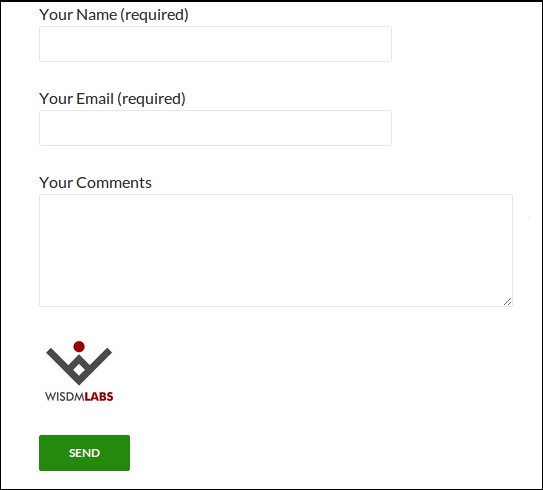
Let us take a use case to add a company logo in the comments form. Our form would contain fields for name, email, comments, the logo (which we would want to display), and a submit button. The logo would be some file ‘abc_logo.png’.
The first thing you would want to do is to upload the logo file (if not present already) in the media files from the dashboard. This provides us with the path for the file which we will be using to display the logo.
Our code for the form would have to look something like this:
<p>Your Name (required)<br/>
[text* your-name] </p>

<p>Your Email (required)<br/>
[email* your-email] </p>

<p>Your Comments<br/>
[textarea comments x4] </p>

<!-- add company logo -->
<div >
<!-- specify the url path for the image -->
<img src="http://localhost/wordpress/wp-content/uploads/2014/01/abc_logo.png">
<br/>
</div>

<p>[submit "Send"]</p>
If we were to add the form to a page, the output would be:
### Common issues (quick fixes)

**Image not showing? **
- Don’t use `localhost` in the image URL.
- Use the full Media Library URL (starts with `https://`).

**The site is HTTPS, but the image URL is HTTP? **
- Change the image URL to `https://` or WordPress may block it.

**Image looks misaligned? **
- Wrap it like this:

```html
<div style="text-align: center; margin:16px 0;">
  <img src="YOUR_IMAGE_URL" alt="Company logo" width="160" height="60" loading="lazy" />
</div>
| Why you should use the Media Library URL (not a copied path) The first thing you would want to do is upload your image to the Media Library and use the File URL from there. This is important because most WordPress sites today run with HTTPS, use caching/CDN setups, and serve images in different sizes for mobile and desktop. If you use a copied path (or a localhost/staging URL), the image may not load properly on the live site. So, always: 1) Upload the image in Media → Library 2) Click the image 3) Copy the File URL 4) Paste it in your <img> tagThis keeps the image secure, reliable, and less likely to break when the site is optimized or moved. |
Conclusion
So, that’s how you add an image in a Contact Form.
Similarly, we can add any WordPress UI element using simple HTML code.
Just add the corresponding HTML code for the desired element in place of the image tag.
It could be a simple link, an image link, maybe a table, or a customized button. This code can be placed anywhere in your form.
This is a much neater and design-friendly solution than changing the core code of the plugin.
If you need help with other types of form customization, you can reach out to our expert team.
We are WordPress core contributors with 12+ years of experience working on 800+ projects. We can perform any type of WordPress plugin customization with minimum downtime and help optimize your site for maximum speed.
Be sure to leave comments if you have any further questions or suggestions for a better way of achieving the same.
Read More:
Checklist to hire a WordPress development company
A beginner’s guide to create a first WordPress plugin
WordPress customization service that fits your business needs