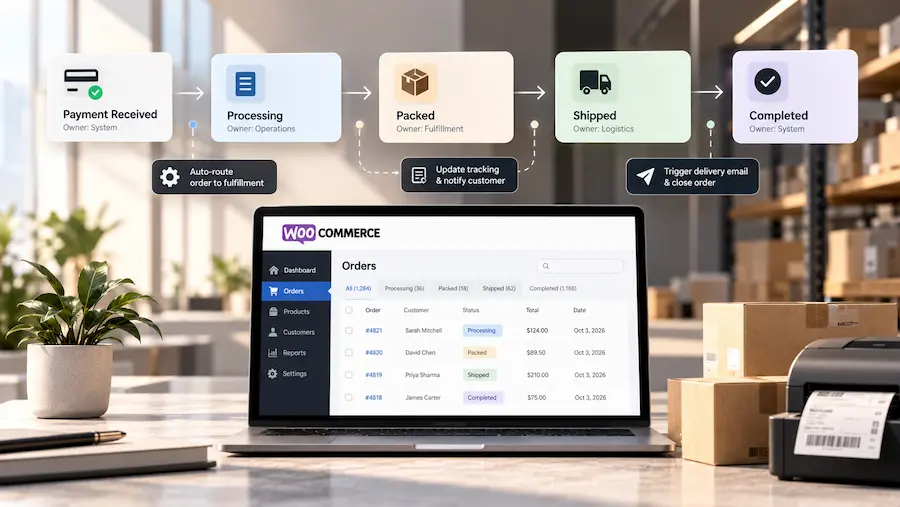



Operational bottlenecks inside WordPress rarely look dramatic. They look normal: someone copying data between tools, a teammate unsure which fields to fill, an editor afraid to click “Update,” or an admin hunting through five screens to complete one task.
This is exactly where custom wordpress development services becomes an operational lever, not a “nice-to-have.” When WordPress is tailored around how a team actually works, manual steps shrink, errors drop, and backend work stops feeling like a maze.
| Quick Note: What “WordPress customization” means It’s the process of tailoring WordPress’s admin screens, workflows, and features so teams can run day-to-day tasks without messy workarounds or repeated manual steps. |

Why Operational Bottlenecks Matter More Than Features in WordPress
For many teams, WordPress does not fail because it lacks features. It fails because routine work takes too long, too many people hesitate to make changes, and small mistakes turn into recurring delays.
As WordPress increasingly supports marketing, commerce, documentation, and internal workflows, operational efficiency becomes just as important as design or content. Advanced WordPress customization addresses this gap by reshaping how work actually moves through the system—not just how pages look.
What “operational bottlenecks” look like in WordPress
Across agencies, publishers, membership sites, and WooCommerce stores, common bottlenecks tend to repeat:
- Inconsistent content entry (missing fields, wrong formats, mismatched layouts)
- Approval chaos (no clear status, no handoff, no ownership)
- Role confusion (too much access for some users, too little for others)
- Duplicate work (copy-paste between plugins, spreadsheets, CRMs, PM tools)
- Slow recurring tasks (weekly exports, manual reports, scheduled updates)
- Backend friction (important actions spread across multiple admin screens)
| Quick Note: What a “workflow” is A workflow is the step-by-step path a task follows, like “Draft → Review → Approve → Publish.” If WordPress doesn’t support that flow, teams end up managing it manually outside the system. |
Read More: Here’s a guide on how to debug WordPress websites

| How One Bottleneck Compounds Over Time
Before customization, a content update might require: 1) Editing a page 2) Checking a separate document for required fields 3) Messaging another team for approval 4) Rechecking formatting manually After customization: 1) Required fields are enforced in the editor 2) Status reflects the approval state 3) Only relevant actions are visible 4) Publishing follows a defined path The difference is not dramatic—but it is repeatable. And repetition is where operational cost accumulates. |
Why “more plugins” often adds inefficiency
Plugins are useful, but operational complexity increases when:
- Multiple plugins overlap in responsibilities,
- The admin UI becomes fragmented,
- Teams rely on tribal knowledge (“click here, then here, but don’t touch that”).
Advanced WordPress customization reduces this tool-sprawl by building a small number of clear “paths” inside wp-admin—aligned to roles and outcomes.
| Quick Note: What “backend UX” means Backend UX refers to the experience of using the WordPress admin (wp-admin), encompassing how forms behave, which fields appear, how approvals work, and how quickly a team can complete tasks without confusion. |

Who Benefits Most From Advanced WordPress Customization
Advanced customization delivers the most value for:
- Teams with multiple contributors or departments
- Websites that require approvals, reviews, or compliance checks
- Businesses relying on WordPress for recurring operations
- Organizations where content quality depends on consistency
It is usually unnecessary for:
- Single-author blogs
- Static brochure websites
- Sites with infrequent updates and no internal workflows
The 7 Customization Moves That Remove the Most Manual Work
1) Role-based admin UX (so every user sees only what they need)
A high-impact customization is reshaping wp-admin by role: hiding irrelevant menus, surfacing the right actions, and preventing dangerous settings changes.
Operational win: fewer mistakes, faster onboarding, less “where do I click?” overhead.
| Quick Note: What “roles and permissions” areWordPress can restrict what each user can see or do (edit content, publish, manage settings). When configured well, each team member gets the right access—no more, no less. |
2) Structured content models instead of “everything is a post”
When a business process is stored in generic posts/pages, the admin experience becomes fragile. Advanced setups define proper content types (for example: “Case Studies,” “Locations,” “Courses,” “Partners,” “Invoices,” “Support Playbooks”).
Operational win: cleaner admin lists, predictable fields, easier filtering, fewer formatting problems.
| Quick Update: What a “Custom Post Type” is It’s a structured content type beyond Posts and Pages—like “Courses” or “Locations”—so the team can manage content in a consistent, organized way. |
3) Backend forms that validate inputs (so the system enforces standards)
A real workflow needs guardrails: required fields, controlled formats, conditional logic, and status-based rules.
Operational win: fewer incomplete submissions, fewer “follow-up” messages, more reliable data.
| Quick Note: What “metadata” isMetadata is extra information stored alongside content. Example: A case study might store “Industry,” “Platform,” and “Project Duration” as structured fields, rather than just listing them in a paragraph. |
4) Single-purpose admin screens (replace multi-screen scavenger hunts)
When a process requires visiting multiple screens—posts, users, settings, plugins—operators slow down, and mistakes rise. A common “advanced” move is creating a single operational screen that combines the exact controls a role needs.
Operational win: fewer clicks, fewer context switches, and a backend that behaves like an internal tool.
| Note: What a “custom admin screen” isIt’s a dedicated dashboard page built for a specific task (like managing orders, approvals, or content QA) so the team isn’t jumping around WordPress menus. |
5) Automation for recurring ops (scheduling + background tasks)
Many bottlenecks are simply recurring tasks: syncing data, sending reminders, cleanup routines, exporting reports, and updating statuses.
Operational win: fewer manual checklists and less dependence on “someone remembering.”
| Quick Note: What WP-Cron is WP-Cron is WordPress’ built-in scheduler that can run automated tasks (like sending reminders). On some websites, it needs careful setup so tasks don’t depend on random site visits. |
6) Integrations via API (remove copy-paste between systems)
When staff manually move information between WordPress and other systems (CRM, inventory, project tools), the bottleneck isn’t “WordPress.” It’s the lack of a bridge.
Operational win: workflows become connected, not spreadsheet-driven.
| Knowledge Bubble: What the “REST API” isIt’s how WordPress can “talk” to other apps reliably by sending/receiving structured data (usually JSON). In simple terms, it’s a standardized way to connect systems. |
7) Design systems in Gutenberg (patterns reduce layout drift)
Operational inefficiency also shows up in front-end production: teams rebuilding the same section repeatedly, inconsistent CTAs, and “almost the same” forms across pages.
Operational win: faster publishing, fewer layout mistakes, consistent brand execution—without rewriting pages.
Where a WordPress customization expert fits in
A WordPress customization expert typically focuses less on “building features” and more on removing friction from real operations. The work often includes:
- workflow mapping (where manual work repeats and errors occur)
- role and permission design (so access matches responsibilities)
- backend UX improvements (guided screens, clearer entry flows)
- automation strategy (reduce recurring manual tasks)
- integration design (connect WordPress with other tools)
- governance (ensure changes are maintainable and safe)
Read More: Check out why developers prefer WordPress
A fast self-check: Is advanced WordPress customization worth it?
Advanced WordPress customization is usually justified when several of these are true:
- Multiple people touch the website weekly
- Content quality depends on consistent data entry
- Approvals and handoffs happen inside WP-Admin
- recurring tasks exist (exports, syncs, reminders, cleanups)
- Different roles need different “views” of WordPress
- WordPress acts as an operational platform, not just a marketing site
| Requirement | Plugins Alone | Advanced Customization |
| Simple features | ✅ | ⚠️ |
| Complex workflows | ❌ | ✅ |
| Role-specific admin UX | ❌ | ✅ |
| Long-term maintainability | ⚠️ | ✅ |
| Reduced manual work | ❌ | ✅ |
Closing note
Operational bottlenecks don’t disappear because the design is refreshed or because another plugin is installed. They disappear when the backend becomes intentional: role-based, structured, automated, and connected.
That’s the real promise of WordPress customization—and where a seasoned WordPress customization expert creates measurable operational clarity without turning WordPress into something the team fears using.
If you want, I can also add these Note blocks as consistent, styled callouts (same format each time) or reduce them to a tighter “1–2 line” version to keep the page even more skimmable.
Frequently Asked Questions
Is advanced WordPress customization expensive?
Cost depends on the scope. Most operational customization focuses on reducing recurring manual work, which often offsets the investment over time.
Does this make WordPress harder to update?
When done correctly, no. In fact, structured customization often makes updates safer by reducing ad-hoc plugin usage.
Can customization replace plugins entirely?
No. Plugins still play an important role. Customization focuses on connecting, simplifying, and governing how tools are used.
Is this relevant outside enterprise teams?
Yes—any team with repeatable processes, approvals, or multiple contributors can benefit.