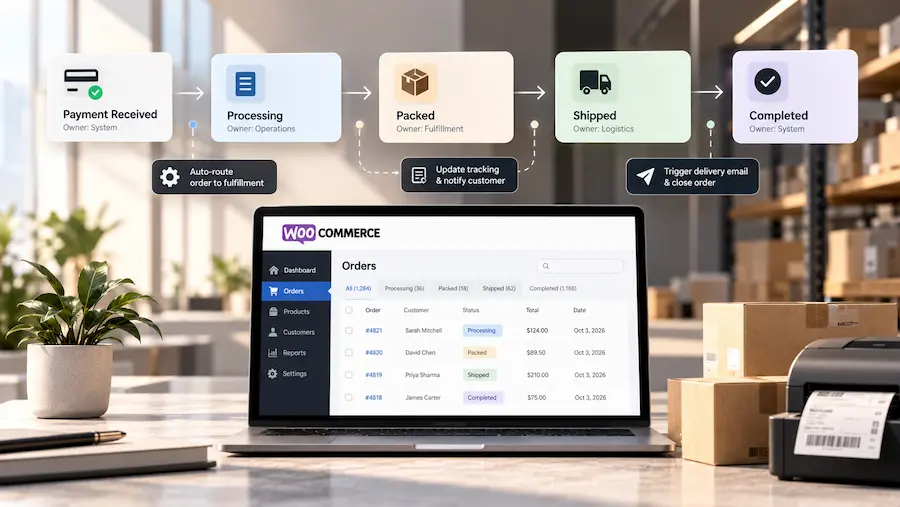


| A safe WooCommerce migration is not just about moving products and orders. You also need to preserve customer accounts, SEO signals, payment settings, emails, integrations, and store functionality after launch.
Google recommends careful handling of redirects and site changes, while WooCommerce’s own migration guide now frames migration as a phased process: audit, setup, integrations, payments, testing, and launch validation. |
Introduction
Are you thinking about WooCommerce migration? If the answer is Yes, this means relocating all your website’s data.
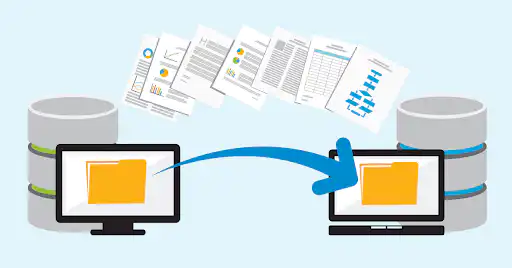
When we say the entire data, we’re talking products, customer information, order details, and all your settings – to a new platform or hosting provider. Moving all that data can seem like a real headache and technically challenging.
But, if you approach it in a planned manner and have a well-designed plan, you can make the transfer go off without a hitch, ensuring no data is lost or left behind in the transition process.
Through this guide, we will help you through the process of migrating your WooCommerce store safely, ensuring your data stays put where it should.
Also Read: What a Professional WooCommerce Migration Company Actually Delivers
Why Migrate Your WooCommerce Store?
The need to migrate your WooCommerce store might arise as a result of one or more of the following reasons:
- Improved Performance – When you upgrade your website and start using services of a better hosting environment, it directly impacts your WooCommerce webstore’s speed, reliability and functioning in the long run.
- Scalability – With business expansion, there comes the need for better technical resources and advance features that enhances the user experience of your targeted audience. You may have to take a switch to different host if your current hosting provider may not be able to provide such services.
- Security – You may want to switch your business to a hosting provider that provides better security measures to safeguard your store against cyber threats and frauds.
- Rebranding – If you’re planning to update your domain or want to give your WooCommerce store a fresh look, you will have to transfer your current data to accommodate these changes.
- Geographical expansion – Once you have decided to go global, sometimes it’s better to host your website on a server closer to the destination country to reduced website latency for the targeted audience.
Also Read: Pre- & Post-Migration Metrics Every Store Should Track
Pre-Migration Preparation
Before you start with the migration process, it is important to prepare yourself thoroughly to ensure a seamless data transition without loss.
We have listed below few important checkpoints before your start with the data migration process –
- Backup Your Store – Before you start with migration process, it is crucial to create a full backup of your WooCommerce store data. This includes all files, databases, customer accounts, settings and configurations.
This is your safety net in case anything goes wrong during the migration and also safeguards you in case of any legal disputes during the transfer period.
You can create such backup using backup plugins or the backup services provided by the hosting provider, or even secure tools like ios vpn app to protect data integrity while files are being transferred.
- Assess Hosting Requirements – Ensure your new hosting provider is able to meet the technical requirements of your WooCommerce store. Also, don’t forget to check for compatibility with the various plugins and themes used on your WooCommerce store.
Additionally, consider factors like storage space, bandwidth, and server performance before selecting a new hosting provider.
- Audit Your Store Data – Review your store data to identify any issues that need to be addressed before migration. This includes checking for broken links, outdated plugins, and unnecessary files.
This step helps in creating a more accurate data mapping during migration.
Choosing the Right Migration Method
There are several methods to migrate your WooCommerce store –
- Manual Migration – This involves manually exporting and importing the entire WooCommerce store data. This process is time-consuming but gives you a complete control over the process.
- Using Plugins – You can make use of plugins like All-in-One WP Migration, Duplicator, Litextension, Migrate Guru or WebToffee’s WooCommerce Import Export Suite to automate the migration process, making it faster and easier.
- Professional Services – You can hire a professional service to ensure a smooth migration, especially for large or complex WooCommerce stores.
Try services of Wisdmlabs WooCommerce expert team to securely and efficiently migrate your store data.
Step-by-Step Migration Guide
Step 1: Export Data from Your Existing Store
- Export Products – Go to WooCommerce > Products > Export. Choose the data you want to export and download the CSV file.

- Export Orders – Navigate to WooCommerce > Orders > Export. Select the date range, product or category and export the orders.

- Export Customers – You can make use of a plugin like WordPress Users & WooCommerce Customers Import Export to export customer data.

Step 2: Set Up the New Environment
- Install WordPress and WooCommerce – Set up WordPress and install the WooCommerce plugin on your new host.
- Import Data – Use the WooCommerce import tools to import products, orders, and customers from the CSV files you exported earlier.
- Install and Configure Plugins – Install any necessary plugins and configure them to match your previous setup.
Step 3 – Test the New Store
- Check Functionality – Ensure all features of your store are working correctly, including product pages, checkout process, and payment gateways.
- Verify Data Integrity – Check that all data has been imported correctly and that there are no missing or corrupted entries
- Test Performance – Test the speed and performance of your new store to ensure it meets your expectations.
Step 4: Resolve Potential Issues
- Fix Broken Links – Use a plugin like Broken Link Checker to identify and fix any broken links on your new site.
- Address Compatibility Issues – Ensure all plugins and themes are compatible with your new hosting environment.
- Optimize SEO – Update your SEO settings to ensure your new store maintains its search engine rankings.
Step 5 – Finalize and Launch
- Update DNS Settings – Point your domain to the new hosting provider. This may take some time to propagate.
- Monitor the Store – Keep a close eye on your store for any issues that may arise after the migration.
- Communicate with Customers – Inform your customers about the migration and any potential downtime.
Also Read: WooCommerce Migration Step by Step: A Beginner’s Tutorial for a Smooth Transition
Best Practices for WooCommerce Store Migration
- Use a Staging Environment – Test your migration in a staging environment before making changes to your live WooCommerce site.
- Plan for Downtime – Schedule the migration during off-peak hours to minimize disruptions to the users.
- Document Changes – Keep a record of all changes made during the migration for future reference. This will help you during legal issues.
- Perform Post-Migration Checks – After launching your new WooCommerce webstore, you must thoroughly review all website data to ensure everything has been transferred correctly. You can conduct test orders to verify that checkout processes, emails, and payment gateways are functioning properly.
Tools and Plugins for Easy WooCommerce Migration
We have created below a list of few of the best plugins / tools available in the market for data migration from one webhost to another. Read below the list and directly access each plugin / tool by clicking on the respective links.
All-in-One WP Migration
It is one of the most popular plugin for migrating WordPress websites, including WooCommerce webstores. This plugin allows you to transfer the data with zero downtime and the interactive user interface make the process of transfer easier for every user of the plugin.

WP All Export
It is one of the most versatile plugin available in the market that allows you to easily export you WooCommerce store data in various formats or transition it from one website to another.

Duplicator
Duplicator plugin allows you to move your WooCommerce webstore or create a backup. It also allows you to clone your website for testing.

Migrate Guru
It is a free tool that allows you to transfer data effectively with zero downtime and ensure data integrity during the migration process.

Also Read: 7 Best WooCommerce Migration Plugins: Your Ultimate Guide
| Mini Self-Assessment: Can You DIY This Migration?
Self-check 1. The store uses mostly standard WooCommerce features 2. We are not changing URL structure 3. We do not use subscriptions 4. We have a staging site ready 5. We know our payment and email setup well 6. We can test redirects, checkout, and analytics properly Results5–6 YES → DIY may be realistic 👉 Next step: Follow a structured checklist and run a full migration on staging before going live. 3–4 YES → DIY is possible, but risky without process 👉 Next step: Use a hybrid approach — combine a migration tool with detailed testing and manual validation. 0–2 YES → Get technical help 👉 Next step: Hire a WooCommerce migration expert who can plan, execute, and validate the migration end-to-end. |
Conclusion
If you follow the right approach, WooCommerce Store migration is not a challenging task
You can take the guidance provided in this blog and after using the right tools, you can ensure a smooth and successful migration of your WooCommerce webstore without losing any data.
Don’t forget to plan thoroughly for data migration, test the transferred data extensively, and most importantly, always communicate with your customers to make this data transition as seamless as possible.
If you are still facing trouble migrating your data and need an expert, reach out to our team now.
Frequently Asked Questions (FAQs)
- How do I back up my WooCommerce store before data migration?
You can use backup plugins like Duplicator, UpdraftPlus, or BackUpWordPress to create a complete backup of your site. Alternatively, you can manually back up your WordPress files and database using FTP and phpMyAdmin.
- What should I do if I encounter issues during migration?
If you encounter issues, refer to your migration plan and backup strategy. Restore your site from the backup if necessary and troubleshoot the problem step-by-step.
- How can I ensure my SEO rankings are not affected by the migration?
To maintain your SEO rankings, set up 301 redirects for any changed URLs, inform Google about the migration using Google Search Console, and submit a new sitemap.
- How long does the migration process take?
The duration of the migration process depends on the size of your store and the complexity of the migration. It can take anywhere from a few hours to a couple of days.
- Can I migrate my WooCommerce store without any downtime?
Yes, by updating your hosts file and using a staging environment, you can minimize or eliminate downtime during the migration process.