|
To create your first WordPress plugin, you first make a safe test site (so you don’t break your real website). Then you create a new folder in WordPress’s plugins area, add one file inside it, and activate the plugin from your WordPress dashboard. After that, you add a small feature (like showing a short message on blog posts) to confirm the plugin is working. This guide will explain each step clearly and help you build it safely. |
Is your favorite WordPress plugin missing a feature you really need?
Maybe it’s a custom widget, a better contact form, a cleaner portfolio layout, or a small tweak to a workflow that no existing plugin supports. That’s usually when people realize the true strength of WordPress: when you can’t find the exact solution, you can create it. Meaning, creating a WordPress plugin from scratch.
Plugins are like the “apps” of WordPress. Some are simple, like adding a banner message to posts. Others are larger, like complete eCommerce systems, membership sites, learning management systems, or booking engines.
The difference isn’t about whether it’s possible; it’s about how you organize and deliver it properly. This guide takes you from zero to your first working plugin in a safe way.
You’ll set up a proper testing environment, build a simple plugin step-by-step, and understand the basics that make your plugin stable, secure, and easy to maintain.

|
What you’ll build in this guide By the end, you’ll have a simple plugin that works on your WordPress site, plus a clear understanding of:
|
What You Need to Know Before Starting
The basics (you don’t need to master everything)
You don’t need to be a “10-year PHP wizard” to start building plugins. But you should recognize the building blocks:
- PHP — WordPress runs on it. Your plugin logic lives here.
- HTML + CSS — for output and admin screens.
- JavaScript — only if your plugin needs interactive UI (especially block editor features)
If you’re new: aim for basic comfort, not expertise. You’ll learn faster by building one simple plugin than by watching 40 hours of tutorials first.
Beginner-friendly expectation
You don’t need to be an expert today. Your goal is to understand the overall flow and ship one tiny plugin that works.
Start small, test safely, and improve it step by step, that’s how most real plugins are built.
The WordPress community is incredibly supportive, and there are numerous resources available to help you along the way. Remember, every expert was once a beginner.
Setting Up Your Development Environment
Why should you never test plugin code on a live site?
Before you write a single line of plugin code, set up a safe place to test.
One small syntax error can take down your site.
A poorly placed redirect can lock you out.
And a database change isn’t always easy to undo.
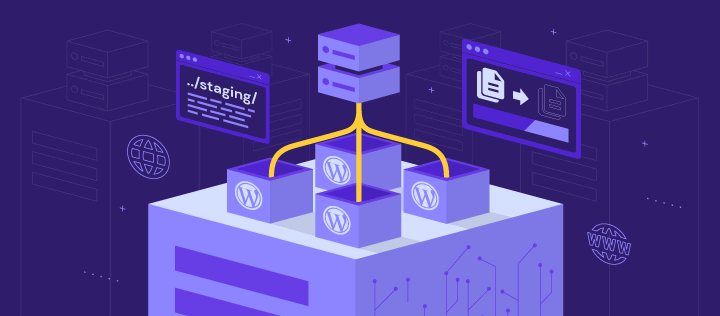
So: build and test plugins on a local environment or a staging site first, not on production.
Your best options:
You’ve got two beginner-friendly paths:
- Local environment (recommended): LocalWP, DevKinsta, MAMP/WAMP/XAMPP, or Docker. Best when you want a fast, safe setup for learning and experimenting.
- Staging site (great for realism): a clone of your live site
Best when you want to test real theme behavior, plugin conflicts, and “what happens on a real site” before launch.
Quick decision table (pick the right setup):
|
If you are… |
Use this |
|
Brand new to plugin development |
Local environment |
|
Building something for a real client site |
Staging site |
|
Testing plugin conflicts/theme behavior |
Staging site |
|
Learning fundamentals quickly |
Local environment |
Tools you’ll need:
To follow this guide smoothly, keep these ready:
- A code editor like VS Code
- A working WordPress install (local or staging)
- Optional but helpful: WP-CLI, Git, and a simple backup tool
Quick takeaway: Once your local or staging site is ready, you can build your plugin without risking your live website.
Step 1: Creating Your WordPress Plugin Folder
The first step in creating a WordPress plugin is to make a new folder where all your plugin files will reside. Navigate to the wp-content/plugins directory in your WordPress installation. Right-click and choose to create a new folder. Name this folder something descriptive and relevant to what your plugin will do. For example, if your plugin will add social media buttons to posts, you might name it social-media-buttons. Stick to lowercase letters and hyphens to separate words for better readability and compatibility.
Step 2: Add Plugin Header
The plugin header is a block of comments at the top of your main PHP file that tells WordPress essential details about your plugin. This information includes the plugin’s name, version, author, and more. Here’s a sample plugin header:
This will display PHP errors, notices, and warnings, helping you identify issues in your code.
Step 8: User Interface and Admin Settings
If your plugin has configurable settings, it’s a good idea to create an admin settings page. You can use the WordPress Settings API to add sections, fields, and settings specifically for your plugin. A well-designed user interface enhances the user experience. Make sure your settings page is intuitive and easy to navigate. Use tooltips or help text to guide users through the options.
Step 9: Localization and Translation
If you want your plugin to reach a global audience, it’s crucial to make it translation-ready. WordPress uses GNU gettext localization to translate plugins. Text domains allow translators to know which text to translate. Add a unique text domain in your plugin header and use it in the __() and _e() functions for strings that need translation.
Step 10: Submitting Your Plugin to WordPress.org
Once your plugin is ready and thoroughly tested, you can submit it to the WordPress.org repository. Create a readme.txt file that follows the WordPress readme file standard, and include it in your plugin folder. Then, submit your plugin for review via the WordPress.org plugin submission page. The readme.txt file is crucial because it provides users and reviewers with information about what your plugin does, how to install it, and how to use it. It’s also used to generate the plugin page on WordPress.org. After submission, your plugin will be reviewed by the WordPress team for security, code quality, and adherence to guidelines. Once approved, it will be publicly available for download.
Step 11: WordPress Plugin Maintenance and Updates
Keeping your plugin updated is essential for security and compatibility. Monitor your plugin regularly for issues and update it to work with the latest versions of WordPress. Regular maintenance ensures that your plugin remains secure, functional, and compatible with the latest WordPress updates. It also provides an opportunity to add new features or improve existing ones. 
Step 12: Getting User Feedback and Reviews for Your WordPress Plugin
User reviews are invaluable for improving your plugin and gaining credibility. You can encourage users to leave reviews by adding a polite prompt within your plugin’s admin settings or by sending a follow-up email after a certain period of usage. User feedback provides insights into what users like or dislike about your plugin, allowing you to make informed decisions for future updates. It’s also a great way to identify bugs or conflicts that you may not have discovered during testing.  Want to learn about WooCommerce Plugin Development? Read How To Develop a Woocommerce Plugin from Scratch Want to build a WooCommerce custom payment gateway plugin? Read this.
Congratulations on reaching the end of this beginner’s guide to creating your first WordPress plugin!
That’s your first plugin, built safely, structured cleanly, and written in a way that won’t fall apart the moment WordPress updates.
Start small. Ship something stable. Then expand it one feature at a time.
If you want, I can also rewrite this into a clean “publish-ready final blog” version with:
- a stronger “why build a plugin” section
- a real mini plugin example (with settings + nonce + sanitization)
- and a clean internal-link strategy to your Custom WordPress Plugin Developer CTA without sounding salesy.
Happy coding!
Resources for Further Learning:
For WooCommerce Developer Documentation, go here.
For the WordPress Plugin Handbook, click here.
Join the WooCommerce Community here.
Step 5: Code Organization and Best Practices
Organization is key to maintainable code. Use comments to explain what blocks of code do, and consider splitting different functionalities into separate PHP files within your plugin folder. WordPress has specific coding standards that you should follow. These include naming conventions, code formatting, and more. Adhering to these standards makes your code easier to read and maintain.
Step 6: Install and Test Your Plugin
Once your code is ready and organized, compress your plugin folder into a zip file. This makes it easier to upload to WordPress. Steps to Install and Activate the Plugin via WordPress Admin Navigate to your WordPress admin dashboard, go to Plugins > Add New, and click on the “Upload Plugin” button. Choose your zip file and click “Install Now.” After the installation is complete, click “Activate” to enable your plugin. Finally, it’s time to test your plugin. Navigate to a blog post to see if the share message appears at the end. Make sure to test it in different browsers and with different themes to ensure compatibility.
Step 7: Debugging and Troubleshooting
During the development process, you’re likely to encounter issues. Some common problems include syntax errors, deprecated functions, or conflicts with other plugins. To resolve these, carefully read the error messages, check your code for mistakes, and consult the WordPress Codex or forums for solutions. WordPress has a built-in debugging feature that can be invaluable for developers. To enable it, add the following line to your wp-config.php file:
This will display PHP errors, notices, and warnings, helping you identify issues in your code.
Step 8: User Interface and Admin Settings
If your plugin has configurable settings, it’s a good idea to create an admin settings page. You can use the WordPress Settings API to add sections, fields, and settings specifically for your plugin. A well-designed user interface enhances the user experience. Make sure your settings page is intuitive and easy to navigate. Use tooltips or help text to guide users through the options.
Step 9: Localization and Translation
If you want your plugin to reach a global audience, it’s crucial to make it translation-ready. WordPress uses GNU gettext localization to translate plugins. Text domains allow translators to know which text to translate. Add a unique text domain in your plugin header and use it in the __() and _e() functions for strings that need translation.
Step 10: Submitting Your Plugin to WordPress.org
Once your plugin is ready and thoroughly tested, you can submit it to the WordPress.org repository. Create a readme.txt file that follows the WordPress readme file standard, and include it in your plugin folder. Then, submit your plugin for review via the WordPress.org plugin submission page. The readme.txt file is crucial because it provides users and reviewers with information about what your plugin does, how to install it, and how to use it. It’s also used to generate the plugin page on WordPress.org. After submission, your plugin will be reviewed by the WordPress team for security, code quality, and adherence to guidelines. Once approved, it will be publicly available for download.
Step 11: WordPress Plugin Maintenance and Updates
Keeping your plugin updated is essential for security and compatibility. Monitor your plugin regularly for issues and update it to work with the latest versions of WordPress. Regular maintenance ensures that your plugin remains secure, functional, and compatible with the latest WordPress updates. It also provides an opportunity to add new features or improve existing ones.
Step 12: Getting User Feedback and Reviews for Your WordPress Plugin
User reviews are invaluable for improving your plugin and gaining credibility. You can encourage users to leave reviews by adding a polite prompt within your plugin’s admin settings or by sending a follow-up email after a certain period of usage. User feedback provides insights into what users like or dislike about your plugin, allowing you to make informed decisions for future updates. It’s also a great way to identify bugs or conflicts that you may not have discovered during testing. Want to learn about WooCommerce Plugin Development? Read How To Develop a Woocommerce Plugin from Scratch Want to build a WooCommerce custom payment gateway plugin? Read this.
Congratulations on reaching the end of this beginner’s guide to creating your first WordPress plugin!
That’s your first plugin, built safely, structured cleanly, and written in a way that won’t fall apart the moment WordPress updates.
Start small. Ship something stable. Then expand it one feature at a time.
If you want, I can also rewrite this into a clean “publish-ready final blog” version with:
- a stronger “why build a plugin” section
- a real mini plugin example (with settings + nonce + sanitization)
- and a clean internal-link strategy to your Custom WordPress Plugin Developer CTA without sounding salesy.
Happy coding!
Resources for Further Learning:
For WooCommerce Developer Documentation, go here.
For the WordPress Plugin Handbook, click here.
Join the WooCommerce Community here.
|
Common beginner mistakes (so you don’t get stuck)
|
Step 3: Plan Your Plugin Features
Before diving into the code, it’s crucial to plan what features your plugin will offer. A well-thought-out plan can save you time and effort later on. List down the features you want to include. Prioritize them based on their importance and feasibility. For example, if you’re creating a social media plugin, features might include adding sharing buttons, displaying follower counts, or integrating social feeds.
Step 4: Write Your Plugin Code
Now that you have a plan, it’s time to start coding. Open your main PHP file (the one with the header) in a text editor. Let’s say you want to add a message at the end of each blog post encouraging readers to share the post. You could write a function like this:
Step 5: Code Organization and Best Practices
Organization is key to maintainable code. Use comments to explain what blocks of code do, and consider splitting different functionalities into separate PHP files within your plugin folder. WordPress has specific coding standards that you should follow. These include naming conventions, code formatting, and more. Adhering to these standards makes your code easier to read and maintain.
Step 6: Install and Test Your Plugin
Once your code is ready and organized, compress your plugin folder into a zip file. This makes it easier to upload to WordPress. Steps to Install and Activate the Plugin via WordPress Admin Navigate to your WordPress admin dashboard, go to Plugins > Add New, and click on the “Upload Plugin” button. Choose your zip file and click “Install Now.” After the installation is complete, click “Activate” to enable your plugin. Finally, it’s time to test your plugin. Navigate to a blog post to see if the share message appears at the end. Make sure to test it in different browsers and with different themes to ensure compatibility.
Step 7: Debugging and Troubleshooting
During the development process, you’re likely to encounter issues. Some common problems include syntax errors, deprecated functions, or conflicts with other plugins. To resolve these, carefully read the error messages, check your code for mistakes, and consult the WordPress Codex or forums for solutions. WordPress has a built-in debugging feature that can be invaluable for developers. To enable it, add the following line to your wp-config.php file:
This will display PHP errors, notices, and warnings, helping you identify issues in your code.
Step 8: User Interface and Admin Settings
If your plugin has configurable settings, it’s a good idea to create an admin settings page. You can use the WordPress Settings API to add sections, fields, and settings specifically for your plugin. A well-designed user interface enhances the user experience. Make sure your settings page is intuitive and easy to navigate. Use tooltips or help text to guide users through the options.
Step 9: Localization and Translation
If you want your plugin to reach a global audience, it’s crucial to make it translation-ready. WordPress uses GNU gettext localization to translate plugins. Text domains allow translators to know which text to translate. Add a unique text domain in your plugin header and use it in the __() and _e() functions for strings that need translation.
Step 10: Submitting Your Plugin to WordPress.org
Once your plugin is ready and thoroughly tested, you can submit it to the WordPress.org repository. Create a readme.txt file that follows the WordPress readme file standard, and include it in your plugin folder. Then, submit your plugin for review via the WordPress.org plugin submission page. The readme.txt file is crucial because it provides users and reviewers with information about what your plugin does, how to install it, and how to use it. It’s also used to generate the plugin page on WordPress.org. After submission, your plugin will be reviewed by the WordPress team for security, code quality, and adherence to guidelines. Once approved, it will be publicly available for download.
Step 11: WordPress Plugin Maintenance and Updates
Keeping your plugin updated is essential for security and compatibility. Monitor your plugin regularly for issues and update it to work with the latest versions of WordPress. Regular maintenance ensures that your plugin remains secure, functional, and compatible with the latest WordPress updates. It also provides an opportunity to add new features or improve existing ones.
Step 12: Getting User Feedback and Reviews for Your WordPress Plugin
User reviews are invaluable for improving your plugin and gaining credibility. You can encourage users to leave reviews by adding a polite prompt within your plugin’s admin settings or by sending a follow-up email after a certain period of usage. User feedback provides insights into what users like or dislike about your plugin, allowing you to make informed decisions for future updates. It’s also a great way to identify bugs or conflicts that you may not have discovered during testing. Want to learn about WooCommerce Plugin Development? Read How To Develop a Woocommerce Plugin from Scratch Want to build a WooCommerce custom payment gateway plugin? Read this.
Congratulations on reaching the end of this beginner’s guide to creating your first WordPress plugin!
That’s your first plugin, built safely, structured cleanly, and written in a way that won’t fall apart the moment WordPress updates.
Start small. Ship something stable. Then expand it one feature at a time.
If you want, I can also rewrite this into a clean “publish-ready final blog” version with:
- a stronger “why build a plugin” section
- a real mini plugin example (with settings + nonce + sanitization)
- and a clean internal-link strategy to your Custom WordPress Plugin Developer CTA without sounding salesy.
Happy coding!
Resources for Further Learning:
For WooCommerce Developer Documentation, go here.
For the WordPress Plugin Handbook, click here.
Join the WooCommerce Community here.