That sinking feeling when you watch potential customers bounce off your store because it takes forever to load is gut-wrenching. You know your products are amazing, but your site speed is killing your sales.
Here’s the thing: LiteSpeed Cache can be your game-changer, but let’s be honest—opening that plugin dashboard feels like staring at rocket science. All those tabs, settings, and technical jargon? It’s enough to make anyone’s head spin.
You’ve probably tried tweaking a few settings here and there, only to break something or see zero improvement.
This guide cuts through all that confusion. We’ll walk you step-by-step through the exact settings that actually matter to speed up WooCommerce store.
No fluff, no overwhelming technical mumbo-jumbo—just the specific configurations that will transform your WooCommerce store into a speed demon that converts visitors into paying customers.
By the end, you’ll have a lightning-fast store and the confidence to fine-tune it like a pro.
Why LiteSpeed Cache for WooCommerce Speed?
LiteSpeed Cache is a premium caching plugin designed specifically for LiteSpeed web servers, though it also works effectively on other server environments.
Unlike generic caching solutions, LiteSpeed Cache offers WooCommerce-specific optimizations that understand the unique challenges of e-commerce websites.
Here’s how LiteSpeed Cache can transform your WooCommerce store:
- Reduced Server Load- Every visitor request forces your server to fetch identical product data from the database repeatedly, creating unnecessary strain.
LiteSpeed Cache acts like a smart menu board, keeping popular items readily available without the constant kitchen trips.
| Picture this: you’re running a fitness equipment store that gets 1,000 visitors daily. Every time someone checks out your treadmill section, your server scrambles to fetch product specs, pricing, and stock levels from the database. Without caching, your server repeats this exhausting process for each visitor. LiteSpeed Cache eliminates this redundancy by storing frequently accessed data in memory, reducing server workload by up to 90% and keeping your hosting costs manageable. |
- Improved Time to First Byte (TTFB)- A typical uncached WooCommerce store might have a TTFB of 2-3 seconds, while a properly configured LiteSpeed Cache installation can reduce this to under 200 milliseconds—a game-changing improvement for user experience and SEO rankings.
| Here’s the reality: TTFB measures how quickly your server responds to requests. Let’s say you operate a vintage bookstore online—without caching, customers wait 2-3 seconds just for your mystery novel pages to start loading. They’re drumming their fingers, considering other stores. With LiteSpeed Cache, that wait drops to under 200 milliseconds. Your customers experience instant gratification instead of frustrating delays, dramatically improving their shopping experience. |
Struggling with a slow WooCommerce store?
A sluggish site can cost you sales. Turn it into a high-speed, high-converting machine with expert WooCommerce Speed Optimization services:
- In-depth Performance Audit
- Theme & Plugin Optimization
- Code & Database Cleanup
- Core Web Vitals Boosts
- Enhanced Mobile Performance- Mobile shoppers represent over 50% of e-commerce traffic. LiteSpeed Cache’s mobile-specific optimizations, including separate mobile caching and image optimization, ensure your store performs exceptionally across all devices.
| Consider this scenario: you manage a pet supplies store where busy pet owners frequently shop during their lunch breaks on mobile phones. Over 50% of your traffic comes from smartphones. Without proper mobile optimization, these customers experience slow loading times that make them abandon their carts. LiteSpeed Cache creates separate mobile caches and automatically optimizes images, ensuring pet parents can quickly find that dog food or cat toy, even on slower cellular connections. |
Also Read: Best WooCommerce Speed Optimization Plugins Compared: Which One to Use?
Prerequisites to Speed Up WooCommerce Store using LiteSpeed Cache
Before diving into LiteSpeed Cache configuration, let’s make sure your foundation is solid. Think of this like preparing your kitchen before cooking a gourmet meal—you need the right ingredients and tools in place first.
- Server Requirements
- LiteSpeed Web Server (Highly Recommended)- While LiteSpeed Cache works on Apache and Nginx servers, you’ll unlock its full potential on LiteSpeed servers. The difference? Server-level caching that bypasses PHP entirely.
- PHP Version 7.4 or Higher- Running an older PHP version is like trying to speed up a WooCommerce store’s performance with one foot on the brake. PHP 8.0+ can improve your baseline performance by 20-30% before you even install caching.
Check your hosting control panel or ask your provider to upgrade if you’re stuck on PHP 7.3 or lower.
- Adequate Memory Allocation- Set the PHP memory limit to at least 256MB, preferably 512MB or higher. If you’re running a store with 500+ products and multiple plugins, insufficient memory will cause fatal errors and performance bottlenecks.
- Hosting Environment Check
- Disk Space Availability- LiteSpeed Cache generates cache files that need storage space. A busy online fashion store might create 2-3GB of cache files over time. Ensure you have at least 5GB of free space to accommodate cache growth without hitting storage limits.
- Database Performance Baseline- Before implementing caching, note your current database performance. Use plugins like Query Monitor to identify slow database queries. If you’re seeing 3+ second database response times, you might need database optimization before caching will be truly effective.
- SSL Certificate Installation- Modern e-commerce requires HTTPS for security and SEO. Ensure your SSL certificate is properly installed and configured. Mixed content warnings can prevent proper caching and harm your store.
- WooCommerce Setup Requirements
- Updated Core Software- Keep WordPress and WooCommerce updated to their latest stable versions. Outdated software often has compatibility issues with caching plugins and misses performance improvements built into newer releases.
- Theme Compatibility Assessment- Not all themes play nice with aggressive caching. If you’re using a heavily customized theme or one with lots of dynamic elements, test caching on a staging site first. Page builders like Elementor or Divi sometimes require special cache exclusions.
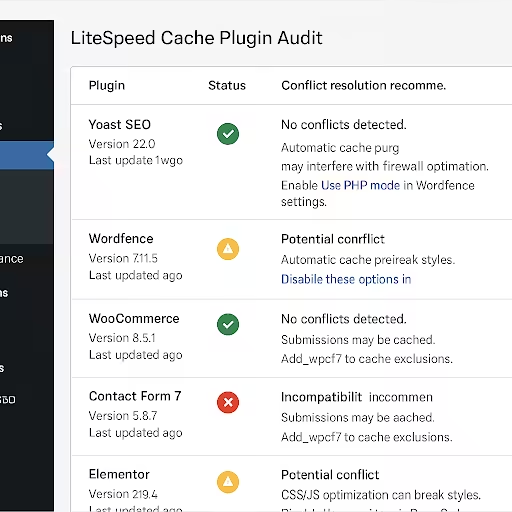
- Essential Plugin Audit- Some plugins conflict with caching mechanisms. Common problematic plugins include:
- Certain security plugins with aggressive scanning
- Real-time chat widgets that inject dynamic content
- Some multilingual plugins that modify URLs
- Membership plugins with complex user role systems
- Performance Baseline Documentation
- Speed Test Your Current Store- Before implementing LiteSpeed Cache, document your baseline performance using multiple tools:
- GTmetrix: Record load time, PageSpeed score, and YSlow score
- Google PageSpeed Insights: Note mobile and desktop scores
- Pingdom: Document load time and performance grade
| Let’s say you run an online electronics store. Your pre-cache metrics might look like: -Homepage load time: 4.8 seconds -Product page load time: 6.2 seconds -PageSpeed mobile score: 32/100 -Time to First Byte: 2.1 seconds |
- Identify Current Bottlenecks- Use tools like GTmetrix’s waterfall chart to identify what’s slowing down your store:
- Large unoptimized images
- Render-blocking JavaScript and CSS
- Slow server response times
- Too many HTTP requests
- Heavy plugin loading on every page
Struggling with a slow WooCommerce store?
A sluggish site can cost you sales. Turn it into a high-speed, high-converting machine with expert WooCommerce Speed Optimization services:
- In-depth Performance Audit
- Theme & Plugin Optimization
- Code & Database Cleanup
- Core Web Vitals Boosts
- Backup and Safety Measures
- Complete Site Backup- Create a full backup of your website files and database before installing LiteSpeed Cache. While the plugin is generally safe, having a backup ensures you can quickly restore if anything goes wrong during configuration.
- Staging Environment Setup- If possible, test LiteSpeed Cache configurations on a staging copy of your store first. This lets you experiment with settings, test functionality, and ensure everything works perfectly before applying changes to your live store.
- Critical Functionality Checklist- Before proceeding, ensure these core WooCommerce functions work perfectly:
- Product browsing and search
- Add to cart functionality
- Checkout process (including payment gateways)
- User account creation and login
- Order confirmation emails
- Admin dashboard access
- Payment and Security Considerations
- Payment Gateway Compatibility- Verify that your payment processors (PayPal, Stripe, etc.) work correctly with caching enabled. Some payment systems require specific pages to remain uncached for security compliance.
- Security Plugin Configuration- If you’re using security plugins like Wordfence or Sucuri, configure them to work harmoniously with caching. Some security features can interfere with cache generation or cause false positives.
By completing these prerequisites, you’re setting yourself up for LiteSpeed Cache success. A solid foundation means the optimization techniques in the next section will deliver maximum impact on your efforts to speed up your WooCommerce store performance.
Also Read: Ultimate Guide to WooCommerce Speed Optimization
How to Speed Up WooCommerce Store Using LiteSpeed Cache: Complete Settings Walkthrough
Transform your sluggish WooCommerce store into a lightning-fast shopping experience that converts visitors into customers.
First Things First: Getting Your Speed Foundation Right
Setting up your cache foundation correctly is like building a house—get this wrong, and everything else crumbles.
These core settings activate LiteSpeed’s caching engine and establish the groundwork for all performance improvements.
Think of enabling cache as flipping a master switch that instantly transforms how your server handles visitor requests, storing pre-built page versions instead of generating them from scratch every time.
Step-by-Step Implementation:
- Navigate to LiteSpeed Cache → General Settings in your WordPress dashboard
- Toggle “Cache” to “ON” to activate the caching system
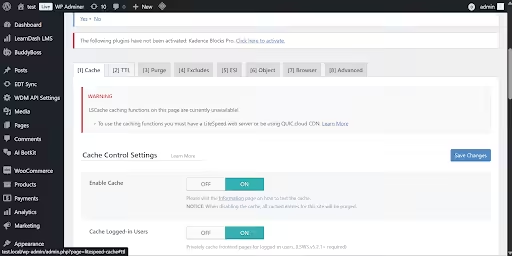
- Navigate to LiteSpeed Cache → General → General Settings tab in your WordPress dashboard
- Enable “Automatically Upgrade” to receive the latest performance patches automatically
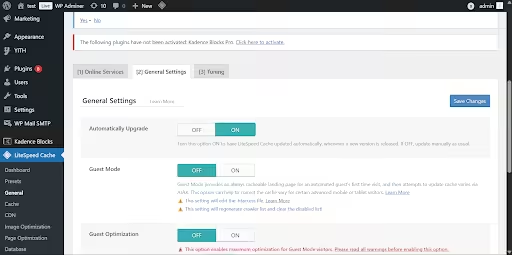
- Click “Save Changes” and clear any existing cache
| Essential Tools: GTmetrix or Pingdom to measure before/after performance Chrome DevTools to monitor network requests and loading times Google PageSpeed Insights to track Core Web Vitals improvements |
Cache Settings: Fine-Tuning Your Performance Engine
Cache settings determine which content gets stored and how, directly impacting your store’s speed for different user types.
Proper configuration here ensures returning customers get blazing-fast experiences while maintaining the dynamic functionality crucial for e-commerce operations.
These settings balance performance gains with the personalized shopping experience your customers expect.
Step-by-Step Implementation:
- Go to LiteSpeed Cache → Cache tab
- Set “Cache Logged-in Users” to “ON” (test thoroughly with user accounts)
- Enable “Cache REST API” for faster mobile app and API performance
- Turn on “Cache Mobile” to serve optimized content to mobile users
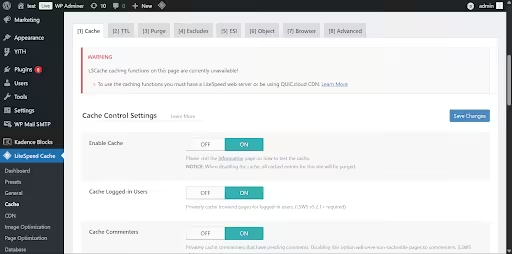
- Activate “Cache for WooCommerce” for e-commerce-specific optimizations
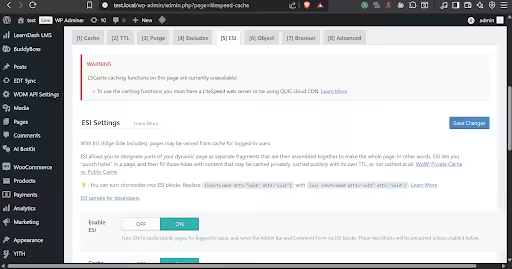
- Configure ESI (Edge Side Includes) for dynamic content handling
| Essential Tools: User Agent Switcher browser extension to test mobile caching Postman or Insomnia to test REST API caching BrowserStack to verify mobile performance across devices |
WooCommerce-Specific Optimization for your E-commerce Excellence
Your online store has unique requirements that standard caching can’t handle—sensitive checkout processes, real-time inventory updates, and personalized user accounts.
These specialized settings ensure your cache boosts performance without breaking critical shopping cart functionality.
Proper WooCommerce integration maintains the delicate balance between speed and the dynamic nature of online retail.
Step-by-Step Implementation:
- Navigate to Cache → Excludes tab
- Verify these URLs are excluded: /cart/, /checkout/, /my-account/, /wc-api/
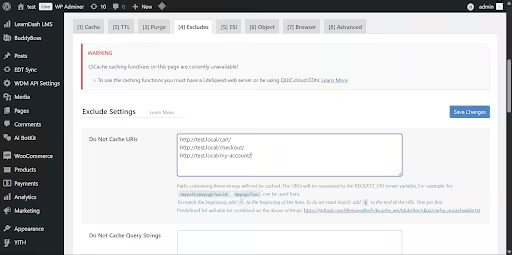
- Enable ESI blocks for “Add to Cart” buttons under Cache → ESI
- Activate “Guest Mode” for non-logged-in visitors
- Set up “Guest Optimization” for maximum first-time visitor speed
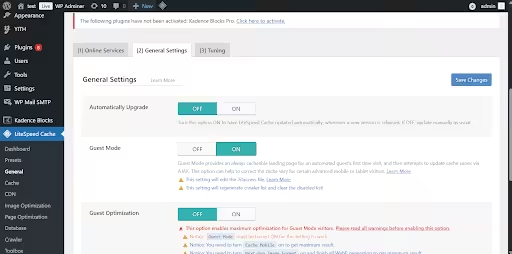
- Test the checkout process thoroughly after enabling each setting
| Essential Tools: WooCommerce Store Toolkit for testing checkout functionality Query Monitor plugin to identify database queries and caching effectiveness Browser’s Incognito Mode to test guest user experience |
CDN & QUIC.Cloud Integration: Make Your Store Lightning Fast Worldwide
Content Delivery Networks distribute your store’s assets across worldwide servers, ensuring customers in Tokyo load your images as fast as those in New York.
QUIC.cloud’s seamless integration with LiteSpeed Cache provides automatic image optimization, global content distribution, and intelligent caching that traditional CDNs can’t match.
This ecosystem approach eliminates the complexity of managing multiple optimization services.
Step-by-Step Implementation:
- Register for a QUIC.cloud account through the LiteSpeed Cache dashboard
- Navigate to LiteSpeed Cache → CDN tab
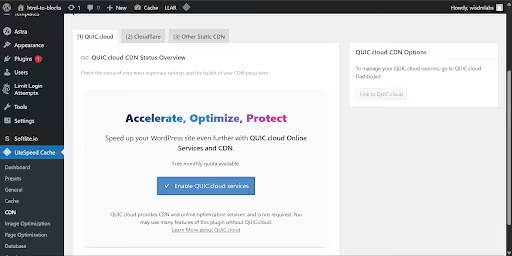
- Follow the Setup Wizard to connect your domain
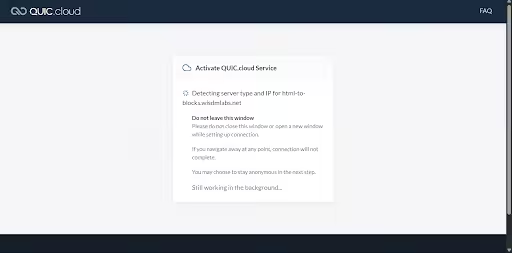
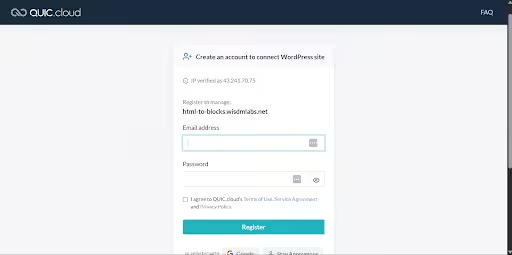
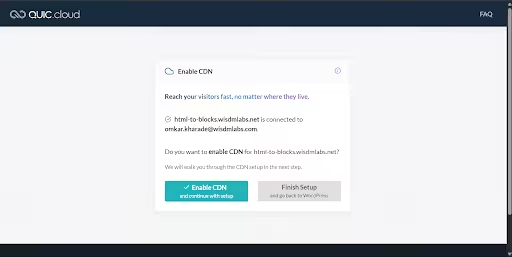
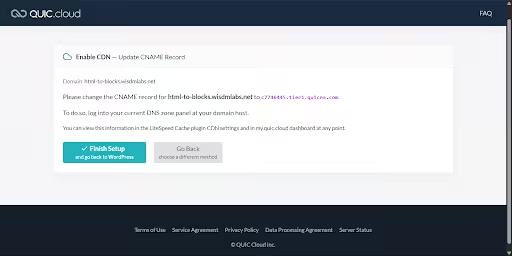
- Enable “Auto Image Optimization” for automatic compression
- Configure DNS settings to route traffic through QUIC.cloud
- Monitor performance improvements through QUIC.cloud analytics
| Essential Tools: DNS Checker to verify DNS propagation CDN Planet to test global content delivery speeds WebPageTest with multiple locations to measure worldwide performance |
Struggling with a slow WooCommerce store?
A sluggish site can cost you sales. Turn it into a high-speed, high-converting machine with expert WooCommerce Speed Optimization services:
- In-depth Performance Audit
- Theme & Plugin Optimization
- Code & Database Cleanup
- Core Web Vitals Boosts
Page Optimization: Code Efficiency Mastery
Clean, optimized code loads faster and uses less bandwidth, directly improving user experience and search engine rankings.
These settings strip unnecessary characters, combine files, and intelligently load resources to minimize the data transferred between your server and visitors’ browsers.
Smart optimization can reduce file sizes by 20-30% while maintaining full functionality.
Step-by-Step Implementation:
- Go to the Page Optimization tab
- Enable “Minify CSS”, “Minify JS”, and “Minify HTML”
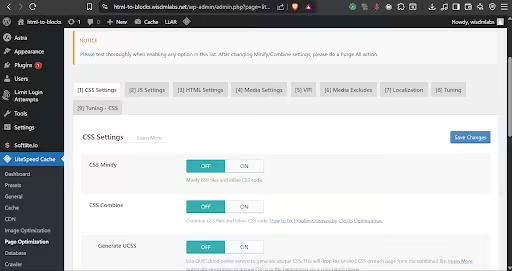
- Carefully test “Combine CSS/JS” (disable if layout breaks)
- Activate “Load JS Deferred” for non-critical scripts
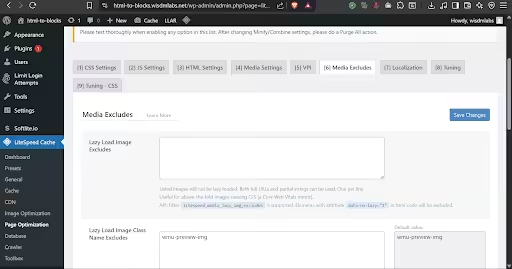
- Enable “Lazy Load Images” and “Lazy Load Iframes.”
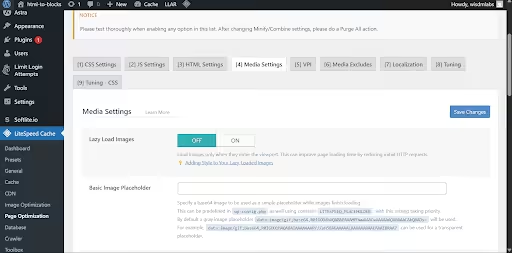
- Test “Remove Unused CSS” on the staging site first
- Exclude critical above-the-fold images from lazy loading
| Essential Tools: Staging Environment for safe testing of optimization settings Chrome DevTools Coverage Tab to identify unused CSS/JS Lighthouse to measure optimization impact on performance scores |
Image Optimization: Visual Performance Without Compromise
Images typically account for 60-70% of a webpage’s size, making optimization crucial for e-commerce stores with high-quality product photos.
Modern compression techniques and format conversion can dramatically reduce file sizes while maintaining the visual quality essential for showcasing products.
Smart optimization preserves the shopping experience while eliminating performance bottlenecks.
Step-by-Step Implementation:
- Navigate to the Media Optimization tab
- Enable “Auto Request Cron” for automatic background optimization
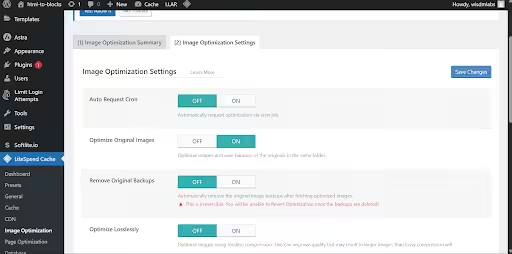
- Turn on “WebP Replacement” for modern image format delivery
| Essential Tools: ImageOptim or TinyPNG for manual image compression comparison WebP Converter plugins as a backup optimization Google’s Squoosh to test image quality at different compression levels |
Database Optimization: Backend Performance Boost
Your WordPress database accumulates digital clutter over time—old revisions, spam comments, expired temporary data—that slows down every query.
Regular database maintenance prevents this gradual performance degradation, ensuring your store’s backend operates as efficiently as the day you launched.
Clean databases mean faster product searches, quicker page generation, and improved overall responsiveness.
Step-by-Step Implementation:
- Access Database Optimization tab
- Enable cleanup for post revisions, spam comments, and transients
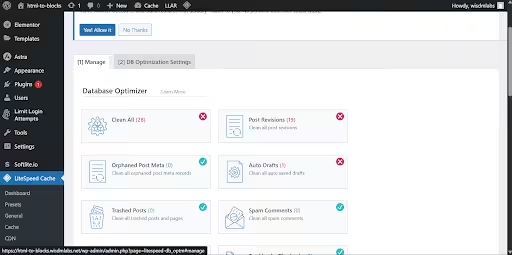
- Set up scheduled weekly cleanups for automated maintenance
- Review orphaned metadata and unused tags for removal
- Create a database backup before running the first optimization
- Monitor database size reduction and query performance improvements
| Essential Tools: WP-Optimize or Advanced Database Cleaner as alternative options phpMyAdmin for direct database inspection and manual cleanup Query Monitor to track database performance improvements |
Struggling with a slow WooCommerce store?
A sluggish site can cost you sales. Turn it into a high-speed, high-converting machine with expert WooCommerce Speed Optimization services:
- In-depth Performance Audit
- Theme & Plugin Optimization
- Code & Database Cleanup
- Core Web Vitals Boosts
Advanced Settings: Power User Optimizations
These sophisticated features unlock the full potential of your server resources and browser capabilities.
Object caching eliminates database bottlenecks, browser cache controls reduce repeat visitor load times, and connection optimizations prepare browsers for external resource loading.
Master these settings to achieve enterprise-level performance that scales with your store’s growth.
Step-by-Step Implementation:
- Navigate to Cache → Object tab
- Enable Object Cache (Redis or Memcached if available on your hosting)
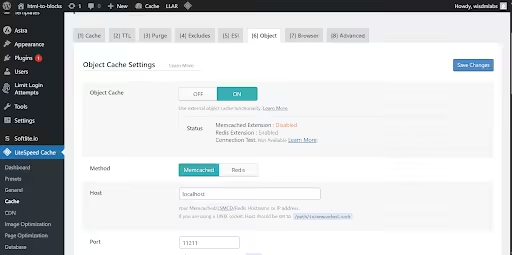
- Navigate to Cache → Object tab
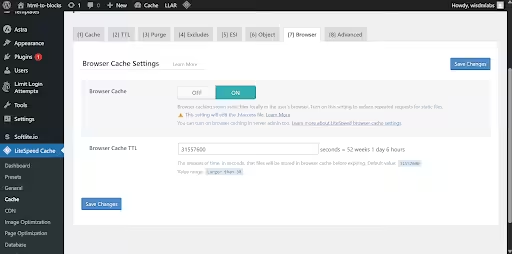
- Turn on Browser Cache.
- Set Browser Cache TTL to 31557600 (1 year) for static assets
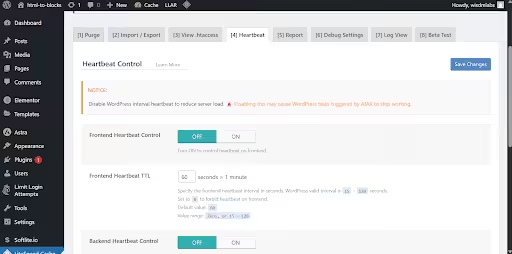
- Navigate to Toolbox → Heartbeat tab
- Configure Heartbeat Control to reduce unnecessary server requests
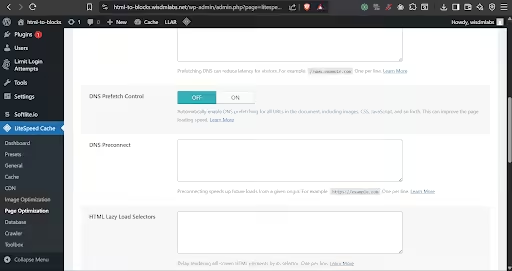
- Navigate to Page Optimization → HTML Settings tab.
- Enable DNS Prefetch for external resources (Google Fonts, analytics)
- Set up Preconnect for critical third-party services
- Test all changes on the staging environment first
| Essential Tools: Redis Commander or phpRedisAdmin to monitor object cache performance Chrome DevTools Network Tab to verify browser caching behavior New Relic or Query Monitor to track server resource usage |
People Also Read: Technical Guide to WooCommerce Backend, Admin Dashboard & API Speed Enhancement
Conclusion
LiteSpeed Cache is the game-changer your WooCommerce store needs to transform sluggish performance into spectacular speed. This comprehensive configuration guide has shown you how to harness powerful caching mechanisms while maintaining essential e-commerce functionality.
For stores with complex requirements or those seeking guaranteed results, a professional WooCommerce speed optimization service can ensure flawless implementation from the start.
Imagine transforming your online store from an 8-second load time nightmare into a sub-2-second shopping experience that delights customers and boosts search engine rankings.
The results speak for themselves: higher conversion rates, improved Google rankings, and enhanced customer trust.
Speed up WooCommerce store optimization is an ongoing process. As your inventory and traffic grow, these settings require fine-tuning to maintain peak performance. While many store owners can implement basic configurations, complex scenarios often demand deeper technical expertise.
Don’t let slow page speeds cost you sales. Whether you tackle these configurations yourself or hire expert developers for comprehensive optimization, taking action today will transform your WooCommerce store into the high-performance e-commerce powerhouse that drives real business results.