| 💡 FACT: According to Akamai research, a mere 1-second delay in page load time can result in a 7% reduction in conversions, while websites with faster load times are 40% more likely to rank higher in Google search results. |
When your WooCommerce site begins to slow down, experience downtime, or hit resource limitations, it’s often a sign that you’ve outgrown your current hosting environment.
The good news? Migrating WooCommerce to a new host doesn’t have to mean sacrificing sales or frustrating customers with dreaded downtime.
With careful planning and the right approach, you can transform a struggling store into a high-performing e-commerce powerhouse.
This comprehensive guide will walk you through every step of migrating your WooCommerce store to a new host while maintaining zero downtime, preserving customer trust, maintaining SEO rankings, and ensuring business continuity throughout the process.
Ready to jump straight into action? Skip directly to the step-by-step guide to begin the process immediately.
Why Migrate Your WooCommerce Store to a New Host?
Before diving into the technical details of migration, it’s important to identify what’s prompting your move in the first place.
Understanding the driving forces behind your migration decision will help you choose the right hosting solution and migration strategy:
1. Outgrowing Your Current Hosting Resources
As your product catalog expands and traffic increases, shared hosting plans often buckle under the pressure. Signs include:
- Slower page loading times during peak traffic
- Database timeouts during busy shopping periods
- Restrictions on the number of products you can effectively manage
2. Performance Issues Affecting Sales
Poor performance directly impacts your bottom line:
- Slow server response times frustrate customers
- Inadequate memory allocation causes timeout errors
- Limited resources prevent proper WooCommerce optimization
3. Cost Considerations and Better Value Alternatives
As your business matures, you might discover:
- You’re paying premium prices for subpar performance
- Specialized WooCommerce hosting providers offer superior features at competitive rates
- The hosting landscape is highly competitive, with better deals constantly emerging
4. Advanced Features from WooCommerce-Specialized Hosts
Modern hosting providers offer game-changing features:
- Performance enhancements that reduce query loads by up to 95%
- Specialized caching solutions optimized for WooCommerce
- Automatic updates, staging environments, and specialized support teams
- Integration with cart abandonment recovery services to capture lost revenue
5. Security Concerns with Current Provider
E-commerce sites are prime targets for cyberattacks:
- Inadequate security measures put both your business and customers at risk
- Modern hosting providers offer advanced security features
- Regular security updates and specialized e-commerce protection are crucial
Suggested Read: WooCommerce Product Migration: Your Complete Guide to Moving Products Without Breaking
MUST-Do’s Before You Migrate WooCommerce to a New Host
Thorough preparation is the cornerstone of a successful migration to WooCommerce. This phase determines whether your migration will be smooth and seamless or fraught with complications and downtime.
1. Prepare Pre-Migration Checklist
Inventory Your Digital Assets
- Create a detailed list of all active plugins and their versions
- Document any custom themes or child themes
- Note any modifications made to core files
- Map out all WooCommerce-specific customizations
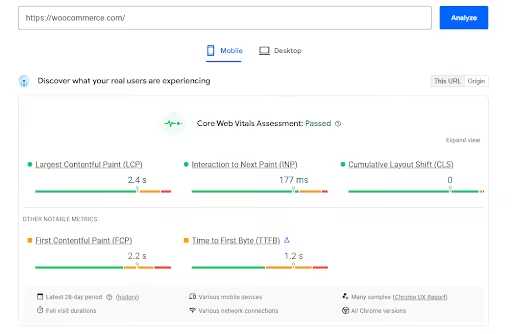
| 🛠️ TOOL TIP: Run a speed test on your current site using GTmetrix or Google PageSpeed Insights before migration. This baseline measurement will help you objectively measure performance improvements after the migration. |
Document Current Server Configurations
- Note your PHP version, memory limits, and execution times
- Record any special server configurations
- List all database optimizations currently in place
- Document caching systems and configurations
Notify Stakeholders
- Inform your team about the planned migration window
- Consider whether customers need advance notice
- Alert any third-party service providers that integrate with your store
- Prepare communication templates for potential issues
2. Creating Comprehensive Backups
Database Backup
- Use both plugin-based backups and manual database exports
- Pay special attention to WooCommerce-specific tables
- Verify backup integrity by testing restoration on a staging site
- Store backups in multiple secure locations
File System Backup
- Back up your entire wp-content folder, which contains themes, plugins, and uploads
- Pay special attention to product images and downloadable products
- Preserve file permissions where critical
- Maintain folder structure and relationships
Export WooCommerce-Specific Settings
- Tax settings and configurations
- Shipping methods and zones
- Payment gateway settings
- Checkout customizations
3. Selecting the Right Time to Migrate
Analyze Traffic Patterns
- Use Google Analytics to identify your lowest traffic periods
- Consider time zones if you have an international customer base
- Look for consistent patterns over several weeks

Plan Around Sales Events
- Never migrate during Black Friday, seasonal sales, or product launches
- Allow buffer time before major promotions
- Consider the day of the week and time of day

Create a Detailed Migration Timeline
- Set clear milestones for each phase of the migration
- Include buffer time for unexpected issues
- Plan for thorough testing before making the final switch
- Assign responsibilities to team members if applicable
Read more: 14 Best Tools for WooCommerce Migration in 2025
How to Migrate WooCommerce to a New Host: The Foolproof 5-Step Process(Not Zero-Downtime Method)
This is the traditional migration process that includes taking your store offline while you manually transfer files, databases, and configurations step-by-step.
It’s thorough and systematic, but requires downtime since you’re essentially rebuilding your entire store from scratch on the new server.
Step 1: Setting Up Your New Hosting Environment
Select and Configure the Right Hosting Plan
- Consider your current traffic levels and growth projections
- Evaluate the server resources needed for your product catalog size
- Ensure the plan includes necessary features like SSL certificates
- Verify that PHP and MySQL versions are compatible with your WooCommerce version
Optimize Server Settings for WooCommerce
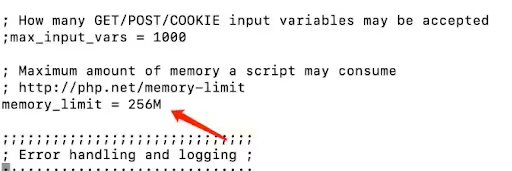
- Configure PHP memory limits (recommend minimum 256MB)
- Set appropriate execution times for large catalog operations
- Enable OpCache for improved PHP performance
- Configure MySQL settings for e-commerce operations
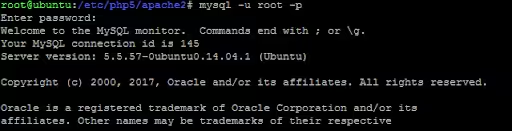
Create Databases and Access Credentials
- Set up a new database with an appropriate character set (utf8mb4 recommended)
- Create database users with limited permissions
- Document all credentials securely
- Test database connections before proceeding
Step 2: Transferring WordPress Core Files
Move WordPress Files to the New Server
- Transfer all WordPress core files
- Include themes, plugins, and uploads directories
- Maintain the directory structure
- Verify file integrity after transfer
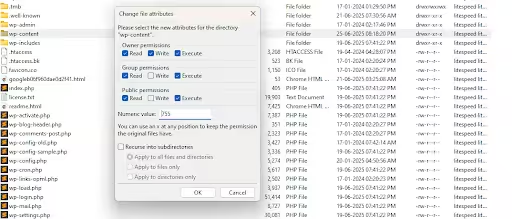
Handle File Permissions and Ownership
- Apply recommended permission settings (typically 755 for folders, 644 for files)
- Ensure the web server user has appropriate access
- Pay special attention to writable directories
- Verify permissions on sensitive configuration files
Set Up Proper Directory Structure
- Maintain WordPress core structure
- Verify that content directories are properly organized
- Check custom directory configurations if used
- Confirm .htaccess files transferred correctly
Step 3: Migrating the WooCommerce Database
Export Database from Current Host
- Use phpMyAdmin, MySQL Workbench, or command-line tools
- Ensure all WooCommerce tables are included
- Verify export file integrity
- Maintain table relationships and constraints
Perform Search and Replace Operations
- Update URLs and file paths for the new environment
- Use tools that handle serialized data correctly
- Replace both http and https variations
- Consider domain mapping if applicable
Import Database to New Host
- Use appropriate import tools based on file size
- Monitor for import errors
- Verify the database structure after import
- Test connections immediately
Step 4: Moving WooCommerce-Specific Content
Transfer Product Images and Media Files
- Ensure all files in the wp-content/uploads are transferred completely
- Verify product gallery images
- Check downloadable product files
- Confirm that the variation images are accessible
Migrate Downloadable Products and Access Controls
- Verify file permissions for downloadable products
- Test download functionality
- Ensure access controls remain intact
- Check expiration settings if applicable
Preserve WooCommerce Customizations
- Transfer custom templates
- Maintain modified checkout processes
- Migrate custom product fields
- Preserve payment and shipping customizations
wp search-replace ‘http://example.dev’ ‘http://example.com’ –precise –recurse-objects –all-tables
Step 5: Configuring the New Environment
Set Up SSL Certificates
- Install and configure SSL for secure checkout
- Update WordPress site URL to https
- Configure forced SSL for checkout and account pages
- Test secure connections throughout the site
Configure Caching and Performance Optimizations
- Implement appropriate caching strategies
- Configure object caching if available
- Set up browser caching for static assets
- Optimize images and assets
Implement Server-Level Security Measures
- Configure firewalls and security rules
- Set up malware scanning
- Implement login protection
- Ensure backup systems are functioning
Migrate WooCommerce to a New Host Without Losing a Single Sale (Zero-Downtime Method)
A zero-downtime migration strategy is a method of moving your website or online store to a new hosting provider without any interruption to your business operations.
The basic idea here is that instead of taking your site offline during the move, you build a complete copy of your store on the new hosting provider while your original store continues serving customers. Here’s how you can achieve that:
Step 1: Build Your New Store Behind the Scenes
Think of this like building a new house while still living in your old one. Create an exact copy of your current store using the new hosting provider. This includes:
- All your products and descriptions
- Customer accounts and order history
- Your website design and special features
- Payment systems and the checkout process
Before announcing your move, test everything thoroughly. Browse products, add items to cart, complete fake purchases, and make sure your admin dashboard works properly.
Step 2: Keep Both Stores in Sync
While testing your new store, your current store is still taking real orders.
Set up a system to capture these changes and regularly update your test store with new orders, inventory changes, and customer updates. This prevents losing important data during the transition.
Step 3: Plan Your Address Change (DNS Switch)
When you move websites, it’s like changing your business address. You update your “address book” (DNS settings) so customers find your new location instead of the old one.
Important timing consideration: This address change doesn’t happen instantly worldwide. Some customers might still see your old store while others see the new one for up to 48 hours. Plan accordingly.
| Preparation tip: 1-2 days before moving, ask your domain provider to speed up address changes by reducing something called “TTL values” from 24 hours to 5-60 minutes. |
Choose the right moment: Switch addresses during your slowest business hours, considering customers in different time zones.
Step 4: Handle Orders During the Transition
During the 48-hour transition period, you might receive orders for both your old and new stores. Here’s how to manage this:
- Set up systems to capture orders from both locations
- Check for duplicate orders from the same customer
- Have a clear process for transferring old-store orders to your new system
- Keep customers informed about any delays
Step 5: Ensure Payment Systems Work
Test all payment methods (credit cards, PayPal, etc.) before and after the move. Have backup payment options ready, and monitor all transactions closely during the first few days.
| Final Tips 1. Schedule your move during off-peak hours 2. Have your technical team available during the switch 3. Communicate with customers if you expect any service interruptions 4. Monitor your new store closely for the first 24-48 hours Remember: With proper planning, your customers shouldn’t notice any disruption to their shopping experience. |
Read more: WooCommerce Migration Cost: DIY vs Professional Services
Post-Migration Success: Critical Tests After You Migrate WooCommerce to a New Host
This section covers the essential testing protocols you need to follow to ensure your store functions flawlessly on its new server environment.
These will help you identify and resolve any issues before your customers encounter them.
1. Product Catalog and Search
Verify that all products display correctly with proper images and descriptions. Test category pages, filtering options, and search functionality to ensure customers can find products easily.
Check that product variations, attributes, and pricing display accurately across all product pages.
| 💡 Quick Tip: Use your store’s search bar to look for your best-selling products first. |
2. Shopping Cart and Checkout Process
Test adding multiple products to the cart and verify calculations, including taxes, discounts, and shipping costs.
Process test transactions using coupon codes to ensure promotional pricing works correctly. Complete the entire checkout flow from cart to confirmation page without interruption.
| 💡 Quick Tip: Test checkout with both guest users and registered customers to catch account-specific issues. |
3. Customer Account Access
Verify existing customers can log in with their current credentials and access their account dashboards.
Test the password reset functionality and ensure customers can view their complete order history. Confirm that saved payment methods and shipping addresses remain intact and functional.
| 💡 Quick Tip: Ask a trusted customer to test their login before announcing the migration publicly. |
4. Payment Gateway Connections
Process small test transactions through each configured payment method to verify connectivity. Check that order confirmation emails are sent automatically and contain correct information.
Verify that payment records appear properly in your WooCommerce dashboard and test refund processing if applicable.
| 💡 Quick Tip: Use test mode transactions first, then process one real $1 transaction per payment method. |
5. Shipping Calculation Accuracy
Test shipping calculations for various product combinations, weights, and destinations to ensure accuracy. Verify international shipping rates if you serve global customers and check special shipping rules.
Confirm that the shipping label generation works correctly if you use automated shipping services.
| 💡 Quick Tip: Test shipping to your own address first to verify calculations and label generation. |
Conclusion: Your Migration Success Roadmap
Migrating your WooCommerce store to a new host is more than a technical task—it’s a strategic move that can unlock better performance, reliability, and growth for your business.
Don’t rush the process. Careful planning and comprehensive testing are your safeguards against costly errors and customer dissatisfaction.
The rewards go far beyond a simple server change: most store owners see faster site speeds, stronger security, reduced costs, and even higher conversion rates after migrating to WooCommerce-optimized hosting.
To maximize these benefits, keep the momentum going. Set up regular backups, monitor your site’s performance, and stay proactive about your hosting needs as your business evolves.
The expertise you’ve gained during this migration will empower you to optimize and expand your store with confidence in the future.
Remember, every step you take to migrate WooCommerce correctly is an investment in your business’s long-term success.
Follow the systematic approach, stay diligent, and your store will continue to thrive, delivering a smoother experience for both you and your customers for years to come.