The e-learning industry has experienced unprecedented growth, with millions of entrepreneurs and educators seeking powerful ways to monetize their knowledge.
One of the most effective strategies involves connecting WooCommerce with LearnDash—a LearnDash WooCommerce integration that transforms your custom WordPress site into a comprehensive learning management system with robust e-commerce capabilities.
This integration has become the go-to solution for course creators who want seamless payment processing, automated course enrollment, and professional sales funnels.
Whether you’re running a corporate training program, an online coaching business, or a digital academy, this step-by-step guide will walk you through the entire LearnDash customization development with WooCommerce Integration process, ensuring you can start selling courses effectively within hours.

Understanding LearnDash WooCommerce Integration: The Foundation of Modern E-Learning
What Makes This Integration Powerful?
LearnDash WooCommerce integration combines two industry-leading platforms to create a unified learning and selling ecosystem.
LearnDash serves as your learning management system (LMS), handling course creation, student progress tracking, and certification delivery. Meanwhile, WooCommerce manages the entire sales process, from product listings to payment processing and order management.
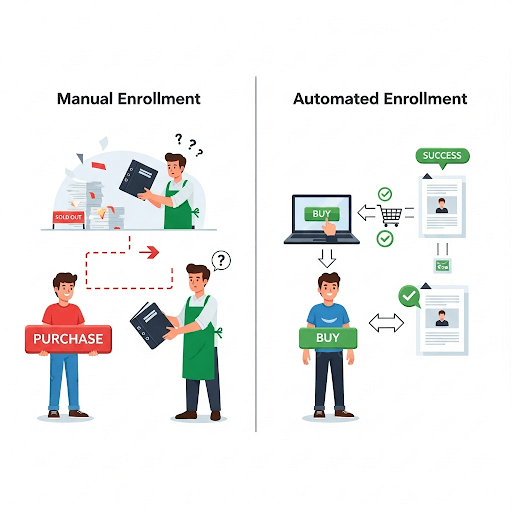
| Imagine you’re operating a digital marketing academy. Without proper integration, students would need to purchase courses through one system and then manually receive access through another—creating friction and potential drop-offs. The LearnDash WooCommerce integration eliminates this friction by automatically enrolling students in purchased courses immediately after payment confirmation. |
Also Read: Which Is the Best LearnDash Payment Gateway: A Complete Comparison Guide for Course Creators
Key Benefits of LearnDash WooCommerce Integration
- Automated Course Access- Students gain instant access to purchased courses without manual intervention, reducing administrative overhead and improving user experience.
- Advanced Payment Options- WooCommerce supports multiple payment gateways, subscription models, installment plans, and international currencies—essential for global course sales.
- Professional Sales Pages- Create compelling product pages with detailed course descriptions, testimonials, pricing tables, and multimedia content that converts visitors into students.
- Comprehensive Analytics- Track sales performance, student enrollment patterns, and revenue metrics through integrated reporting systems.
- Flexible Pricing Models- Implement one-time payments, subscriptions, payment plans, or bundle pricing to maximize revenue potential.
| Let’s say you run a photography training business. The integration allows you to sell individual courses, create photography masterclass bundles, offer monthly subscription access to your entire library, and even provide payment plans for premium workshops—all while automatically managing student access and progress tracking. |

Course Engagement Dropping? Sales Not Growing?
Upgrade to a clean, fast, and tailored LearnDash experience that puts your students first.Unlock powerful customizations:
- Custom Quiz Logic & Design
- Payment Gateway Setup
- Third-Party Tool Integrations
- Personalized Course Flows
Essential Requirements for LearnDash WooCommerce Integration
Before diving into the integration process, ensure you have these fundamental components in place:

A. Technical Requirements
| Requirement | Description |
| WordPress Installation | A self-hosted WordPress site with administrative access and adequate hosting resources |
| LearnDash License | An active LearnDash license (any tier works, though higher tiers offer additional features) |
| WooCommerce Plugin | The latest version of WooCommerce installed and configured with basic store settings |
| SSL Certificate | Secure socket layer encryption for safe payment processing and data protection |
| Compatible Theme | A responsive WordPress theme that supports both LearnDash and WooCommerce functionality |
B. Account Preparations
- Payment Gateway Setup: Configure your preferred payment processors (Stripe, PayPal, Square, etc.) within WooCommerce before integration
- Email Configuration: Ensure reliable email delivery for course notifications, purchase confirmations, and automated communications
- Backup Strategy: Implement automated backups before making significant changes to your site architecture
| Consider this scenario: You’re launching a language learning platform. Having proper SSL certificates ensures international students can safely purchase courses, while configured email systems guarantee they receive immediate access credentials and progress notifications in their preferred language. |
People Also Search For: How to Set Up PayPal as a Payment Gateway in LearnDash: LearnDash PayPal Integration Guide
Step-by-Step LearnDash WooCommerce Integration Process
Step 1: Install and Activate Required Plugins
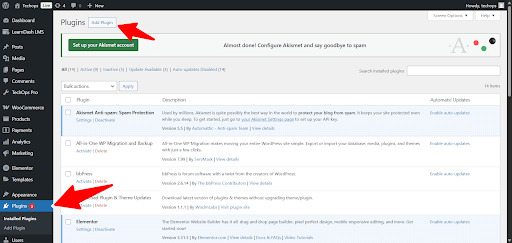
Navigate to your WordPress dashboard and ensure both LearnDash and WooCommerce are properly installed. If you haven’t installed them yet:
💡 Pro Tip: Always install plugins during low-traffic periods to minimize potential disruptions to existing users.
Installation Process:
- Go to Plugins → Add New
- Search for “WooCommerce” and install the official plugin
- Upload your LearnDash plugin file (downloaded from your account)
- Activate both plugins sequentially
🔑 You’ll also need the official WooCommerce for LearnDash add-on, which we’ll install in Step 3. Make sure you have access to your LearnDash account to download it.
Step 2: Configure WooCommerce Basic Settings
If this is your first time using WooCommerce, run the WooCommerce Setup Wizard (it launches right after activation). This will guide you through setting up your store location, currency, and payment methods quickly.
Core Configuration Areas
- Store Location and Currency: Set your primary business location and default currency based on your target market
- Payment Methods: Enable and configure your chosen payment gateways with appropriate transaction fees and security settings
- Shipping Options: For digital courses, disable physical shipping or configure virtual product settings
- Tax Settings: Configure tax rates according to your jurisdiction’s digital product regulations

💡 Pro Tip: Create a test product first to verify your payment gateway configuration before setting up course products.
Step 3: Enable LearnDash WooCommerce Integration
This step requires the WooCommerce for LearnDash add-on, which you can download from your LearnDash account under “Downloads.”
Install WooCommerce for LearnDash Add-on
- Go to 👉 LearnDash Account → downloads
- Download the WooCommerce for LearnDash .zip file.
Add to Your WordPress Site
- In your WordPress Dashboard → Plugins → Add New.
- Click Upload Plugin (top of the page).
- Click Choose File → Select the .zip file you downloaded.
- Click Install Now.
- After installation, click Activate Plugin.
| Verify Installation 1. Go to WooCommerce → Products → Add New (or edit). 2. You should now see a Course Access panel in the Product Data box. 3. That confirms the integration is active. |
Course Engagement Dropping? Sales Not Growing?
Upgrade to a clean, fast, and tailored LearnDash experience that puts your students first.Unlock powerful customizations:
- Custom Quiz Logic & Design
- Payment Gateway Setup
- Third-Party Tool Integrations
- Personalized Course Flows
Step 4: Create WooCommerce Products for Your Courses
Transform your LearnDash courses into purchasable WooCommerce products:
Product Creation Process
- Go to Products → Add New in your WordPress dashboard
- Enter your course title as the product name
- Write compelling product descriptions highlighting course benefits
- Set product type to “Simple Product” for individual courses
- Configure pricing in the “General” tab
- Mark as “Virtual” product (no shipping required)
💡 Pro Tip: Use high-quality featured images and detailed product galleries to showcase course content and increase conversion rates.
Step 5: Link Products to LearnDash Courses
Establish the critical connection between WooCommerce products and LearnDash courses:
Linking Process:
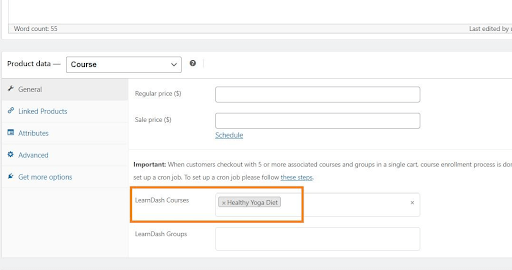
- Edit your newly created WooCommerce product
- Scroll to the “Product Data” section
- Find the “LearnDash” tab within product settings
- Select the corresponding LearnDash course from the dropdown
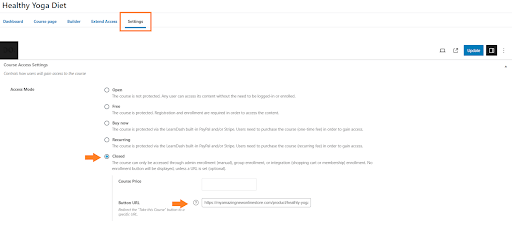
Go to LearnDash LMS → Courses → Edit the course → open the Settings tab.
Under Access Settings, select Closed.
After selecting Closed, you’ll see:
- Custom Button URL: Paste the URL of your WooCommerce course product.
- Custom Button Text (optional): Add something like “Buy Now” or “Enroll Today.”
- Configure enrollment settings [Configure enrollment behavior in the product settings (choose immediate access or manual approval after purchase]
- Save product changes
Source – https://aovup.com/woocommerce/sell-courses/
🚀 Advanced Tip: For bundle products, you can associate multiple LearnDash courses with a single WooCommerce product, creating comprehensive learning packages.
Step 6: Test the Integration Workflow
Before launching, thoroughly test the LearnDash WooCommerce integration:
| ✅ Testing Checklist A. Create Test Purchases: Use test payment methods to simulate the complete customer journey B. Verify Automatic Enrollment: Confirm that successful purchases immediately grant course access C. Check Email Notifications: Ensure customers receive appropriate purchase confirmations and access instructions D. Test User Experience: Navigate through the process as a student would, identifying potential friction points |
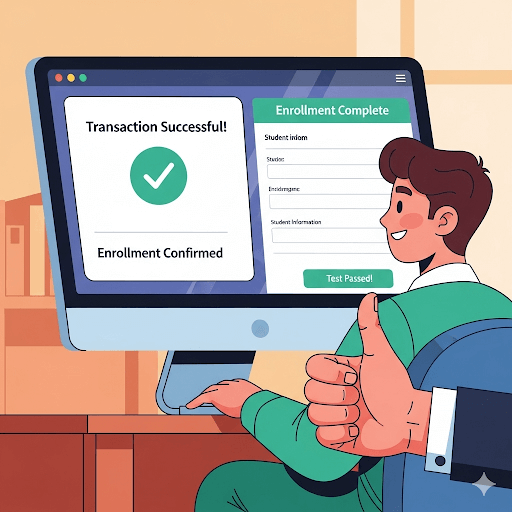
| Allow Customers to Access the Course (via WooCommerce) 1. In your WP Dashboard → LearnDash LMS → Courses. 2. Hover over the course you want → click Edit. 3. On the course edit screen → click the Settings tab. |
1. Under Access Settings, you’ll see options:
- Open → anyone can access without payment.
- Free → requires registration but no payment.
- Buy Now → one-time purchase handled by LearnDash checkout.
- Recurring → subscription handled by LearnDash checkout.
- Closed → external system (like WooCommerce) controls access.
👉 Select Closed.
2. After selecting Closed, two new fields appear:
- Custom Button URL → put the URL of your WooCommerce course product here.
- Custom Button Text (optional) → e.g., “Buy Now” or “Enroll Now”.
Source – https://aovup.com/woocommerce/sell-courses/
💡 This ensures when a visitor sees the course page, the button redirects them to the WooCommerce product page to purchase.
✅ Finalize
- Click Update/Publish in the top right.
- Now, when someone buys the WooCommerce product, they are automatically enrolled in the linked course.
Also Read: How to Set Up Zoom with LearnDash for Live Online Classes
Step 7: Configure Advanced Settings
Optimize your LearnDash WooCommerce integration with advanced configurations:
⚙️ Advanced Configuration Options
| Setting | Purpose |
| Enrollment Timing | Set whether students access courses immediately upon payment or after order completion |
| Course Removal | Configure whether course access is revoked if payments are refunded or chargebacks occur |
| User Role Management | Define appropriate WordPress user roles for course purchasers |
| Integration Logging | Enable detailed logging for troubleshooting potential issues |
💡 For recurring payments or memberships: You can install WooCommerce Subscriptions or WooCommerce Memberships to sell subscription-based access or gated course bundles.
Course Engagement Dropping? Sales Not Growing?
Upgrade to a clean, fast, and tailored LearnDash experience that puts your students first.Unlock powerful customizations:
- Custom Quiz Logic & Design
- Payment Gateway Setup
- Third-Party Tool Integrations
- Personalized Course Flows
Common Pitfalls to Avoid in LearnDash WooCommerce Integration
A. Technical Mistakes
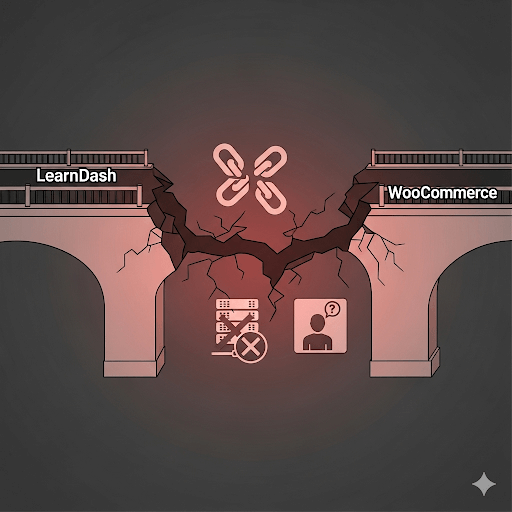
❌ Inadequate Server Resources
E-commerce and LMS functionality requires substantial server resources. Ensure your hosting plan can handle increased traffic and processing demands.
❌ Plugin Conflicts
Some themes and plugins may interfere with the integration. Test thoroughly in staging environments before implementing changes on live sites.
❌ Incomplete SSL Configuration
Partial SSL implementation can cause payment failures and security warnings that damage customer trust.
B. User Experience Errors
❌ Complicated Checkout Process
Streamline the purchase flow by minimizing required form fields and offering guest checkout options.
❌ Poor Course Descriptions
Vague or incomplete product descriptions lead to customer confusion and increased refund requests.
❌ Missing Mobile Optimization
Ensure both course content and purchasing process work seamlessly across all devices.
C. Business Strategy Oversights
❌ Inadequate Pricing Strategy
Research competitor pricing and consider psychological pricing principles when setting course fees.
❌ Insufficient Customer Support
Prepare clear documentation and support channels for students experiencing access issues.
❌ Neglecting Legal Considerations
Include appropriate terms of service, refund policies, and privacy statements for digital product sales.
| Common Mistake: Let’s say you’re operating a fitness coaching platform. A common mistake would be creating overly complex course bundles without clear value propositions. Students might purchase expecting personal training sessions but receive only video content, leading to dissatisfaction and refund requests. |
Frequently Asked Questions
1. How long does LearnDash WooCommerce integration typically take to set up?
Most integrations can be completed within 2-4 hours, depending on your technical experience and the complexity of your course structure. Simple setups with basic courses may take as little as one hour, while complex implementations with multiple course bundles and custom configurations could require a full day.
2. Can I sell course bundles and subscriptions through this integration?
Absolutely. WooCommerce supports various product types including grouped products for bundles and subscription products when paired with compatible extensions. You can create comprehensive learning packages that combine multiple LearnDash courses into single purchasable products.
3. What happens if a student requests a refund?
The integration handles refunds gracefully. When you process a refund through WooCommerce, you can configure the system to automatically revoke the student’s course access or maintain access based on your refund policy preferences.
4. Is the integration compatible with membership plugins?
Yes, LearnDash WooCommerce integration works well with popular membership plugins like MemberPress and Restrict Content Pro. This compatibility enables sophisticated access control and recurring billing models for comprehensive learning platforms.
5. Can I track detailed analytics across both platforms?
The integration maintains separate but connected analytics systems. WooCommerce provides sales and customer data while LearnDash tracks learning progress and engagement. Many users implement Google Analytics or specialized LMS analytics tools for unified reporting.
6. What payment gateways are supported?
Any payment gateway compatible with WooCommerce works with the integration, including Stripe, PayPal, Square, Authorize.Net, and dozens of regional payment processors. This flexibility ensures you can serve students globally with their preferred payment methods.
7. How do I handle international sales and tax compliance?
WooCommerce includes robust international commerce features including multi-currency support, automatic tax calculations, and VAT handling for European sales. Combined with appropriate tax plugins, you can manage global compliance requirements effectively.
🎯 Conclusion
The LearnDash WooCommerce integration represents one of the most powerful combinations in the e-learning industry, providing the technical foundation for sustainable online education businesses.
Whether you’re selling individual courses, comprehensive programs, or subscription-based learning libraries, this integration provides the flexibility and reliability needed for professional online education delivery.
For businesses seeking expert assistance, you can hire experienced LearnDash developers with WisdmLabs who will make the integration process seamless and ensure optimal configuration for your specific needs.
Key Takeaways
Remember that successful implementation extends beyond technical configuration. Focus on:
- Creating compelling course content
- Optimizing your sales funnels
- Continuously improving the student experience
The LearnDash WooCommerce integration gives you the tools—your success depends on how effectively you use them to serve your students and grow your educational business.
Start with simple configurations and gradually implement advanced features as your comfort level and business requirements evolve.
The investment in proper setup pays dividends through increased sales, reduced administrative overhead, and enhanced student satisfaction for years to come.