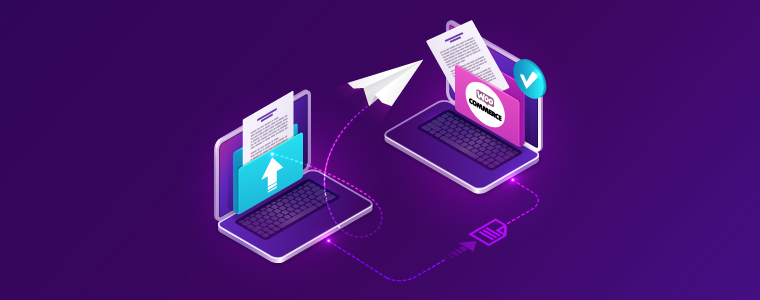
You can migrate to WooCommerce via three methods, 1. Manually importing data, 2. Using a Migration tool, 3. Outsourcing WooCommerce migration. This article delves into the basics of WooCommerce migration and also provides a migration checklist for a successful transition.
Thinking of WooCommerce as the potential new platform for your eCommerce biz?
You’re on the right path.
WooCommerce and WordPress offer the foundation for a very flexible and scalable eCommerce system; no wonder WooCommerce powers nearly 39-41% of all online stores!
It is the most popular plugin on the internet, used by 22% of the top 1 million eCommerce websites.
That’s social proof for you!
So, now that you’ve decided to migrate to WooCommerce, let’s see how you go about doing it!
Table of Contents
Want to migrate to WooCommerce quickly? Our official WooCommerce migration team can do it for you!
How to Migrate to WooCommerce – the 3 Paths of Destiny
There are three ways in which you can migrate your site to WooCommerce.
- Migrating all your data manually
- Using a migration tool
- Hiring an expert WooCommerce developer to migrate your website for you
Each of these methods has its advantages and disadvantages, which we shall see presently. However, I’ll say this upfront, I prefer migrating with a developer, so that the risk of data loss during WooCommerce migration is minimized.
1. Migrating all your data manually
When we say manual migration, we mean that you export all your data – including products, orders, users, their payment information, etc. from your existing site and import it on your WooCommerce setup.
WooCommerce has a default product CSV importer that makes it quite easy to import your products, provided all data has been mapped correctly.
The process is pretty straightforward on paper.
- Export all your data from the platform you are leaving. Create separate CSV files for Products, Orders, and Users.
- Go to WooCommerce > Products.
- Select Import. This is the native WooCommerce Product Importer.
- Choose the file you want to import and click Continue.
- Make sure that all your data is mapped correctly, as per the WooCommerce format. This part is the most tricky. WooCommerce tries to automatically map the fields from the CSV file to WooCommerce’s native ones, but you might need to make a few changes in the Column Mapping if required.
- Run the importer and complete the process.
- Now, similarly, migrate the Orders and Users.
Now, while this sounds quite simple, the process of column mapping can be quite difficult, if you don’t know what you are doing. Even DIY WordPress experts who have years of experience in the field sometimes end up overlooking a field in this process, which messes up the entire migration. I would not recommend manual migration to novice WooCommerce users and caution even professionals to tread carefully.
Don’t miss: 7 Common Pitfalls with DIY WooCommerce Migration
2. Using a Migration Tool
There are several migration tools that you can use to successfully migrate all your data to WooCommerce. Some of the most popular ones include:
The way these tools work, they have a default migration protocol that transfers your users, products, and orders from your old website to your new one. The main advantage here is that your existing store keeps running during this migration and there is no site downtime, i.e. you can continue to receive new orders even as you are importing the old ones from your store.
The process is quite similar to migrating your products manually;
Step 1: Set Up WooCommerce on WordPress
Before anything moves, you need your new WooCommerce home ready.
What to Do:
- Install WordPress on your hosting (we recommend starting on a staging server).
- Choose a WooCommerce-compatible theme. If unsure, use Storefront—it’s clean, fast, and works out of the box.
- Configure the basics: taxes, shipping zones, and payment gateways (like Stripe, Razorpay, or WooPayments).
| Practical tip: Create a “store settings checklist” with screenshots of your current platform’s settings. If you run an electronics store, for instance, this approach could help you match your previous store’s customer experience exactly, resulting in zero customer service inquiries related to the platform change. |
Step 2: Migrate Your Store Data
This is the heart of the migration—getting your products, customer info, and orders moved over accurately.
What to Move:
- Products (including images, descriptions, categories, and attributes)
- Customer accounts and purchase history
- Order history and statuses
- Reviews and downloadable links (if applicable)
| Hands-on example: Let’s say you run a subscription coffee business with 3,400+ products with multiple variations. By using a migration tool like LitExtension and taking time to map custom fields properly, you could maintain all your product relationships and customer subscription preferences. Consider this approach: 1. First migrate 10 test products and verify all attributes transferred correctly 2. Fix any mapping issues before proceeding 3. Run the full product migration 4. Verify a sample of 50 random products across different categories This methodical approach can prevent customer service issues and maintain your positive review ratings through the transition. |
Step 3: Transfer Media Files
Move all product-related images, banners, and downloads. These need to:
- Be stored in the correct folders
- Be linked correctly in your product or course pages
- Maintain their optimization for web
Problem-solving example: Picture yourself running a cooking course website with 200+ recipe PDFs as downloadable content. After migration, customers might complain they can’t access their files. The investigation could find that while the PDFs moved to the server, the file paths in the database still point to the old location. Creating a script to update all download paths could save hundreds of manual fixes.
| Quick win: Let’s say you run a fashion retail store. You might use the migration opportunity to implement the WebP image format, potentially reducing your page load times by 40%+ and improving Core Web Vitals scores that were previously hurting your Google rankings. |
Step 4: Transfer SEO Metadata and Preserve URLs
If you’re already ranking, you’ll want to keep that traffic.
Here’s how:
- Use plugins like Yoast or Rank Math to migrate meta titles, descriptions, and schema.
- Set up 301 redirects from your old platform’s URLs to your new WooCommerce ones.
- Maintain your content structure where possible to preserve topical relevance signals.
from organic search. After migration, you notice a 30% traffic drop because many product URLs have changed format (from /p/product-name to /product/product-name).
By implementing a comprehensive redirect strategy mapping old URLs to new ones and submitting your new sitemap to Google, within three weeks, your traffic could recover and actually improve by 12% due to better internal linking structure in WooCommerce.
| SEO protection strategy: If you run a pet accessories store, you might maintain 100% of your search rankings during migration by: 1. Creating an exact URL mapping spreadsheet before migration 2. Setting up redirects before launching the new site 3. Monitoring 404 errors daily for the first month and creating additional redirects as needed 4. Keeping your old platform running for 3 months after migration (on a subdomain) as backupa |
Step 5: Test Everything (Like It’s Live)
Before you go live, test every part of your store—especially:
- Checkout (try test orders with multiple payment methods)
- Coupons and discounts
- Product filters and search
- Account logins
- Mobile layout
- Email notifications
Systematic approach: Imagine running an electronics store where you create a 37-point testing checklist that team members must complete before launch. This process might uncover that PayPal payments work fine on desktop but fail on mobile due to a JavaScript conflict with your menu system—a critical issue that could affect 40% of your customers.
3. Hiring a WooCommerce Expert for your WooCommerce Migration

Migrating manually or even using a migration tool for your move to WooCommerce is somewhat of a risk, as you never know what might go wrong, nor can you count on anyone to help you out if it does. Hence, the easiest and safest option, by far, is migrating with the help of a WooCommerce Expert.
There are several advantages of migrating with a WooExpert:
- Your website is in safe hands
- You have experts to rely on, for advice and efficiency
- All of these are trusted experts who know WooComemrce inside out
- They can help you migrate your store in the least possible time, with zero trouble
Having said that, migrating with an expert can be the most expensive of the three methods of migration. But the knowledge and reliability are worth it. Besides, if you calculate the time and effort you might waste in trying to migrate yourself, messing it up, and then approaching an expert, going directly with expert help seems like a better alternative, right?!
That covers the three ways of migrating to WooCommerce. Now let us see some of the important steps you need to take during WooCommerce migration.
Basics of Migrating to WooCommerce (from an External Platform)
Most of the WooCommerce migration requests we see are from either Shopify or Magento. It’s quite understandable, as these are the two next most popular eCommerce platforms after WooCommerce.
Migrating from Shopify to WooCommerce is relatively easier, as the two eCommerce platforms have many parallel characteristics.
Hence, in this scenario, using a migration tool like Cart2Cart works well enough, provided you map all your fields perfectly while exporting your data from your Shopify store and importing it on your WooCommerce store.
Migrating from Magento to WooCommerce can be trickier. Magento caters to small, medium, as well as enterprise-level eCommerce systems, offering powerful functionality that makes it a robust platform.
However, post the launch of Magento 2.0 and the subsequent stopping of support for Magento 1 as early as June 2020, WooCommerce has emerged as a strong option as the go-to migration platform. Similar to Shopify, migrating from Magento to WooCommerce can be managed manually, with a migration tool, or with help from a WooCommerce expert.

Image by pikisuperstar Freepik
Platform-Specific Plugins
When you’re switching to WooCommerce, using platform-specific migration plugins can save you a TON of time and technical headaches.
Here are two of the most popular (and trusted) options for 2025:
Migrate & Import Shopify to WooCommerce Plugin– This plugin is designed specifically for users moving from Shopify to WooCommerce. It simplifies the migration process by automatically importing:
- Products (with variations, images, SKUs)
- Customer records
- Order histories
- Categories and tags
- SEO metadata (like product meta titles and descriptions)
How it helps:
- No manual CSVs: You don’t have to mess around exporting and re-mapping Shopify files. The plugin pulls the data directly via Shopify’s API.
- Smart syncing: It can even sync ongoing changes during the migration window. So if you still make sales on Shopify while switching, those new orders can be pulled into WooCommerce too.
- Secure and official: Since it’s available directly via WooCommerce’s marketplace, it’s vetted for security and compatibility.
FG Magento to WooCommerce Plugin– The FG Magento to WooCommerce plugin is a specialist tool that helps migrate content from Magento to WooCommerce easily without having to hire a custom developer.It can migrate:
- Products (including variable products)
- Categories
- Customer accounts
- Orders
- CMS content (like pages and blog posts)
How it helps:
- Handles large stores: Designed to manage even big Magento databases without timing out.
- Automatic data mapping: No need to manually adjust fields — the plugin matches Magento fields to WooCommerce automatically.
- Support for SEO: It can transfer SEO metadata like slugs, meta titles, and meta descriptions so you don’t lose your Google rankings after the switch.
- Premium features: (Optional paid version) allows you to migrate product images, custom attributes, and more complex store setups.
Recommended: All About Magento to WooCommerce Migration
How to Choose the Right WooCommerce Migration Method for Your Store
You’ve got 3 solid options. Here’s a quick comparison:
| Method | Best For | Pros | Cons | Method |
| Manual Migration | Small stores, tech-savvy users | Full control, no 3rd party needed | Time-consuming, risk of errors | Manual Migration |
| Migration Plugin (e.g., Cart2Cart, LitExtension) | Medium-sized stores | Automated, fast, supports most platforms | Can be pricey, sometimes messy URLs | Migration Plugin (e.g., Cart2Cart, LitExtension) |
| Hire a WooCommerce Expert | Large stores or complex setups | Hands-off, expert QA | Most expensive | Hire a WooCommerce Expert |
| Real Talk: If you’ve got more than 200 products or lots of order data, don’t go manual unless you really know what you’re doing. |
Need Professional help to migrate to WooCommerce? Our official WooCommerce migration experts can ensure a seamless transition between stores with zero data loss and minimal downtime.
Get In Touch
WooCommerce Migration Checklist: What to Do Before You Start
Before migrating anything, you need to plan. Migration isn’t just about moving content—it’s about keeping your store functional, secure, and SEO-safe.
- Backup Your Current Store
Always, always start with a full backup. Use your hosting backup tool or a plugin like UpdraftPlus. Back up files, databases, customer data, and orders.
| Real-world lesson: Imagine you run a craft supply store. Let’s say during migration from another platform to WooCommerce, you skip the backup step. Then a plugin conflict corrupts your product categories. Without a backup, you might spend 14+ hours manually rebuilding 120+ categories and subcategories—time that could have been spent on marketing your seasonal collection launch. |
- Audit Your Existing Data
List all the content you want to migrate: products, customers, orders, reviews, coupons, media files, and custom post types. Clean out old or inactive listings.
| Practical tip: Picture yourself running a beauty products business. During migration planning, you might discover that 23% of your products haven’t sold in over a year. Rather than migrating everything, you could archive these items—resulting in a faster migration and a more focused catalog that actually improves your conversion rate. |
- Set Up a Staging Site
Never migrate directly on a live site. Use staging (your host may offer this) to safely test the migration before going public.
| Example in action: Imagine running an electronics store that remains fully operational during your three-week migration process. By testing thoroughly on staging first, you could find and fix payment gateway conflicts before customers ever experience them. |
- Decide What to Keep or Drop
This is a good time to declutter. Remove expired coupons, old campaigns, or out-of-stock products. Clean store = faster migration.
- List Your Essential Plugins
Note down plugins you’ll need post-migration (SEO, payment gateways, LMS tools like LearnDash or TutorLMS, etc.)
| Time-saving tip: Creating a spreadsheet mapping your current platform’s features to WooCommerce plugins before migration could save your team approximately 8 hours of research and prevent functionality gaps after launch. |

Common WooCommerce Migration Mistakes (And How to Avoid Them)
Migrating your store sounds straightforward—until something breaks.
Here are the most common mistakes we see (and how to dodge them like a pro):
- Skipping the Backup (Seriously, Don’t Do This)
Why it’s bad:
One wrong click and you could lose customer data, orders, or your entire store layout.
Fix: Always take a full backup of your site and database before starting. Use tools like UpdraftPlus, BlogVault, or your hosting provider’s built-in backup tool.
Example:
A client migrating from Shopify to WooCommerce lost all their product variations because of a CSV error. Luckily, we had a full backup and restored it in minutes.
- Not Using a Staging Site
Why it’s bad:
Making changes directly on your live site = major downtime risk, broken pages, or worse—customers seeing a half-finished store.
Fix: Always test the migration on a staging site first. Most managed WordPress hosts (like SiteGround or Cloudways) offer 1-click staging.
- Forgetting to Sync New Orders
Why it’s bad:
If you export your orders today but go live next week, you’ll miss everything that happened in between.
Fix: Right before switching over, sync your latest data—especially new orders, user signups, and customer messages. Some migration tools let you do a second “final sync.”
Example:
An LMS site lost a week’s worth of enrollments during their migration weekend. They forgot to pull in new LearnDash user data. That led to refund requests and manual re-enrollments.
- Ignoring 301 Redirects
Why it’s bad:
If your old URLs don’t redirect to the new ones, Google (and your visitors) hit dead ends. Your rankings could tank.
Fix: Create a 301 redirect map using tools like Screaming Frog or Ahrefs. Plugins like Redirection or Rank Math make it easy to implement on WooCommerce.
Example:
One digital course seller dropped from page 1 to page 3 on Google—because their top blog posts and product pages lost all link equity after the migration. Fixing it took months.
- Not Testing the Checkout Flow
Why it’s bad:
If your payment gateway doesn’t work, your store can’t make money. It’s that simple.
Fix: Use test mode in Stripe, WooPayments, or PayPal to run through every possible checkout scenario before going live.
Example: A WooCommerce store owner launched without testing PayPal—turns out it was in sandbox mode. Customers were placing orders, but payments never went through.
- Leaving Broken Links or Missing Files
Why it’s bad: Users clicking on broken downloads or getting 404s creates a terrible first impression—and hurts SEO.
Fix: After migration, run a broken link checker (like Ahrefs, Screaming Frog, or the Broken Link Checker plugin). Double-check product files and course download links.
What is your experience with WooCommerce migration? Any tips you would like to share with us? Drop a comment to let us know!
FAQs
1. Which is better, Shopify or WooCommerce?
If you are looking for a scalable eCommerce platform that also has a ton of features and functionalities, WooCommerce is the best choice. If ease of use is your primary concern, then you can go for Shopify, though WooCommerce has a very small learning curve and you get used to the interface quickly enough, even if you don’t know how to code.
2. Which is better, WooCommerce or Magento?
Magento is designed from an enterprise-scale perspective and has a very steep learning curve. WooCommerce, on the other hand, is much more user-friendly and has excellent features for your typical eCommerce needs. In addition, the community support for WooCommerce is tremendous and you can find solutions to all your queries almost instantly.
3. Should I move from WooCommerce to Shopify?
Unless there is some major trouble that you are facing on your WooCommerce store, we recommend against moving from WooCommerce to Shopify. The reason is, that WooCommerce, as an eCommerce platform, offers much more scalability, functionality, and freedom of expansion than Shopify. We suggest talking to a certified WooCommerce expert and discussing your problem before you decide to migrate away from WooCommerce.
4. Is WooCommerce good for SEO?
WooCommerce is extremely SEO-friendly and works well with out-of-the-box SEO plugins for WordPress. In addition, you can refer to this WooCommerce SEO optimization guide to improve your site rankings.
5. What’s the difference between Shopify and WordPress?
Shopify is an independent eCommerce platform that offers hosted eCommerce solutions. WordPress is an open-source CMS that can be used for a variety of applications, including setting up an eCommerce store (you will need an eCommerce plugin like WooCommerce or Easy Digital Downloads for this).
6. Which is better, WooCommerce or OpenCart?
Opencart is one of the most user-friendly platforms designed for eCommerce, as it is built to target new users and business owners who don’t want to or can’t code. It is good enough for small and medium-sized stores, but when it comes to scalability, SEO, and integrating advanced features into your e-store, WooCommerce has no competition. Based on the vast open-source ecosystem of WordPress, WooCommerce offers more flexibility, more customization options, and better support!