| The best way to redesign a WordPress site isn’t to start with fonts, sections, or trends. It’s to start with a baseline. If you don’t record “before” numbers, you can’t prove ROI after launch and redesigns turn into opinion fights. Track a small set of metrics across traffic quality, conversion, speed, SEO, and user behavior, then compare 2–4 weeks before vs 2–4 weeks after. |
Why most redesigns feel “successful”… and still fail
A lot of redesigns ship with these comments:
“Looks so much cleaner.”
“Finally modern.”
“Feels premium now.”
All fine. But your business doesn’t get paid in “premium.” It gets paid in results.
During a WordPress website redesign, the quiet risk is this: the site looks better, but it performs the same (or worse). And nobody can prove anything because no one wrote down the baseline.
If you want to redesign ROI to be real, not vibes, you need a before/after scorecard otherwise you would be stuck in the redoing it loop.

The simplest way to track redesign ROI (without overcomplicating it)
Here’s the clean approach we use:
- Pick one primary conversion goal (and one secondary).
- Capture baseline numbers for at least 14–28 days.
- Launch.
- Track again for 14–28 days (longer for SEO).
- Compare “before vs after” with context (traffic sources, seasonality, campaigns).
That’s it.
What to track by business type (so you don’t track everything)
If you’re service-based (leads/bookings)
Track:
- Form submissions
- Booking clicks
- Call clicks / WhatsApp clicks
- Lead quality (simple tag: good fit / not fit)
If you’re in eCommerce
Track:
- Add to cart rate
- Checkout start rate
- Purchase completion rate
- Revenue per visitor
- Refund/support ticket volume (post-launch)
If you’re content / SEO-heavy
Track:
- Organic clicks + top pages
- Indexing + crawl errors
- Internal link patterns (top pages to money pages)
- Email signups (if relevant)

The metrics that matter (before & after)
1) Conversion metrics (the ROI core)
Track before + after:
- Primary conversion rate (form submissions/purchases/ bookings)
- Leads or orders per week
- Revenue per visitor (for eCommerce)
- Cost per lead (if you run ads)
Why it matters:
A homepage can “look” improved and still reduce conversions because the next step is less obvious.
| Popular tool: GA4 (Google Analytics) How to use it: Confirm the conversion exists: GA4 → Admin → Events (make sure your key event shows up, like generate_lead or purchase) Mark it as a conversion: GA4 → Admin → Conversions → New conversion event (select your event) Compare before vs after: GA4 → Reports → Acquisition → Traffic acquisition (add Conversion column, compare date ranges) Weekly leads or orders: GA4 → Reports → Engagement → Events (filter by conversion event, switch chart to weekly) Tip: If you run ads, track Cost per lead by connecting Google Ads and using Traffic acquisition with cost metrics. |
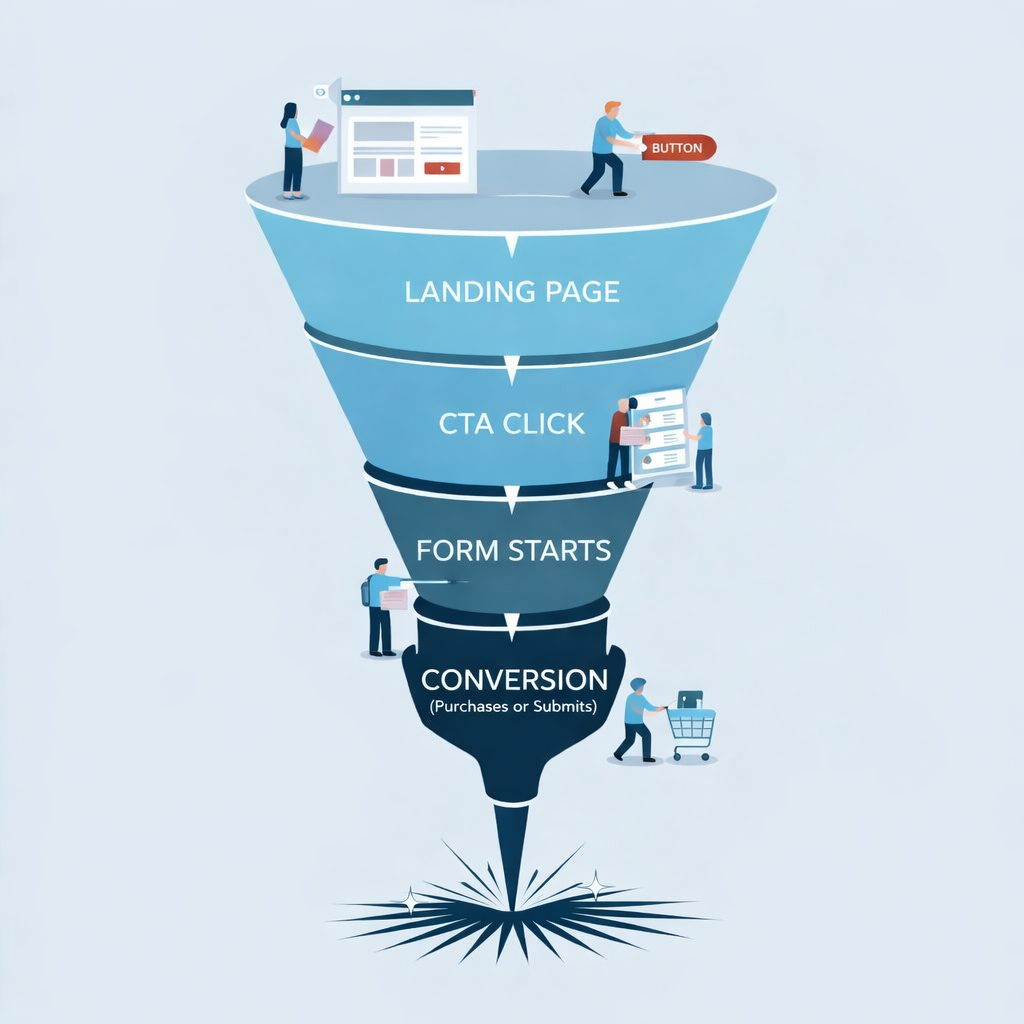
2) Funnel drop-offs (where people quit)
Track before + after:
- Landing page → CTA click rate
- CTA click → form start rate
- Form start → form submit rate
- Cart → checkout start (eCom)
- Checkout start → purchase complete (eCom)
Why it matters:
This tells you what changed, rather than guessing.
| The “Red Flag Metrics” you should watch in the first 72 hours Most redesign issues show up fast — but only if you’re looking. Check these daily for the first 3 days: Conversion events firing (forms, purchases, bookings) 404 spike (Search Console + server logs if available) Checkout errors (for eCom: failed payments, gateway issues) Traffic source mix (if a campaign launched the same day, don’t blame redesign) Core pages load time (homepage + top landing pages) If any of these look off, fix them immediately. Don’t “wait and see.” |
3) Top landing pages (traffic quality + intent)
Track before + after:
- Top 10 landing pages by traffic
- Conversion rate per landing page
- Bounce rate/ engagement per landing page
Why it matters:
These pages are usually doing the heavy lifting. Don’t bury them under “overall site metrics.”
| Track: top 10 landing pages, conversion rate per landing page, engagement per landing page Popular tool: GA4 Landing Page report How to use it:GA4 → Reports → Engagement → Landing page Sort by Users to get your top landing pages Add columns: Conversions, Conversion rate, Average engagement time Compare date range: before vs after Export if needed: top right Share → Download file Tip: Do not judge redesign impact only on “overall site conversion.” Landing pages show the truth faster. |
4) SEO health metrics (the slow-burn ROI)
Track before + after:
- Organic clicks + impressions (Google Search Console)
- Top queries + top pages
- Average position for key pages
- 404 errors + redirect count
- Index coverage issues
When to compare:
- 2–4 weeks after launch: catch technical issues
- 6–12 weeks after launch: judge the trend properly
| Track: Organic clicks, impressions, top queries, top pages, average position, 404s, index coverage Popular tool: Google Search Console How to use it: Search Console → Performance → toggle Clicks and Impressions Switch tabs: Queries for what people searched Pages for which pages are gaining or losing Compare periods: use Date filter → Compare (before vs after) Find 404s and indexing issues: Pages (Indexing) → look for Not found (404) and other warnings Tip: Judge technical issues in 2 to 4 weeks, then judge trends in 6 to 12 weeks. |
5) Speed metrics (because “pretty” can get heavy)
Track before + after:
- Core Web Vitals (LCP, INP, CLS)
- Mobile load time on key pages
- Page weight (images, scripts)
Where to focus:
Homepage + top landing pages + product/cart/checkout (if applicable).
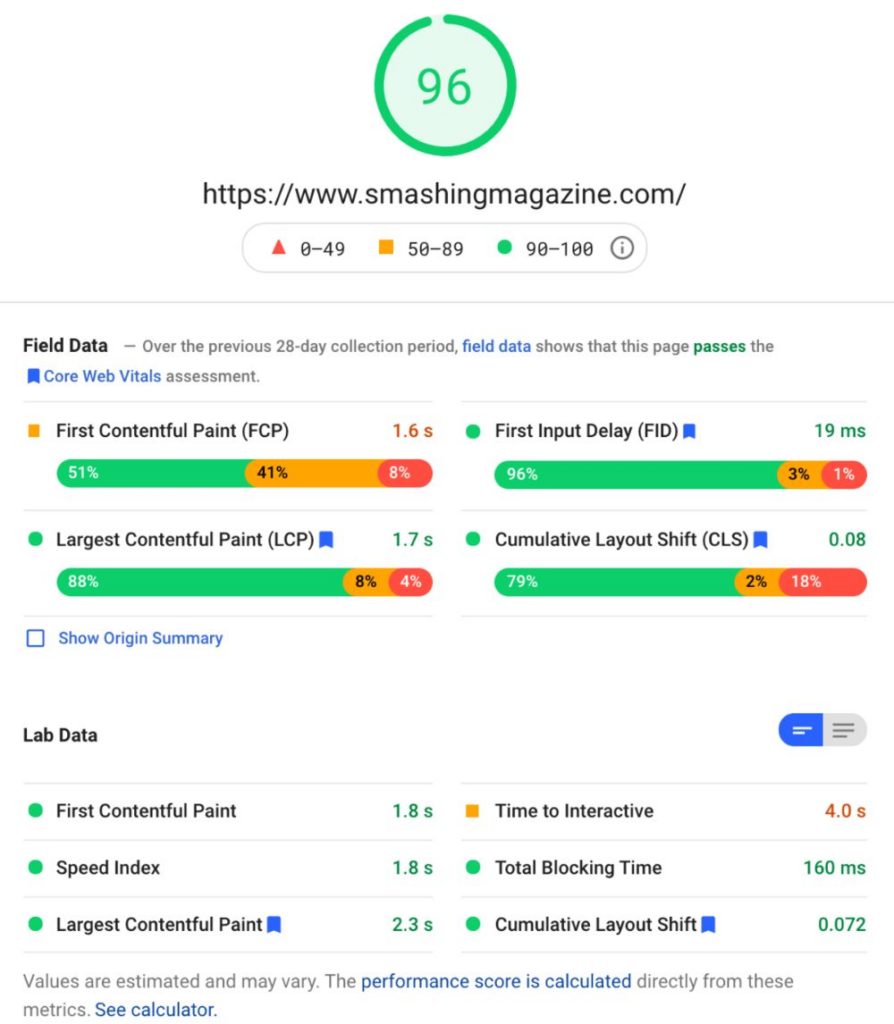
| Track: Core Web Vitals, mobile load on key pages, page weight and scripts Popular tool: Google PageSpeed Insights How to use it: Open PageSpeed Insights → paste URL of: Homepage Top landing pages Product, cart, checkout (eCommerce) Focus on: LCP (largest content paint) INP (interaction delay) CLS (layout shift) Check both Mobile and Desktop tabs Repeat before and after launch and save screenshots or exports for comparison Tip: If PSI shows “field data,” that reflects real users, not lab guesses. |
6) Engagement signals (useful, but don’t treat them as the goal)
Track before + after:
- Scroll depth on key pages
- Clicks on primary CTA
- Navigation usage (menu clicks)
- Site search usage (if applicable)
Why it matters:
If engagement goes up but conversions don’t, the page becomes more “interesting,” not more effective.
| The “Redesign ROI Calculator” (simple, practical) Use this to estimate whether redesign improvements actually matter. Baseline: Monthly visitors = ___ Current conversion rate = ___% Avg revenue per conversion (or lead value) = ___ After redesign target: Expected conversion rate = ___% ROI estimate: Extra conversions/month = Visitors × (New CR − Old CR) Extra revenue/month = Extra conversions × Avg value This keeps redesign conversations grounded. |
The best way to redesign a WordPress site (what we do in practice)
If you want the best way to redesign a WordPress site without turning it into a guessing game:
- Pick 1–2 conversion goals
- Record a “before” baseline (14–28 days)
- Redesign without breaking intent and SEO structure
- Launch with monitoring (speed + 404s + conversions)
- Compare after numbers and iterate
That’s a WordPress website redesign you can defend in a meeting — because you’re talking about outcomes, not preferences.
Conclusion
A redesign isn’t a makeover. It’s an investment.
If you can’t measure before and after, you can’t prove ROI — and you can’t confidently say what worked.
Track the basics:
- conversions
- funnel drop-offs
- top landing pages
- SEO health
- speed
- engagement
Add the two bonus checks (72-hour red flags + baseline snapshot) and you’ll catch problems early and prove wins clearly.
If you want, share your site type (service, eCom, SEO-heavy) and your main conversion goal — and we will turn this into a one-page tracking sheet you can hand to your team before the redesign starts.