This is a guest post
WordPress users often need to share or organize image files like screenshots, banners, product photos, etc. But the JPG image files feel messy when users need to share or store them neatly.
So, is there an easy way to organize and share the images?
The answer is yes. WordPress users can convert the images into PDF files and use them as needed. PDF is now one of the most used file formats by businesses.
A report says that 82% of businesses are now using PDF as their file-sharing document type. So, today I will show you 3 easy methods to convert a JPG to a PDF document easily.
Let’s get into it.
Why WordPress Users Need to Convert JPG to PDF
Share Documents in a Professional Way
PDF is the standard format for formal use. Whether it is a brochure, an invoice, a resume, or a report, people expect it in PDF. A JPG may look casual, but a PDF looks clean, uneditable, and ready to print or send anywhere. That’s why turning JPGs into PDFs gives your files a professional touch.
Keep Multiple Images Together
Uploading and showing ten JPGs one by one is not user-friendly. Instead, when you merge them into a single PDF, everything stays together in one file. It works great for image galleries, product images, or tutorials. Users can open or download them in one click, without jumping through separate images.
Add Security and Control
JPGs don’t offer built-in security options. PDFs do. You can set encryption, add a password, or even restrict copying and printing. For WordPress membership sites or when you share sensitive material, this control becomes very useful.
Make Downloads Easier for Visitors
On mobile devices, opening many images is messy. With a PDF, the full set loads as one file, so the reader doesn’t need to open and save each image individually. It makes the download process smooth and saves time.
Match Publishing and Printing Standards
Printers, publishers, and many online submission systems ask for PDF, not JPG. If your WordPress site collects uploads, portfolios, or publishing work, converting JPGs into PDFs makes your files compatible and avoids rejection.
3 Easy Ways To Convert JPG to PDF
1. Using Online JPG to PDF Converter
If you need a fast and reliable method without installing software or a plugin, you can use an online JPG to PDF converter tool to quickly convert your image files to a PDF document. But there are plenty of tools out there. You have to choose carefully if you are concerned with the results or data security.
To make it clear, I will demonstrate the procedure with JPG to PDF converter (I found this tool reliable for both accuracy and security after testing several online options.)
Let’s look at the steps.
- Open the image-to-PDF converter in your browser. You can use it both on a laptop and a mobile browser, by the way.

- Upload your image files using the “Choose File” button.
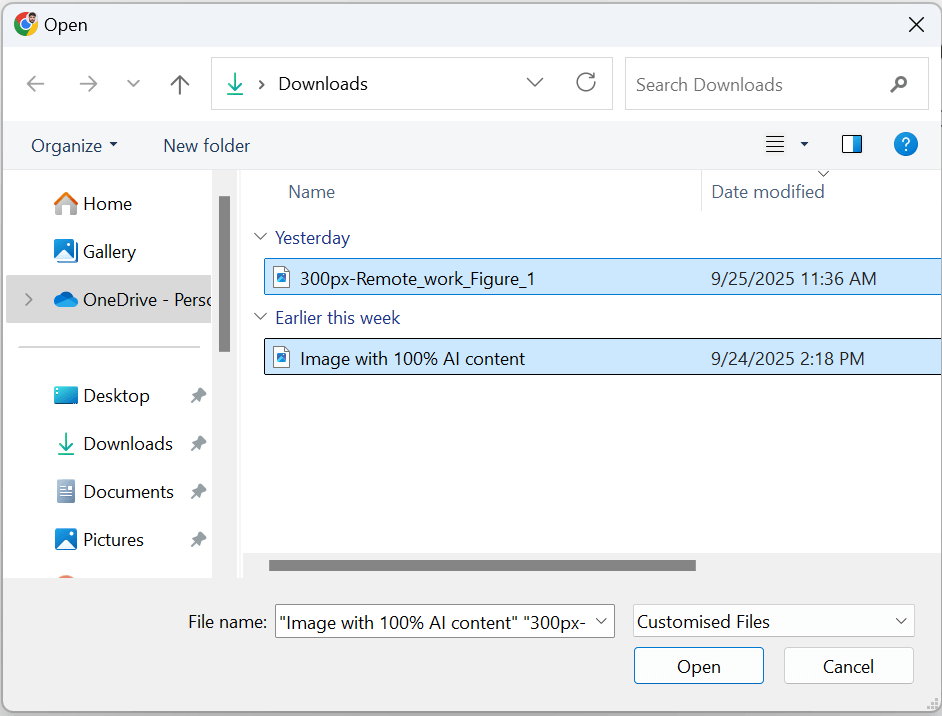
- Choose the images you need to convert and then click the “Open” button. The images will be uploaded to the tool. You can also simply drag and drop your images to the specified box if you are using it on a laptop.
- After the images are uploaded, you can choose some basic settings from the tool. You can change the page size, orientation, and margins according to your needs.

- After selecting the desired options, click on the “Convert to PDF” button. The tool will instantly convert the images into PDF files.

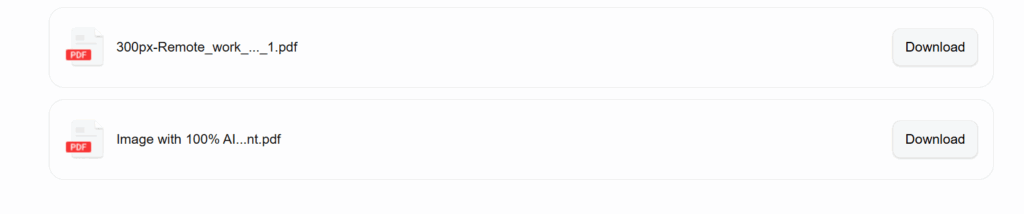
- Once the PDF conversion is done, click on the “Download All” button and select the preferred download option from the provided ones.

- If you need all the images in one PDF file, choose the “Merge All” option. If you need all the images as separate PDF files, choose the “Download Zip” option.

- You can also download all the files one by one from the “Download” button provided in the right corner of each file box.
2. Using Google Docs
Converting an image to PDF using Google Docs is an efficient way to organize images. Here are the steps to do so:
- Open a new Google Doc and click on the “Insert” button from the top ribbon.

- Go to the “Image” option in the dropdown and then click on the option where your image files are stored.
- After uploading your image files, you can make some adjustments if required. If needed, click on the image and select the “Image options” from the top ribbon. You will see a sidebar open with multiple image editing options.

- After optimizing the images, click on the “File” button from the top ribbon, go to the “Download” option, and then click on the “PDF Document” button.

- The PDF document will be saved on your device.
3. Using MS Word
If you do not have an internet connection, you can still convert JPG to PDF using MS Word. But you need to install MS Office first if it isn’t installed already on your PC or Mac. Let’s look at this process step by step.
- Open MS Word on your PC or Mac. This method also works on smartphones. There, you can install Office from the Play Store or App Store.

- Click on the “Insert” button in the top ribbon, then click on “Pictures” and select the option where your images are. Click “This Device” for uploading from your device.

- Select the images you need to convert to PDF, then click on the “Insert” button.

- After uploading, you can edit the images if needed by clicking on the “Picture Format” button in the top ribbon.

- Then click on “File” and choose the “Save As” option.

- In the “Save as type” tab, select the “PDF” type and click on the “Save” button. The file will be saved as PDF file on your device.

Final Words
This is how WordPress users can convert JPG to PDF for better sharing, organizing, or presenting the images. All the methods discussed above are efficient and convenient. However, using online tools is comparatively easier to follow. But you can use any of them according to your preferences.
Remember, there are a lot of online tools. So you have to carefully choose a reliable tool because images or documents can be sensitive. And any cybersecurity breach can create difficulties if your data gets stolen.