Hey there, fellow website owner! Are you running a WooCommerce store and constantly looking for ways to make things smoother, smarter, and more automated? What if we told you there’s a powerful tool built right into WooCommerce that can help you do just that, and even much more? This tool is called the WooCommerce REST API. It’s not as scary and technical as it may sound!
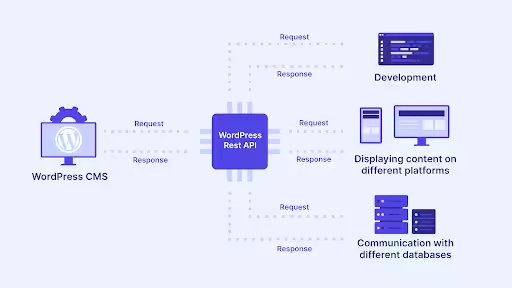
Think of the REST API in WooCommerce as a secret handshake between your WooCommerce store and other applications. It allows different software systems to talk to each other, share information, and even get things done automatically, all without you having to manually click buttons in your WordPress dashboard.
In this blog post, we’re going to break down what the WordPress WooCommerce API is, why you might want to use it, how to get started, and answer some common questions. Let’s dive in!
What Exactly is a REST API in WooCommerce?
Okay, let’s clear up the “API” part first. API stands for Application Programming Interface. Still sounds like tech talk? Let’s use a simple analogy.
Imagine you’re at a restaurant. You don’t go into the kitchen to cook your meal, right? You tell the waiter what you want from the menu. The waiter then takes your order to the kitchen, the chef prepares it, and the waiter brings it back to you.
In this analogy:
- You are the external application (e.g., a mobile app, a separate CRM system).
- The restaurant kitchen is your WooCommerce store and its data.
- The menu is the list of things the API can do (like “create a new order”).
- The waiter is the REST API! It’s the go-between, taking your requests to the store and bringing back the information or confirmation.
REST simply refers to a set of rules and standards for how this “waiter” operates. It uses standard web technologies like HTTP requests and sends information back and forth in a common format called JSON, which is just a structured way of organizing data.
So, in short: The WordPress WooCommerce REST API is a standardized way for other software to ask your WooCommerce store for information or to tell it to do something, without you being directly involved in every step.
Also Read: Comprehensive Guide To WordPress Memory Management & How to Increase WordPress Memory Limit
Why Should You Care About the WooCommerce REST API?
As a website owner, you might be thinking, “This sounds like developer stuff. Why should I bother?” Well, the REST API in WooCommerce can be a game-changer for your online business. Here are some real-world benefits:
- Automation is Your Friend: Imagine never manually updating stock levels on another platform or automatically sending new customer data to your email marketing software. The WordPress WooCommerce API makes this kind of automation possible. Less manual work means more time for you!
- Seamless Integrations: Want to connect your store with a specialized accounting system, a CRM (Customer Relationship Management) tool, or a powerful analytics dashboard? The WordPress WooCommerce API provides that bridge to connect. It allows these external tools to “talk” to your WooCommerce data.
- Custom Experiences: Thinking about building a mobile app for your store, or a unique front-end for your shop that’s separate from your WordPress site? The API is essential for headless commerce, allowing you to pull your product data and display it however you like.
- Multi-Channel Selling Made Easy: If you sell your products or services on multiple platforms like Etsy or eBay, the WordPress WooCommerce API can help keep your inventory synced across all of them, preventing overselling and inventory headaches.
- Improved Efficiency: By automating routine tasks like order processing or customer updates, you can significantly boost your operational efficiency. This means faster fulfilment and happier customers.
In essence, the WooCommerce REST API gives you incredible flexibility and power to connect, automate, and expand your online store beyond the standard WooCommerce interface.
Want to go beyond standard WooCommerce features? Hire a WordPress developer to create powerful API-driven solutions for your business.”
Getting Started: Your First Steps with the REST API in WooCommerce
Ready to get your hands dirty? Here’s how you can enable the API and get your crucial keys.
Important Tip: Before you start, let’s make sure your WordPress meets the requirements:
- WordPress 4.4+ with WooCommerce 3.5+ activated.
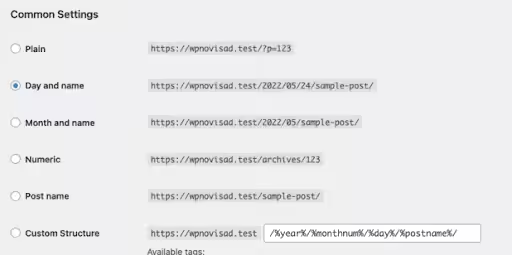
- Go to Settings → Permalinks and choose anything except “Plain”.
- Proper user roles – only Administrator and Shop Manager roles can generate API keys.
- HTTPS enabled – while not mandatory, it’s highly recommended for security.
- Enabling the Legacy REST API
WooCommerce has a built-in REST API that’s usually enabled by default in newer versions. However, for some older integrations or specific needs, you might need to ensure the “Legacy REST API” is active.
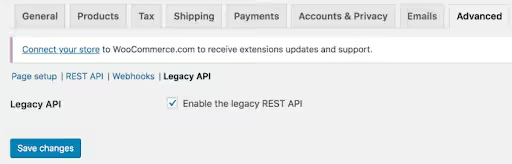
- Log in to your WordPress admin dashboard.
- Navigate to WooCommerce > Settings.
- Click on the Advanced tab.
- Then, click on the Legacy API sub-tab.
- Make sure the checkbox next to “Enable the legacy REST API” is ticked.
- Don’t forget to save changes!
- Generating Your API Keys – Your Store’s Secret Handshake!
These keys are like the username and password for your external applications to access your store’s data securely. You’ll generate a “Consumer Key” and a “Consumer Secret”.
- From your WordPress dashboard, go to WooCommerce > Settings.
- Click on the Advanced tab.
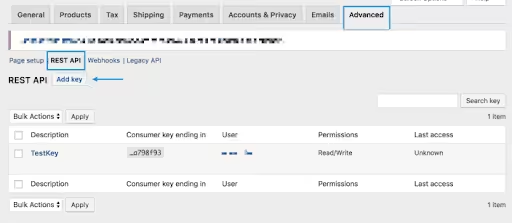
- This time, click on the REST API sub-tab.
- Click the “Add Key” button (or “Create an API Key”).
- Once you click on the button, you will be taken to the Key details section:
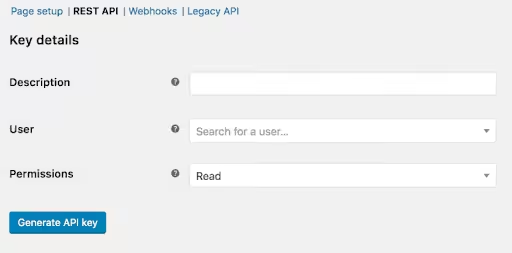
- Description: Give your API key a memorable name (e.g., “Mobile App Integration”, “CRM Sync”). This helps you remember what this key is for.
- User: Select the WordPress user who will “own” this API key. This user’s permissions will determine what the API key can access. It’s usually best to choose an Administrator or Shop Manager.
- Permissions: This is very important!
- Read: The API can only fetch data (e.g., list products, view orders).
- Write: The API can only create or update data (e.g., add new products, change order statuses).
- Read / Write: The API can do both – fetch, create, and update. Choose this carefully, as it grants significant power.
- Click “Generate API Key”.
- WooCommerce will then display your Consumer Key and Consumer Secret, a QR Code, and a “Revoke Key” button. Copy these immediately! Once you leave this page, the Consumer Secret will not be shown again. Treat them like sensitive passwords – keep them safe and don’t share them publicly!
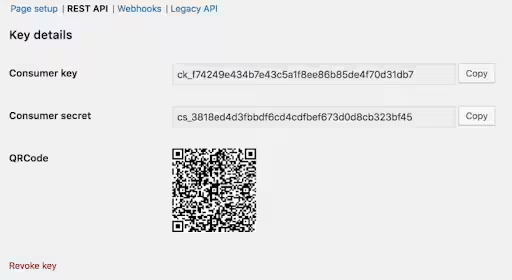
That’s it! You’ve got your keys, and your store is ready to talk to other applications.
What Can the REST API in WooCommerce Do? Common Use Cases for Your Business
Now that you have your keys, let’s explore some practical ways the WooCommerce REST API can benefit your business.
- Product Management on Autopilot
- Bulk Product Updates: Have a sale coming up? Need to adjust prices for hundreds of products? Instead of doing it one by one, a custom script or integration can use the API to update product prices, stock, or descriptions in bulk.
- Inventory Synchronization: If you sell your products on other marketplaces (like Amazon or Etsy), the WordPress WooCommerce API can automatically update stock levels in WooCommerce whenever a sale happens elsewhere, and vice versa. No more overselling!
- Product Creation: If you’re importing products from a supplier’s database, the API can create new product listings in your store automatically.
- Order Automation
- Automatic Order Status Updates: When an order is shipped through a third-party fulfilment service, the API can update the order status in WooCommerce from “Processing” to “Completed” automatically and even add tracking information.
- Generating Invoices: Connect your store to an invoicing system, and the API can trigger automatic invoice generation and sending once an order is placed.
- CRM Integration: New customer order? The API can push that customer’s details and order history directly into your CRM, allowing for personalized marketing and better customer service.
- Customer Data Centralization
- Syncing Customer Details: Keep your customer information consistent across your WooCommerce store and other platforms like email marketing tools or support desks.
- Personalized Marketing: Use customer purchase history (retrieved via the API) to segment your audience and send highly targeted promotions.
- Beyond the Basics: Other Cool Stuff
The WordPress WooCommerce API isn’t just about products, orders, and customers. It can also manage:
- Coupons: Create, update, or delete coupons programmatically.
- Reports: Fetch sales reports and other analytics data to integrate into custom dashboards.
- Shipping Zones & Methods: Manage shipping options through external systems.
- Essentially, if you can do it manually in your WooCommerce backend, there’s a good chance the REST API in WordPress can help you automate it!
Available Endpoints and Their Functions
The WooCommerce REST API provides endpoints for all major webstore operations. Here are the key ones you’ll use most often for your business:
| Endpoint URL | Resource | Main Functions |
| /wp-json/wc/v3/products | Products | List, create, update, and delete products; manage details, images, inventory, and variations |
| /wp-json/wc/v3/orders | Orders | List, create, update, and delete orders; manage order status, refunds, and details |
| /wp-json/wc/v3/customers | Customers | List, create, update, and delete customers; manage addresses and account details |
| /wp-json/wc/v3/coupons | Coupons | List, create, update, and delete coupons; manage discounts and promotions |
| /wp-json/wc/v3/shipping/zones | Shipping Zones | List, create, update, and delete shipping zones; manage shipping methods and rates |
| /wp-json/wc/v3/payment_gateways | Payment Gateways | List and update payment gateways; manage payment method settings |
| /wp-json/wc/v3/reports | Reports | Access sales, revenue, orders, and product reports; retrieve analytics and statistics |
| /wp-json/wc/v3/webhooks | Webhooks | List, create, update, and delete webhooks; manage real-time event notifications |
Important Tips:
- Each endpoint supports standard HTTP methods:
- GET – Retrieve data
- POST – Create new records
- PUT – Update existing records
- DELETE – Remove records
- Endpoints are versioned (example – v3). Thus, check your WooCommerce version to ensure compatibility.
Keeping Things Safe: Security Tips for Your WooCommerce REST API
With great power comes great responsibility, right? The WooCommerce REST API gives external access to your store’s data, so security is paramount.

- Use HTTPS Always: This is non-negotiable. Ensure your entire website uses HTTPS, especially where API requests are made (you’ll see the padlock in your browser). This encrypts the data exchanged on the website, protecting your API keys and sensitive information.
- Restrict Permissions: When generating API keys, always grant the minimum necessary permissions. If an application only needs to read product data, give it “Read” access, not “Read / Write”. This limits potential damage if a key is compromised.
- Keep Keys Private: Never expose your API keys in publicly accessible code (like your website’s front-end JavaScript). Store them securely on your server or in environment variables if you’re developing an application.
- Monitor API Usage: Keep an eye on your server logs for any unusual API activity.
- Regularly Review Keys: Periodically review your generated API keys. If you’re no longer using an integration, revoke its key.
- Rate Limiting: Be mindful of how many requests you’re making to the API. Too many requests in a short period can lead to your server blocking you temporarily. Most integrations handle this automatically, but it’s good to be aware.
Also Read: Error 503 Backend Fetch Failed: A Quick Fix Guide
Wrapping It Up: The Future is Automated!
The WooCommerce REST API is a fantastic tool that opens a world of possibilities for your online WooCommerce business. Whether you’re building custom integrations, mobile apps, or automating business processes, this powerful tool gives you complete control over your store’s data.
While it might seem a bit technical at first, understanding its core purpose and knowing how to generate those all-important API keys is a huge first step. Many integration services and plugins leverage this API behind the scenes to make your life easier.
Just remember these key points:
- Start with proper authentication and security measures
- Use the official libraries whenever possible
- Implement proper error handling in your code
- Test thoroughly in a development environment first
- Monitor your API usage and performance
Don’t be afraid to explore the potential of WooCommerce Rest API! Happy automating!
Frequently Asked Questions: Your Burning Questions Answered
A. Do I need to be a developer to use the WooCommerce REST API?
No, that is not the case. Many plugins and integration services use the API behind the scenes, so you can benefit from it without coding knowledge. However, if you want to build custom solutions or connect to very specific tools, a developer’s help might be useful.
The good news is that understanding the basics, like generating keys, is something any website owner can do on their own!
B. Is the REST API in WooCommerce secure?
Yes, if used correctly. It supports secure authentication methods like using those Consumer Keys and Secrets. The most important thing is to always use HTTPS for all communications and keep your API keys confidential.
Think of them like your banking passwords – keep them secret, keep them safe!
C. What are “endpoints” in the context of the REST API in WooCommerce?
Think of endpoints as specific addresses for different types of information or actions. For example, there’s an endpoint for all your products (/wp-json/wc/v3/products), another for individual products, one for orders, one for customers, and so on. When an application wants to get product data, it “hits” the product endpoint.
D. Can I use the REST API in WordPress to add or update products in bulk?
Absolutely! This is one of the most common and powerful uses of the API. You can send a request with a list of products and their details, and the API will create or update them efficiently.
E. My WooCommerce REST API key isn’t working. What should I do?
First, double-check that you’ve copied the Consumer Key and Consumer Secret correctly, as they are case-sensitive! Also, make sure the user associated with the key has the correct permissions (Read, Write, or Read/Write) for the actions you’re trying to perform.
Finally, confirm your WordPress permalinks are not set to “Plain” and that your site is using HTTPS. If all else fails, try generating a new key.
F. What’s the difference between the “Legacy API” and the “REST API” tabs in WooCommerce settings?
The “Legacy API” tab refers to an older version of the WordPress WooCommerce API. While it’s still there for compatibility, the “REST API” tab, which uses the WordPress REST API framework, is the modern, more robust, and recommended way to interact with your store programmatically.
For new integrations, you’ll almost always use the keys generated under the “REST API” tab.
G. Why am I getting “woocommerce_rest_cannot_view” or a 401 error while making a request?
To start, ensure that you are using the correct API keys. If the keys are correct, verify that they have the appropriate permissions. For instance, if you need to read and write data, the permission should be set to “Read / Write”.
If everything above is set correctly, check that your server is sending the authentication headers to WordPress.
You can test this by including the consumer key and secret in the URL instead of using headers to help identify the issue. For example:

In case if you have access to the .htaccess file, add the below lines temporarily for test purposes: