
Every second your WooCommerce store takes to load costs you customers and revenue.
While your competitors are capturing sales with lightning-fast checkout experiences, you’re watching potential buyers disappear into the digital void. The solution?
A proven WooCommerce page speed optimization checklist that transforms slow, frustrating stores into conversion machines, as these speed issues don’t just hurt your bottom line – they damage your brand’s credibility and customer trust.
The Speed and Revenue Connection
- According to older Akamai Research (2017), a 1-second delay = 7% reduction in conversions
- Google’s recent research revealed that 53% of mobile users abandon sites that take longer than 3 seconds to load
- When your WooCommerce store is slow, you’re essentially turning away money at the door
Under this guide, we’ll dive into the actionable stuff you need to tackle, organized in a logical sequence that builds momentum as you go.
Let’s get started!
Why WooCommerce Page Speed Optimization Matters
Before diving into the checklist, it’s crucial to understand why WooCommerce page speed optimization should be your top priority:
- SEO Impact: Google uses page speed as a direct ranking factor, particularly for mobile searches
- User Experience: Faster sites provide better user engagement and lower bounce rates
- Conversion Rates: Speed improvements directly correlate with increased sales and lead generation
- Mobile Performance: With mobile-first indexing, optimized mobile speed is essential
- Competitive Advantage: Fast-loading sites outperform competitors in search results
- Core Web Vitals Impact: Google’s Core Web Vitals (Largest Contentful Paint, Interaction to Next Paint, and Cumulative Layout Shift) are direct measures of user experience and crucial ranking factors that directly benefit from speed optimization.
Related Read: Ultimate Guide to WooCommerce Speed Optimization
Struggling with a slow WooCommerce store?
A sluggish site can cost you sales. Turn it into a high-speed, high-converting machine with expert WooCommerce Speed Optimization services:
- In-depth Performance Audit
- Theme & Plugin Optimization
- Code & Database Cleanup
- Core Web Vitals Boosts
The Complete WooCommerce Page Speed Optimization Checklist
Choose a Lightweight WooCommerce Theme
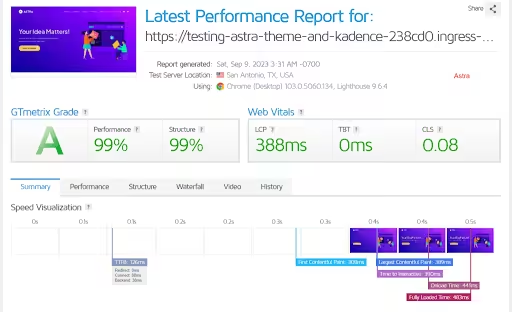
Why This Matters: Your theme is the foundation of your site’s performance. Heavy, feature-bloated themes can add unnecessary code and slow down your WooCommerce page speed optimization efforts from the start.
Actionable Steps:
- Audit your current theme’s performance using GTmetrix or Google PageSpeed Insights.
- Look for themes with clean, minimal code and fast loading times
- Choose themes that are regularly updated and optimized for Core Web Vitals
- Avoid themes with excessive built-in features you don’t need
- Test theme performance on mobile devices specifically
Tool Recommendations:
- Astra: Lightweight, fast-loading theme with WooCommerce optimization
- GeneratePress: Minimal code footprint with excellent performance
- Neve: Speed-focused theme with mobile optimization
Pro Tip: Use a child theme to preserve customizations while maintaining theme performance optimizations.
Pick a High-Performance Hosting Provider
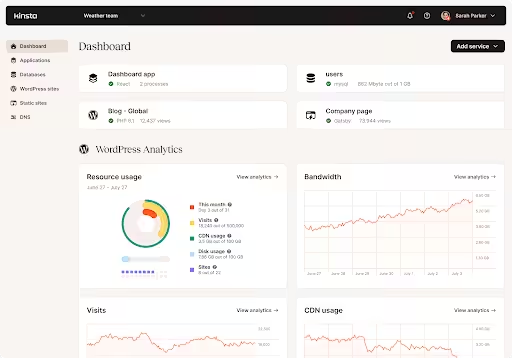
Why This Matters: Your hosting infrastructure is the backbone of WooCommerce page speed optimization. Shared hosting—where your site shares resources with hundreds of other websites—creates unpredictable performance because one site’s traffic spike can slow down all others.
Actionable Steps:
- Migrate from shared hosting to managed WooCommerce hosting or VPS
- Choose providers with SSD storage and HTTP/2 support
- Ensure your host offers server-level caching
- Select data centers geographically close to your target audience
- Look for hosts with built-in CDN integration
Tool Recommendations:
- WP Engine: Managed WooCommerce hosting with built-in caching
- Kinsta: Google Cloud-powered hosting with advanced optimization
- SiteGround: Excellent performance with WooCommerce-specific features
- Cloudways: Flexible cloud hosting with performance optimization
Note: While a strong upgrade from shared hosting, for highly dynamic WooCommerce stores, some users find it offers fewer deeply integrated advanced caching options (like Object Cache Pro) compared to specialized managed WooCommerce hosts like Rocket.net. Evaluate based on your specific needs and scale.
Performance Benchmark: A quality host should deliver Time to First Byte (TTFB) under 200ms.
Set Up a CDN (Content Delivery Network)
Why This Matters: CDNs distribute your content across global servers, reducing latency and improving WooCommerce page speed optimization for international visitors.
Actionable Steps:
- Sign up for a CDN service and configure DNS settings
- Enable CDN for all static assets (images, CSS, JavaScript)
- Configure proper cache headers for different content types
- Set up image optimization through CDN
- Monitor CDN performance and cache hit rates

Tool Recommendations:
- Cloudflare: Free tier with excellent performance and security
- AWS CloudFront: Enterprise-level CDN with global presence
- BunnyCDN: Cost-effective solution with excellent performance
Bonus Tip: Enable Cloudflare’s “Rocket Loader” feature for automatic JavaScript optimization.
Minify and Combine CSS & JavaScript

Why This Matters: Raw CSS and JavaScript files contain comments, whitespace, and formatting that make code readable for developers but add unnecessary weight for browsers.
Minification removes unnecessary characters from code while combining files reduces HTTP requests—both crucial for WooCommerce page speed optimization.
Actionable Steps:
- Install a performance plugin that handles minification
- Enable CSS and JavaScript minification in your plugin settings
- Combine multiple CSS/JS files where possible
- Test thoroughly after enabling minification to ensure functionality
- Exclude critical scripts from minification if they break
Tool Recommendations:
- Autoptimize: Free plugin for CSS/JS optimization
- WP Rocket: Premium plugin with advanced minification options
- W3 Total Cache: Comprehensive caching with minification features Note: This plugin is very powerful but can be complex to configure and has an older user interface. It’s often better suited for advanced users due to its steep learning curve and potential for conflicts if misconfigured.
- LiteSpeed Cache: Server-level caching with optimization tools
Critical Note: Always test minified files on staging before deploying to production.
Dequeue Unused WooCommerce Scripts

Why This Matters: WooCommerce loads scripts on every page by default, even when they’re not needed. This adds 200-500KB of unnecessary JavaScript that must be downloaded, parsed, and executed on every page load.
The cart fragments script alone makes AJAX requests every few seconds to update cart status, creating ongoing server load and slowing down page interactions.
Actionable Steps:
- Identify WooCommerce scripts loading on non-shop pages
- Use conditional loading to restrict scripts to relevant pages only
- Disable WooCommerce scripts on blog posts and static pages
- Remove unused WooCommerce features and extensions
- Audit third-party WooCommerce plugin scripts
Critical Warning: Always place this code in your child theme’s `functions.php` file or a custom plugin, not directly in the main theme files.
Thoroughly test your entire site (especially product pages, cart, and checkout) on a staging environment after implementing this snippet, as incorrect dequeuing can break site functionality.
For modern WooCommerce block-based themes, developers might also consider utilizing the `IntegrationRegistry` for more precise conditional script loading, though this snippet remains effective for many setups.
Code Implementation: php // Add to functions.php function remove_woocommerce_scripts() { if (!is_woocommerce() && !is_cart() && !is_checkout()) { wp_dequeue_script(‘wc-cart-fragments’); wp_dequeue_script(‘woocommerce’); wp_dequeue_style(‘woocommerce-layout’); wp_dequeue_style(‘woocommerce-smallscreen’); wp_dequeue_style(‘woocommerce-general’); } } add_action(‘wp_enqueue_scripts’, ‘remove_woocommerce_scripts’, 99); |
Tool Recommendations:
- Perfmatters: Premium plugin with an excellent Script Manager for selective optimization.
- Asset CleanUp: Plugin for managing script/style loading.
Note: While effective, some users find its interface more technical than Perfmatters, and support for the free version can be limited.
Struggling with a slow WooCommerce store?
A sluggish site can cost you sales. Turn it into a high-speed, high-converting machine with expert WooCommerce Speed Optimization services:
- In-depth Performance Audit
- Theme & Plugin Optimization
- Code & Database Cleanup
- Core Web Vitals Boosts
Optimize Product and Banner Images

Why This Matters: Images typically account for 60-70% of a page’s total size, making image optimization essential for WooCommerce page speed optimization.
Without proper image optimization, even the fastest server and most optimized code can’t compensate for the massive file sizes that images create.
Actionable Steps:
- Compress all existing images without quality loss
- Convert images to modern formats (WebP, AVIF)
- Implement lazy loading for images below the fold
- Optimize image dimensions for actual display sizes
- Use responsive images for different device sizes
Tool Recommendations:
- ShortPixel: AI-powered image compression with WebP support
- Smush: Free WooCommerce image optimization plugin
- Imagify: Aggressive compression with quality preservation
- TinyPNG: Online tool for manual image optimization (Also offers WordPress plugins for automated optimization.)
Implementation Strategy:
- Use WebP format for modern browsers with JPG fallbacks
- Implement lazy loading with native loading “lazy” attribute
- Optimize images at upload time with automated plugins
Related Blog: Why Is WooCommerce Slow? 7 Common Causes and How to Fix Them Fast
Enable GZIP or Brotli Compression


Why This Matters: Compression reduces file sizes by up to 70%, significantly improving WooCommerce page speed optimization results.
Compression also reduces bandwidth costs and server load, as less data needs to be transmitted.
Actionable Steps:
- Enable GZIP compression at the server level
- Configure compression for all text-based files (HTML, CSS, JS)
- Test compression effectiveness with online tools
- Consider upgrading to Brotli compression for better performance
- Monitor compression ratios and effectiveness
| Server Configuration (Apache .htaccess): apache <IfModule mod_deflate.c> AddOutputFilterByType DEFLATE text/html text/plain text/xml text/css text/javascript application/javascript application/x-javascript </IfModule> |
Tool Recommendations:
- WP Rocket: Automatic GZIP compression setup
- W3 Total Cache: Built-in compression features
- LiteSpeed Cache: Server-level compression optimization
Verification Tools:
- GTmetrix: Check compression status in waterfall analysis
- Google PageSpeed Insights: Identifies compression opportunities
Note: Brotli offers better compression than GZIP. On Apache, enabling Brotli usually requires the `mod_brotli` module to be installed and configured at the server level (not just via `.htaccess`), and typically works best with HTTPS. NGINX and LiteSpeed web servers often have native Brotli support.
Limit and Audit Plugins

Why This Matters: Each plugin adds code overhead and potential performance bottlenecks that can undermine WooCommerce page speed optimization efforts.
Additionally, outdated or abandoned plugins become security risks and performance bottlenecks as they’re not optimized for newer WooCommerce versions.
Actionable Steps:
- Audit all installed plugins for necessity and performance impact
- Deactivate and delete unused plugins completely
- Replace multiple plugins with a single, comprehensive solution
- Monitor plugin performance impact using profiling tools
- Keep all plugins updated to the latest versions
Plugin Audit Strategy:
- Test site speed before and after deactivating each plugin
- Use staging environments for plugin testing
- Choose plugins from reputable developers with good support
- Avoid plugins that haven’t been updated in over a year
Tool Recommendations:
- Query Monitor: Excellent debugging tool to identify slow plugins, database queries, and other performance bottlenecks.
Note: Query Monitor is designed for development and debugging, and will slow down your site significantly when active. Do not keep it enabled on a live production site. - GTmetrix: Waterfall analysis shows plugin-loaded resources
Performance Rule: Aim for fewer than 20 active plugins on most WooCommerce sites.
Note: Focus on plugin efficiency over quantity. While fewer plugins generally mean fewer conflicts, it’s the resource cost of each plugin that matters most.
Struggling with a slow WooCommerce store?
A sluggish site can cost you sales. Turn it into a high-speed, high-converting machine with expert WooCommerce Speed Optimization services:
- In-depth Performance Audit
- Theme & Plugin Optimization
- Code & Database Cleanup
- Core Web Vitals Boosts
Optimize WooCommerce Cart & Checkout Pages
Why This Matters: Cart and checkout pages are conversion-critical but often the slowest pages, making their optimization crucial.
The challenge is balancing functionality with performance, optimizing these pages for speed while maintaining all necessary security and functionality.
Actionable Steps:
- Minimize scripts loaded on the cart and checkout pages
- Optimize checkout form fields and remove unnecessary elements
- Enable cart fragment caching where appropriate
- Reduce the number of payment gateway scripts
- Implement single-page checkout optimization
Specific Optimizations:
- Disable cart fragments on non-shop pages
- Use lightweight payment gateways
- Enable checkout field optimization
- Implement guest checkout to reduce form complexity
- Optimize SSL certificate loading
Tool Recommendations:
- CheckoutWC: Optimized checkout page plugin
- WooCommerce Checkout Manager: Customize checkout performance
- Fluid Checkout: Single-page checkout optimization
Conversion Impact: Optimized checkout pages can improve conversion rates by up to 35%.
Use Full-Page Caching
Why This Matters: WooCommerce is a dynamic content management system, meaning every page visit triggers PHP code execution, database queries, and HTML generation—processes that can take 200-1000ms per page load.
Full-page caching eliminates this overhead by storing pre-generated HTML versions of pages, reducing server response from 500-2000ms to 10-50ms.
Actionable Steps:
- Install and configure a robust caching plugin
- Set appropriate cache expiration times for different content types
- Configure cache exclusions for dynamic content
- Enable mobile-specific caching
- Set up cache preloading for critical pages

Source
Cache Configuration Best Practices:
- Cache static pages for 24-48 hours
- Cache blog posts for 4-6 hours
- Exclude user-specific pages from caching
- Enable cache compression for maximum effectiveness
Tool Recommendations:
- WP Rocket: Premium caching with advanced features
WP Super Cache: Free, reliable caching solution
Note: While free, it can be complex to configure and has been reported by some users to cause site issues or conflicts if not set up correctly. For simpler setups and more advanced features, premium alternatives are generally recommended.

- LiteSpeed Cache: Server-level caching optimization
- W3 Total Cache: Comprehensive caching suite
Performance Metric: Proper caching should reduce server response time by 70-90%.
Implement Object Caching (Redis/Memcached)
Why This Matters: Object caching stores database query results in memory, reducing database load and improving WooCommerce page speed optimization.
Actionable Steps:
- Install Redis or Memcached on your server
- Configure WooCommerce to use object caching
- Install and activate object caching plugins
- Monitor cache hit rates and performance improvements
- Optimize cache memory allocation
Implementation Requirements:
- Server-level Redis or Memcached installation
- Compatible hosting provider or VPS access
- Proper cache configuration for WooCommerce
- Regular monitoring and maintenance
Tool Recommendations:
- Redis Object Cache: Plugin for Redis integration
- W3 Total Cache: Supports multiple object caching backends
- LiteSpeed Cache: Built-in object caching features
Performance Gain: Object caching can reduce database queries by 50-80%.
Reduce Time to First Byte (TTFB)

Why This Matters: Time to First Byte measures how long it takes your server to begin sending data after receiving a request—it’s the foundation that all other performance metrics build upon.
A slow TTFB (500ms+) means visitors wait longer before anything starts loading, creating a poor first impression and impacting all subsequent loading phases
Actionable Steps:
- Optimize database queries and remove slow queries
- Upgrade to PHP 8.2 or higher (preferably PHP 8.3 if compatible) for significant performance and security improvements. (Always test PHP version upgrades on a staging environment first, as some older plugins or themes may not be fully compatible.)
- Implement server-side caching and optimization
- Use a CDN to reduce server load
- Optimize WooCommerce database tables regularly
Database Optimization:
- Remove unnecessary plugins and themes
- Clean up database tables and optimize them
- Implement database caching
- Use efficient queries and avoid plugin conflicts
Tool Recommendations:
- WP-Optimize: Comprehensive database cleanup, optimization, and caching. Highly recommended for its effectiveness and active development.
- Query Monitor: Identify slow database queries (See note in “Limit and Audit Plugins” section)
Target Metric: Aim for TTFB under 200ms for optimal performance.
Monitor & Benchmark with Performance Tools

Why This Matters: Website performance is not a “set it and forget it” optimization—it requires continuous monitoring and adjustment as your site grows and changes. New content, plugin updates, theme modifications, and increased traffic can all impact performance over time.
Google’s Core Web Vitals are constantly evolving, with new metrics and thresholds that affect search rankings.
Actionable Steps:
- Set up automated performance monitoring
- Establish baseline performance metrics
- Monitor Core Web Vitals regularly
- Track performance across different devices and locations
- Create performance improvement reports
Key Metrics to Monitor:
- Largest Contentful Paint (LCP): Should be under 2.5 seconds
- Interaction to Next Paint (INP): Should be under 200ms (ideal range)
- Cumulative Layout Shift (CLS): Should be under 0.1
- Time to First Byte (TTFB): Should be under 200ms
Tool Recommendations:
- Google PageSpeed Insights: Free Core Web Vitals testing
- GTmetrix: Comprehensive performance analysis
- Pingdom: Uptime and performance monitoring
- New Relic: Advanced Application Performance Monitoring (APM).
Note: This is an enterprise-level tool for in-depth server and application monitoring, often more complex and costly than typical website speed tools. It’s best suited for large-scale operations or deep debugging. - WebPageTest: Detailed performance analysis
People Also Read: 12 Proven Ways to Master Mobile Speed Optimization for WooCommerce
Conclusion
Implementing this comprehensive WooCommerce page speed optimization checklist will significantly improve your site’s performance, search engine rankings, and user experience.
Remember that WooCommerce speed optimization is an ongoing process—regularly monitor your site’s performance and make adjustments as needed.
Start with high-impact optimizations like hosting upgrades, caching, and image optimization before moving to advanced techniques.
Each step in this checklist builds upon the previous ones, creating a cumulative effect that transforms your WooCommerce site into a high-performance digital asset.
By following these 13 proven steps, you’ll not only improve your site’s speed but also enhance your competitive advantage in search results, increase conversion rates, and provide a superior user experience that keeps visitors coming back.