Let’s be honest—there’s nothing more soul-crushing than watching potential customers bounce from your WooCommerce store because it takes forever to load.
It doesn’t just frustrate visitors—it systematically destroys your business from the ground up. A WooCommerce slow loading issue affects every part of your business, from losing customers to decreasing sales.
Any Slow WooCommerce Store will have the following adverse effects on:
- Lost Revenue: Every second of delay reduces conversions by 7%
- Damaged Brand Reputation: Slow sites signal unprofessionalism to customers
- Plummeting Search Rankings: Google penalizes slow websites in search results
- Increased Customer Acquisition Costs: Poor performance forces higher ad spending
- Competitive Disadvantage: Faster competitors capture your potential customers
Understanding the root causes of your WooCommerce slow loading times isn’t just important—it’s essential for business survival.
That’s exactly why we’ve created this comprehensive guide. We’ll walk you through seven proven culprits behind WooCommerce’s slow performance, complete with practical solutions and recommended tools that empower you to fix these issues yourself.
Whether you’re a small business owner or managing a large-scale operation, these actionable strategies will help you transform your sluggish store into a high-performing sales machine.
Let’s get started!
Related Read: WooCommerce Page Speed Optimization Checklist
Poor Web Hosting Performance: The Foundation of Speed

Source: https://www.websiteplanet.com/
The most fundamental reason your WooCommerce store might be running slow lies in your hosting environment. Shared hosting plans, while budget-friendly, often create bottlenecks that make WooCommerce slow and unreliable.
When your store shares server resources with hundreds of other websites, performance inevitably suffers during peak traffic periods.
Common Hosting-Related Issues That Make WooCommerce Slow
- Insufficient RAM allocation (less than 256MB)
- Outdated PHP versions
- Lack of SSD storage
- Inadequate CPU resources
- Poor server location relative to your target audience
How to Fix Hosting-Related WooCommerce Slow Performance
- Upgrade your hosting environment: Move to managed WordPress hosting or VPS solutions specifically optimized for WooCommerce. Look for hosts offering dedicated resources, SSD storage, and global CDN integration.
Imagine you run an online boutique selling handmade jewelry. Your current shared hosting struggles during weekend traffic spikes, causing customers to abandon their carts when product pages take 10+ seconds to load.
After upgrading to WooCommerce-optimized hosting, your site loads in under 3 seconds, even during peak shopping hours.
- Minimum requirements: Ensure your hosting plan includes at least 512MB of RAM and the latest PHP version. Consider providers like WP Engine, Kinsta, or SiteGround’s managed WooCommerce hosting for optimal performance.
Let’s say you operate a fitness equipment store. Your outdated hosting with 256MB RAM crashes every time you launch a promotion, losing potential sales.
Once you upgrade to modern hosting with 1GB RAM and the latest PHP version, your store handles hundreds of simultaneous customers without breaking a sweat.
- Optimize server configuration: Configure your hosting environment with proper caching mechanisms and ensure your server location aligns with your primary customer base. If you serve global customers, choose a host with multiple data center locations to minimize latency.
Picture running a digital course platform targeting European customers while your server sits in Asia. Students experience frustrating delays during checkout, leading to 40% cart abandonment.
Moving to European servers with proper WooCommerce caching reduces load times by 70% and boosts conversions significantly.
Recommended Tools for Hosting Optimization
- GTmetrix – Test your site speed and identify hosting-related bottlenecks
- Pingdom – Monitor server response times and uptime
- WebPageTest – Analyze performance from different global locations
- PHP Info Plugin – Check your current PHP version and server configuration
- WP Server Stats – Monitor server resource usage in real-time
Struggling with a slow WooCommerce store?
A sluggish site can cost you sales. Turn it into a high-speed, high-converting machine with expert WooCommerce Speed Optimization services:
- In-depth Performance Audit
- Theme & Plugin Optimization
- Code & Database Cleanup
- Core Web Vitals Boosts
Excessive Plugin Usage: The Silent Performance Killer

Source: https://nick-stone.com/too-many-wordpress-plugins-can-hurt/
While plugins extend WooCommerce functionality, they’re often the primary culprit behind WooCommerce’s slow loading issues.
Each active plugin adds code that must be executed on every page load, creating cumulative performance degradation that can cripple your store’s speed.
Plugin-Related Factors That Make WooCommerce Slow
- Poorly coded plugins with inefficient database queries
- Outdated plugins lacking optimization
- Plugin conflicts causing resource conflicts
- Excessive plugin activation without necessity
- Heavy plugins that load unnecessary scripts site-wide
Strategic Solutions for Plugin-Induced WooCommerce Slow Performance
- Conduct a plugin audit: Deactivate all non-essential plugins and measure performance improvements. Reactivate plugins one by one, testing speed after each activation to identify problematic extensions.
- Replace heavy plugins: Find lightweight alternatives or custom code solutions when possible. Use plugin performance monitoring tools to identify resource-heavy plugins.
Let’s say you originally planned to run a multi-vendor marketplace for local artisans but decided to focus on selling only your own pottery.
By replacing a feature-heavy marketplace plugin (that you were only using for basic vendor management) with WooCommerce’s built-in capabilities plus a simple custom user role plugin, you reduce page load time by 1.5 seconds—making browsing your ceramic collections much smoother.
- Maintain regularly: Implement a plugin maintenance schedule, regularly updating all extensions and removing unused plugins entirely.
For essential but slow plugins, explore code optimization or consult with developers for custom solutions.
Recommended Tools for Plugin Management
- P3 (Plugin Performance Profiler) – Identify which plugins slow down your site
- Query Monitor – Track plugin-specific database queries and performance impact
- Plugin Organizer – Control which plugins load on specific pages
- WP Hive – Research plugin performance and compatibility before installation
- Health Check & Troubleshooting – Safely test plugin conflicts in staging mode
People Also Read: Technical Guide to WooCommerce Backend, Admin Dashboard & API Speed Enhancement
Unoptimized Images: The Bandwidth Bandits

Source: https://elementor.com/pages/image-optimizer-ua/
High-resolution product images are crucial for e-commerce success, but unoptimized images are a leading cause of WooCommerce’s slow performance.
Large image files consume significant bandwidth and processing power, dramatically increasing page load times, especially on mobile devices.
Image-Related Issues Causing WooCommerce Slow Speeds
- Oversized images exceeding necessary dimensions
- Uncompressed image files
- Inappropriate image formats (PNG for photos, JPG for graphics)
- Missing next-generation formats (WebP, AVIF)
- Lack of lazy loading implementation
Comprehensive Image Optimization Strategies
- Implement automated compression: Use plugins like ShortPixel or Smush to reduce file sizes without compromising visual quality. Establish standard image dimensions for product photos and resize images before uploading.
Tip: Set consistent dimensions like 800x800px for main product images, 300x300px for thumbnails, and 1200x1200px for zoom functionality to ensure uniform loading across your store.
- Enable lazy loading: Prevent images from loading until they’re needed, significantly improving initial page load times. Convert images to next-generation formats like WebP for better compression ratios.
Tip: Set images to load 200-300px before they enter the viewport for seamless user experience, using lightweight placeholder images under 5KB to maintain layout integrity.
Implement fallback loading for older browsers that don’t support native lazy loading functionality.
- Use CDN optimization: Consider using a CDN with automatic image optimization features to serve optimized images based on device capabilities and connection speeds.
Recommended Tools for Image Optimization
- ShortPixel – Automated image compression with WebP conversion
- Smush – WordPress image optimization with lazy loading
- TinyPNG – Online image compression tool with WordPress plugin
- Imagify – Advanced image optimization with next-gen format support
- EWWW Image Optimizer – Comprehensive image optimization and resizing
- Lazy Load by WP Rocket – Dedicated lazy loading implementation
Database Bloat: The Hidden Performance Drain
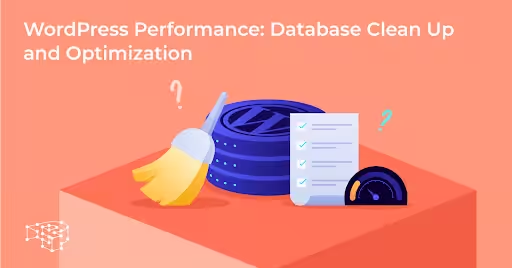
Source: https://pressidium.com/blog/wordpress-performance-database-clean-up-and-optimization/
Over time, your WooCommerce database accumulates unnecessary data that contributes to slow performance.
This bloat includes outdated product revisions, spam comments, expired transients, and unused database tables that force MySQL to work harder during every query.
Database Issues That Make WooCommerce Slow
- Accumulated post revisions from product updates
- Spam comments and trackbacks
- Expired transient data
- Unused database tables from deleted plugins
- Inefficient database queries from themes or plugins
Database Optimization Techniques to Resolve WooCommerce Slow Performance
- Schedule regular cleanup: Use plugins like WP-Optimize or Advanced Database Cleaner to remove unnecessary data automatically. Configure WordPress to limit post revisions and disable trackbacks and pingbacks.
- Optimize database structure: Optimize database tables regularly and implement database indexing for frequently queried columns. Consider using a database optimization service for larger stores or complex setups.
- Monitor performance: Use tools like Query Monitor to identify slow queries that contribute to WooCommerce’s slow loading.
Recommended Tools for Database Optimization
- WP-Optimize – All-in-one database cleanup and optimization
- Advanced Database Cleaner – Deep database cleaning with safety features
- WP-Sweep – Remove unnecessary database entries and optimize tables
- phpMyAdmin – Direct database management and optimization
- Adminer – Lightweight database management alternative
- WP-CLI – Command-line database optimization for advanced users
People Also Read: Best WooCommerce Speed Optimization Plugins Compared: Which One to Use?
Inadequate Caching Implementation: Missing Speed Multipliers
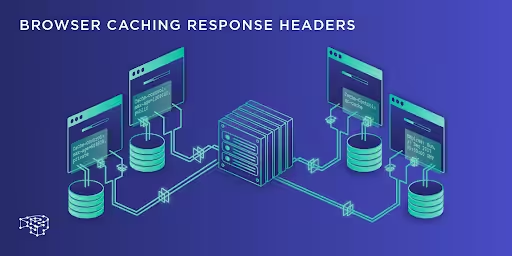
Source: https://pressidium.com/blog/browser-cache-work/
Caching is perhaps the most effective solution for WooCommerce’s slow performance, yet many store owners either skip caching entirely or implement it incorrectly.
Proper caching dramatically reduces server load and page generation time by serving pre-generated content to visitors.
Caching Deficiencies That Perpetuate WooCommerce Slow Speeds
- Complete absence of caching mechanisms
- Misconfigured cache settings
- Inadequate cache coverage for dynamic content
- Poor cache invalidation strategies
- Conflicts between multiple caching plugins
Comprehensive Caching Strategies for WooCommerce Performance
- Implement multi-layer caching: Combine page caching, object caching, and database caching. Use specialized WooCommerce caching plugins like WP Rocket or W3 Total Cache, configured specifically for e-commerce requirements.
Imagine you run a sports equipment store. Page caching stores your “Running Shoes” category page, object caching remembers frequently accessed product data, and database caching stores common queries like “bestselling items”—reducing load times from 4 seconds to under 1 second.
- Configure browser caching: Store static assets locally on visitor devices and implement CDN caching for global content delivery. Set up object caching using Redis or Memcached for database query optimization.
Picture managing a jewelry store where your logo, CSS files, and product images are cached in customers’ browsers for 30 days.
When they return to browse engagement rings, only dynamic content loads—making repeat visits lightning-fast while your images load instantly.
- Establish proper invalidation: Ensure dynamic content like cart totals and user-specific information is properly excluded from caching. Set up proper cache invalidation rules to ensure product updates and inventory changes are reflected immediately.
Let’s say you operate a bookstore and update a novel’s price from $25 to $20.
Proper cache invalidation immediately clears the old cached page, ensuring customers see the current price rather than outdated information that could cause checkout confusion.
Struggling with a slow WooCommerce store?
A sluggish site can cost you sales. Turn it into a high-speed, high-converting machine with expert WooCommerce Speed Optimization services:
- In-depth Performance Audit
- Theme & Plugin Optimization
- Code & Database Cleanup
- Core Web Vitals Boosts
Recommended Tools for Caching Implementation
- WP Rocket – Premium caching plugin with WooCommerce optimization
- W3 Total Cache – Comprehensive free caching solution
- WP Super Cache – Simple and effective page caching
- LiteSpeed Cache – Server-level caching for LiteSpeed servers
- Redis Object Cache – Advanced object caching for database queries
- Cloudflare – Global CDN with automatic caching and optimization
Bloated Themes and Poor Code Quality: The Style Speed Trap
Source: https://thewhitelabelagency.com/custom-wordpress-theme/
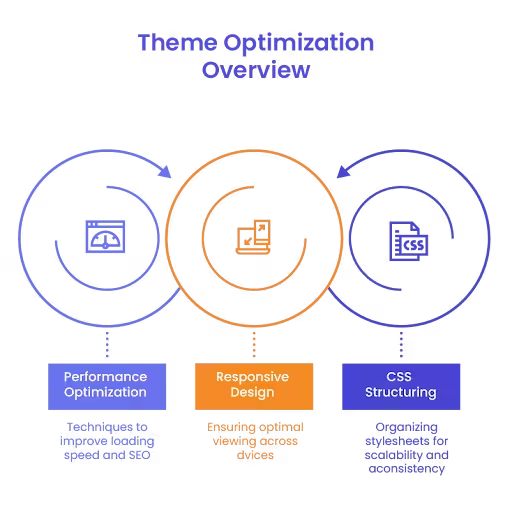
Your WooCommerce theme significantly impacts site performance, and poorly coded themes are a common source of WooCommerce slow-loading issues. Many themes prioritize visual appeal over performance, loading unnecessary scripts and stylesheets that bog down your store.
Theme-Related Factors Causing WooCommerce Slow Performance
- Excessive CSS and JavaScript files
- Unoptimized code and inefficient functions
- Missing code minification and compression
- Poor mobile optimization
- Unnecessary theme features and demos
Theme Optimization Strategies to Combat WooCommerce Slow Speeds
- Choose performance-optimized themes: Select lightweight themes specifically designed for WooCommerce. Popular options include Astra, GeneratePress, or OceanWP, which prioritize speed without sacrificing functionality.
If you are using a heavy theme that loads in 5 seconds. Switching to Astra Pro reduces load time to 2 seconds while maintaining your product galleries, customer reviews, and mobile responsiveness—improving customer experience without losing features.
- Optimize existing code: Implement code minification and compression for CSS and JavaScript files using plugins like Autoptimize or WP Rocket. Remove unused theme features and demo content that add unnecessary weight.
Image using theme that includes unused features like event calendars and portfolio galleries. Removing these features and minifying CSS/JavaScript files reduces page size from 3MB to 800KB, making product browsing significantly faster.
- Consider custom solutions: Hire a developer to optimize your existing theme or create a custom solution tailored to your specific needs.
Let’s say you operate a handmade crafts store with specific design requirements that standard themes can’t meet efficiently. A developer creates a custom theme with only essential features, reducing load time by 60% while perfectly matching your brand aesthetic.
Recommended Tools for Theme Optimization
- Autoptimize – Minify and compress CSS, JavaScript, and HTML
- Fast Velocity Minify – Advanced CSS and JS optimization
- Asset CleanUp – Remove unused CSS and JavaScript files
- Unused CSS – Identify and remove unused stylesheet rules
- GTmetrix – Analyze theme performance and identify optimization opportunities
- Google PageSpeed Insights – Get theme-specific performance recommendations
Inefficient Database Queries: The Backend Bottleneck

Source: https://www.accuwebhosting.com/blog/how-to-debug-wordpress-performance-issues-with-query-monitor/
Complex database queries generated by WooCommerce, themes, and plugins can significantly slow your store, especially as your product catalog and order history grow. These queries often result from poorly written code or inefficient database structures that scale poorly with increased data.
Query-Related Issues Behind WooCommerce Slow Performance
- Unoptimized MySQL queries
- Missing database indexes
- Inefficient product filtering and search functions
- Poor pagination implementation
- Excessive database calls per page load
Database Query Optimization Solutions
- Monitor and identify: Use query monitoring tools like Query Monitor to identify slow database queries contributing to WooCommerce’s slow performance. Implement database indexing for frequently queried columns, particularly product categories, prices, and inventory status.
Imagine you run a home decor store and Query Monitor reveals that filtering products by “color” takes 8 seconds due to missing database indexes. Adding proper indexing to color attributes reduces filtering time to under 1 second, making browsing smooth.
- Optimize search functionality: Use specialized search plugins or Elasticsearch integration. Reduce database calls by implementing efficient caching strategies and optimizing theme and plugin queries.
Picture managing an electronics store where customers searching for “wireless headphones” wait 6 seconds for results.
Installing SearchWP or Elasticsearch reduces search time to 0.5 seconds by creating optimized search indexes instead of scanning entire product databases.
- Implement smart limits: Consider database optimization services for complex e-commerce setups or consult with developers to rewrite inefficient queries. Implement pagination limits and optimize product filtering to reduce query complexity.
Let’s say you operate a fashion boutique displaying 500 dresses per category page, causing 15-second load times. Setting pagination to show 24 products per page with optimized filtering reduces load time to 2 seconds while improving user experience.
Recommended Tools for Database Query Optimization
- Query Monitor – Identify slow database queries and performance bottlenecks
- New Relic – Application performance monitoring with database insights
- Debug Bar – WordPress debugging tool with query analysis
- WP Query Console – Test and optimize WordPress database queries
- SearchWP – Replace default WordPress search with optimized functionality
- ElasticPress – Elasticsearch integration for faster search and filtering
Struggling with a slow WooCommerce store?
A sluggish site can cost you sales. Turn it into a high-speed, high-converting machine with expert WooCommerce Speed Optimization services:
- In-depth Performance Audit
- Theme & Plugin Optimization
- Code & Database Cleanup
- Core Web Vitals Boosts
Conclusion: Transform Your WooCommerce Store from Slow to Lightning-Fast
A WooCommerce slow performance issue isn’t just a technical problem—it’s a direct threat to your bottom line and customer satisfaction.
Every second your store takes to load is a second closer to losing a potential sale. However, armed with the knowledge and strategies outlined in this guide, you now possess the tools to systematically identify and eliminate the performance bottlenecks plaguing your e-commerce store.
Your Action Plan
Start with the most impactful changes:
- Upgrade your hosting environment
- Optimize images
- Implement comprehensive caching
These foundational improvements alone can transform your WooCommerce slow loading times into blazing-fast performance that delights customers and search engines alike.
Remember: Optimization is Ongoing
WooCommerce optimization is an ongoing process, not a one-time fix. As your store grows and evolves, new performance challenges will emerge.
By maintaining vigilant monitoring, regular optimization practices, and staying current with performance best practices, you’ll ensure your WooCommerce store remains a competitive force in the fast-paced world of e-commerce.
The investment in resolving WooCommerce’s slow performance pays dividends through:
- Increased conversions
- Improved search rankings
- Enhanced customer satisfaction
Your optimized store won’t just load faster—it will become a powerful sales engine that works tirelessly to grow your business.
Take action today, implement these proven strategies, and watch your WooCommerce store transform from a performance liability into your greatest business asset.