
Mastering WooCommerce inventory management can feel like solving an ancient riddle – messy, unpredictable, but oh-so-satisfying once you crack it.
In this guide, we will help you dig deeper into every corner of WooCommerce site stock control: set-up nuances, advanced strategies, and hands-on workflows. Be ready to expect more detail, occasional detours, and gentle nudges to keep things interesting.
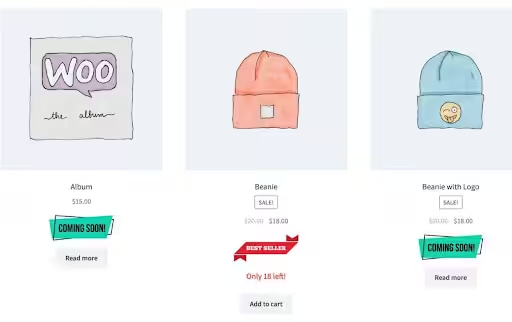
Source – WooCommerce.com
Why Inventory is the Heartbeat of Your Store
Inventory isn’t a static ledger – it’s a dynamic ecosystem for your business. Too little stock spells missed sales; too many ties up capital and warehouse space for the business. Both are harmful for your business in long term. With inventory management WooCommerce, you gain the following:
- Real-time visibility into stock levels
- Automated alerts to prevent stockouts
- Data-driven insights for smarter reordering
Consider this – 70% of shoppers will abandon a cart if an item goes out of stock mid-checkout.
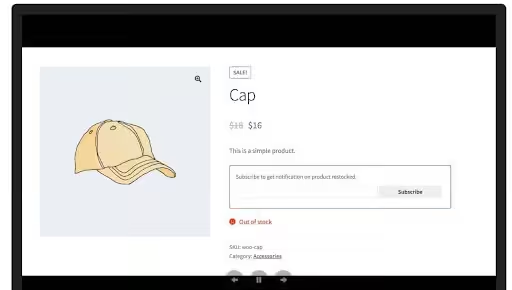
Source – WooCommerce.com
On the other hand, overstocking on slow-moving items in your business can inflate the holding costs by up to 30%. Striking the right WooCommerce inventory management boosts revenue and frees cash for growth.
Also Read: Speed Up WooCommerce Checkout in 2025
Initial Setup in WooCommerce: Going Beyond the Basics
Turning on WooCommerce inventory management is just the opening act for the business. Let’s flesh out every setting:
👉 Navigate to WooCommerce » Settings » Products » Inventory.
- Enable stock management: toggles global control.
- Hold stock (minutes): defines how long unpaid orders reserve stock – useful for flash sales (e.g., 30 minutes).
- Notifications: set low stock and out-of-stock email recipients (e.g., purchasing manager, warehouse lead).
- Thresholds: default “low stock” at 10 units, “out of stock” at 0.
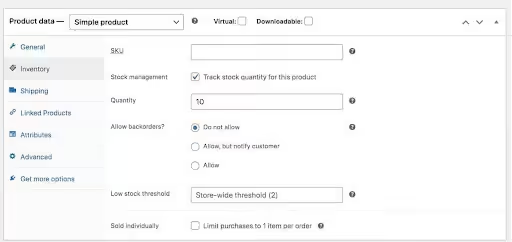
Source – WooCommerce.com
👉 Product-Level Details (Products » All Products » Edit Product):
- Stock quantity: exact count per SKU.
- Backorders: Do not allow (strict control), Allow but notify customer (flexible), Allow (risky).
- Sold individually: enforce one-per-order for limited editions.
- Stock status: manual override to “on backorder” if needed.
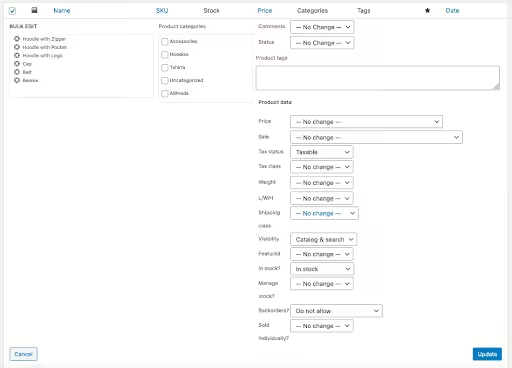
Source – WooCommerce.com
👉 Variation Products:
- Enable stock per variation.
- Use Managing stock? checkbox under each variation.
- Track unique SKUs for size/color combos to avoid overselling popular variants.
👉 Bulk Edits and Data Imports:
- Install “Product CSV Import Suite” for mass stock adjustments.
- Prepare columns: sku, stock_quantity, low_stock_threshold, backorders.
- Run dry-run import to catch format errors.
Workflow Deep Dive: Daily, Weekly, Monthly Routines
Having a routine check can help you with effective WooCommerce inventory management. Here’s a sample schedule for you to follow for your business. Feel free to make changes to suit your business requirements:
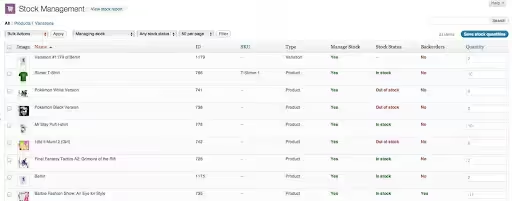
Source – WooCommerce.com
👉 Daily Routine:
- Review low-stock email alerts and place order with the vendors, if needed.
- Check recent sales trends – identify hot SKUs of the business and ensure there is sufficient stock.
- Verify high-value “A” items via quick physical scan.
👉 Weekly Routine:
- Generate a Stock Report: export CSV of all SKUs, filter by stock ≤ threshold.
- Update reorder points based on last week’s sell-through rate.
- Audit 5% of SKUs at random to validate the correctness of system data.
👉 Monthly Routine:
- Analyze Inventory Turnover Ratio of your business:
Turnover=Cost of Goods SoldAverage Inventory
- Trim slow mover items in your inventory (C-items) via promotions or bundles.
- Conduct a partial cycle count and focus on top revenue-drivers in the business.
Advanced Strategies for WooCommerce Inventory Management and Optimization
👉 Economic Order Quantity (EOQ)
Calculate EOQ on a quarterly basis to balance ordering vs holding costs and adjust order sizes in step with changing demand and cost structures.
EOQ=2DSH
Wherein, D = annual demand, S = ordering cost per order and H = annual holding cost per unit.
Take an example: if annual demand (D) = 10,000 units, ordering cost (S) per order = $50/order, holding cost (H) = $2/unit/year, then
EOQ=2×10,000×502=707 units
👉 Safety Stock and Lead Time Buffer
If your supplier lead time = 14 days and average daily sales on your ecommerce store = 20 units, with demand volatility of ±30%, then
Safety Stock=ZdLT
(where Z≈1.65 for 95% service level). Plug in your actual business data for precise buffer.
👉 ABC Analysis with Pareto Principle
Run analysis of revenue share per SKU, then do the following classification:
- A-items (80% revenue generating items): Should have tight controls with daily monitoring.
- B-items (15% revenue generating items): Put moderate controls with weekly checks.
- C-items (5% revenue generating items): Allot minimal oversight and monthly review.
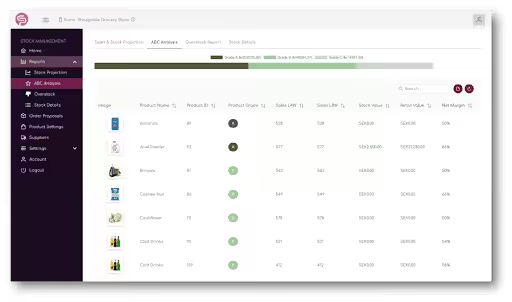
Source – WooCommerce.com
👉 SKU Rationalization
As a business owner, at least on a quarterly basis, evaluate SKUs with no sales in the past six months. Once you have identified such SKUs, it’s time for decision-making:
- Discontinue by removing from the product catalog.
- Promote these products via discounted bundles.
- Archive in WooCommerce to retain historical data.
👉 FIFO vis-à-vis LIFO Layering of Inventory
- FIFO (First–In–First–Out) Principle – Use it for perishable or trend-driven goods. It helps in preventing product obsolescence.
- LIFO (Last–In–First–Out) Principle – Follow it if you source your product offerings at wildly fluctuating prices and want to match the newest costs against the revenue.
👉 Batch and Expiry Tracking If your business is selling batch-sensitive items like food or cosmetics, record the product batch numbers and expiration dates in your inventory management WooCommerce setup. This will help you to pull details by nearest expiry first (FEFO) and minimize the inventory write-offs.
Also Read: Best WooCommerce cart abandonment recovery Plugins
WooCommerce Multi Locations Inventory Management
With WooCommerce multi-location inventory management, you allow your stock to flow through diverse channels:
- Define Locations: HQ, regional warehouse, pop-up stores, and third-party dropshipper.
- Assign Products: you can use “ATUM Multi-Inventory” to allocate quantities per site.
- Routing Rules as follows:
- Nearest proximity (low shipping cost)
- Highest stock first (avoid split shipments)
- Reporting: consolidated vs per-location dashboards.
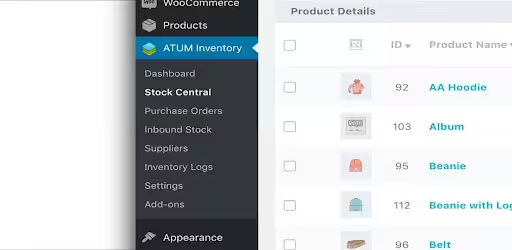
Source – WordPress.Org
Real-world hiccup: When two warehouses share SKUs, ensure unique bin locations. Label QR codes on the racks to avoid confusion and integrate handheld scanners to sync movements instantly and help with WooCommerce multi locations inventory management.
Seasonal Planning and Demand Forecasting for WooCommerce Inventory Management
Let’s be honest and embrace it – Seasonality isn’t a myth in online business. The same level of customers will not visit your WooCommerce website throughout the year. Do seasonal planning for your business by:
- Year-on-Year Analysis: Pull monthly sales data for the last 3-4 years to analyze peak season.
- Forecasting Tools: Use MS-Excel’s FORECAST.ETS or connect WooCommerce data to Google Sheets for automated seasonality modeling of your products.
- Reorder Multiplier: Mump your reorder point by 1.3 or 1.5X ahead of peak windows.
- Promotional Calendar: Map Black Friday, Cyber Monday, Christmas, plus industry-specific events. Align purchase order timing accordingly to ensure inventory availability.
Pro Tip: Host a bi-annual “stock planning” meeting with the marketing team – coordinate flash sales to clear excess stock ahead of new season buys.
Essential Plugins, Integrations, and Automations
👉 Must Have Plugins
The business requirements are diverse, and so is the requirement for a plugin. We have listed some of the best plugins in the market for you:
🔌 ATUM WooCommerce Inventory Management and Stock Tracking: granular supplier, purchase order, and stock value tracking. The user-friendly plugin allows you to handle and edit everything related to your inventory, be it SKU details, multi-location details, price of the products, or weight of the product, etc.
🔌 Stock Manager for WooCommerce: In-dashboard spreadsheet editor for quick tweaks to your inventory. This completely free plugin allows you to manage the entire stock details, including their editing from a single screen.
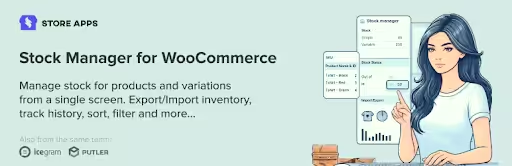
Source – WordPress.org
🔌 Order Export & Order Import for WooCommerce: Through this tool, you can schedule CSV exports of your order history for ERP sync as well as analysis. This plugin offers custom export filters so that you can download the data as per your requirements.
Have complex custom inventory management needs not met by the plugins available in the market? Reach out to Wisdmlabs Expert now. We will help you deliver custom plugins that are compatible with the store and offer maximum return on investment.
👉 Integrations and APIs
Below are some of the common third-party integrations you can leverage for your WooCommerce inventory management:
🔌 Zapier: link low-stock alerts to Slack, email, or Google Sheets for quick and easy analysis.
🔌 WooCommerce REST API: This API will allow you to pull stock data into BI tools (e.g., Data Studio).
🔌 ERP Connectors: for SAP or Oracle users – automate a two-way sync to maintain a single source of information.
👉 Automations
Once you have done integrations, leverage webhooks or built-in integrations to:
- Auto-create purchase orders when stock ≤ reorder point.
- Notify your supplier’s portal instantly.
- Send Slack / push alerts for critical stock events.
This “hands-off” automation will help you trim manual steps and response times.
AI Revolution: Smart Inventory Forecasting and Automated Decisions
AI isn’t just any buzzword. It’s all around you in everything you are doing right now. The AI can turn out to be the game-changer for inventory management. Here’s how:

Source – Sutisoft.com
- Predict Demand: AI will analyze past sales, seasonal trends of your products, and deep dive into customer behavior to forecast future demand for different SKUs. No more guessing!
- Automate Stock Updates: AI tools can automatically update stock levels across multiple channels, reducing the manual work and chances of error.
- Prevent Stockouts and Overstocking: Smart algorithms alert you before a product runs out or gets overstocked in your inventory.
- Dynamic Pricing: AI tools can help you to dynamically adjust the prices of different products based on demand, competition, and inventory levels. This will have a significant impact on your revenues.
- Chatbots and Smarter Support: AI chatbots can now handle customer queries like “Is this product in stock?” or “When will it be delivered?”. This will provide you more time to focus on business growth rather than answering repetitive questions.
Common Challenges and Tactical Solutions
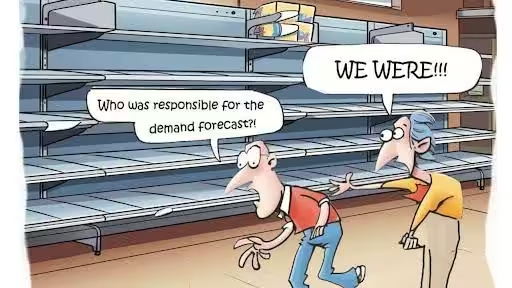
Even the best things can go haywire. Not to worry. We have listed some common challenges faced by e-commerce businesses when managing their inventory and the solutions to resolve them effectively with a positive outcome.
Source – Retalon.com
🚨 Challenge: Phantom Stock (system shows product in stock, but the shelf is empty)
💭 Solution: Implement daily cycle counts for critical SKUs. Make use of barcode scanning for the accuracy of product inventory.
🚨 Challenge: Supplier Delays
💭 Solution: Track actual lead-time vs promised lead-time of the supplier and adjust the reorder point formula with the real data of your business.
🚨 Challenge: Data Overload
💭 Solution: Streamline your dashboard – focus on 3 KPIs: turnover ratio, stock-out frequency, and carrying cost %. Archive or hide auxiliary metrics on the dashboard for a focused approach.
🚨 Challenge: Inefficient Inventory Audits
💭 Solution: Schedule regular physical and digital stock audits of all SKUs, enhanced by automated reporting tools to quickly highlight discrepancies. Use barcode scanning to get a real-time update of products as they move in or out of your store.
🚨 Challenge: Poor Returns and Backorder Handling
💭 Solution: You can set up automated workflows that handle product returns, backorders, and pre-orders to keep the inventory data accurate and customers informed.
Conclusion
WooCommerce inventory management is a journey, not a destination. It needs a perfect blend of automation and manual checks. From foundational setup to advanced forecasting, each layer adds business resilience to your ecommerce operations.
Don’t forget how AI, IoT, and cloud solutions are shaping the landscape of inventory management in WooCommerce. Embrace the imperfection – systems will glitch, suppliers will flake, but with clear routines and smart tools, you can come out on top and winner.
Frequently Asked Questions
Q: What’s the best way to calculate reorder points?
A: Use $ ROP = (Average daily usage \ times Lead time) + Safety stock $. Adjust periodically with real sales and lead-time data of your business.
Q: How do I handle returns in my stock counts?
A: Use a “quarantine” location for returned goods. Inspect, then move back into active stock or flag as a damaged product.
Q: Can I sync WooCommerce stock with Amazon and eBay?
A: Yes – you can use tools like QuickBooks Commerce and ChannelUnity to handle multi-channel syncing, preventing product oversells.
Q: What physical audit frequency do you recommend?
A: Daily mini-counts for A-items, weekly for B, and monthly for C-items. Supplement this process with an annual full recount of the entire item catalogue for compliance.
Q: What KPIs should I track for my business?
A: Some important KPIs to be tracked on a monthly basis are turnover ratio, stock-out rate, and carrying cost %.
Q: Should I allow backorders for my business?
A: You can play with backorders only if you’re confident enough in your supplier’s capabilities. You can offer notification emails and consider charging the customers upfront to reduce cancellations. However, a long wait can negatively impact your business’s credibility.
Now – and only now – take a deep breath. You’ve got the roadmap, the methods, and the nitty-gritty details to conquer WooCommerce multi-location inventory management in 2025. Go forth, stock wisely, and see the sales rising!