Running a WooCommerce store is like managing a bustling restaurant kitchen – everything needs to work seamlessly behind the scenes for customers to have a smooth experience.
But what happens when your backend starts crawling, your admin dashboard takes forever to load, and your API calls timeout? Your entire operation grinds to a halt.
Imagine you run a premium jewelry store online. During peak shopping season, your admin dashboard takes 30 seconds just to load the orders page, your inventory updates lag by minutes, and your mobile app keeps timing out when syncing data.
Sound familiar? You’re not alone – thousands of WooCommerce store owners face these exact challenges daily.
This comprehensive technical guide will walk you through proven strategies to speed up WooCommerce backend performance, optimize your admin dashboard, and supercharge your API responses. We’ll cover the nitty-gritty technical details, real-world scenarios, and actionable solutions that can transform your WooCommerce store into a high-performance machine.
WooCommerce Backend Optimization
What This Covers
The WooCommerce backend is the engine room of your online store. It handles everything from order processing and inventory updates to customer data management and reporting. When you speed up WooCommerce backend systems, you’re essentially turbocharging the foundation that supports your entire e-commerce operation.
Why Backend Performance Matters:
Let’s say you operate a digital course platform selling educational content. Every time a customer makes a purchase, your backend needs to:
- Process the payment transaction
- Update inventory counts
- Send confirmation emails
- Trigger course access permissions
- Log the transaction for reporting
If any of these processes are slow, the entire customer journey suffers. A sluggish backend doesn’t just frustrate you as the store owner – it creates a ripple effect that impacts customer satisfaction, conversion rates, and ultimately, your bottom line.

Struggling with a slow WooCommerce store?
A sluggish site can cost you sales. Turn it into a high-speed, high-converting machine with expert WooCommerce Speed Optimization services:
- In-depth Performance Audit
- Theme & Plugin Optimization
- Code & Database Cleanup
- Core Web Vitals Boosts
Common Backend Performance Bottlenecks:
A. Slow Database Queries
- Unoptimized queries that scan entire tables
- Missing database indexes on frequently accessed columns
- Queries that join multiple large tables without proper optimization
B. Bloated Database Issues
- Expired transients are taking up unnecessary space
- Autoloaded options that slow down every page load
- Old session data and spam comments cluttering the database
C. Heavy Plugins and Themes
- Poorly coded plugins that run unnecessary queries
- Themes with bloated functions.php files
- Multiple plugins performing similar functions
D. Inadequate Hosting Infrastructure
- Shared hosting with limited resources
- Outdated PHP versions without performance optimizations
- Lack of server-level caching mechanisms
Also Read: Speed Up WooCommerce Store with LiteSpeed Cache: Full Settings Walkthrough
How to Speed Up WooCommerce Backend
A. Enable High-Performance Order Storage (HPOS)
HPOS is WooCommerce’s game-changing feature that stores orders in custom tables instead of WordPress posts.
Picture this: you run a subscription box service with thousands of recurring orders. With traditional storage, each order creates multiple database entries across different tables. HPOS consolidates this into dedicated order tables optimized for WooCommerce queries, with minimal impact on the store’s performance.
IMPORTANT: “Enable HPOS” is enabled by default for new WooCommerce installations from version 8.2 onward. Existing stores need to follow the migration process.
Implementation Steps for Existing Stores:
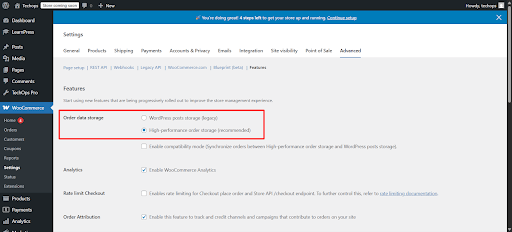
- Navigate to WooCommerce > Settings > Advanced > Features
- First, tick the “Enable compatibility mode (synchronizes orders to the posts table)” checkbox
- Wait for background actions to complete the synchronization (wc_schedule_pending_batch_process and wc_run_batch_process actions will run automatically)
- After both tables are successfully synchronized, you can select the “High-performance order storage (recommended)” option
- It is advisable to maintain compatibility mode for some time to ensure a seamless transition
- Monitor performance improvements using your preferred monitoring tool
Alternative CLI Method:
bash
wp wc cot sync
B. Database Optimization Strategy
Think of your database as a filing cabinet. Over time, it accumulates expired documents, duplicate files, and misplaced folders. Here’s how to clean house:
Cleaning Expired Data:
bash
# Remove expired transients
wp transient delete –expired
# Clean up autoloaded options
wp option list –autoload=yes –format=count
# Remove old sessions
wp db query “DELETE FROM wp_options WHERE option_name LIKE ‘_transient_%'”
Index Optimization:
- Add indexes on frequently queried columns (post_date, post_status, meta_key)
- Use phpMyAdmin’s “Relation view” to identify missing foreign keys
- Regular OPTIMIZE TABLE operations for InnoDB tables
C. Hosting Infrastructure Upgrade
Imagine you’re running a high-end electronics store. During Black Friday, your current shared hosting plan crashes under the traffic load. Here’s what proper hosting should include:
Essential Hosting Features:
- NVMe SSD Storage: 10x faster than traditional HDDs
- Multiple PHP Workers: Handle concurrent requests without bottlenecks
- OPcache Enabled: Reduces PHP execution time by up to 50%
- Database Optimization: MySQL 8.0+ with proper configuration
- Server-Level Caching: Varnish or similar technologies
Struggling with a slow WooCommerce store?
A sluggish site can cost you sales. Turn it into a high-speed, high-converting machine with expert WooCommerce Speed Optimization services:
- In-depth Performance Audit
- Theme & Plugin Optimization
- Code & Database Cleanup
- Core Web Vitals Boosts
D. Plugin and Theme Audit Process
Let’s say you manage a fitness equipment store with 47 active plugins. That’s like having 47 apps running simultaneously on your phone – eventually, performance suffers.
Systematic Audit Approach:
- Inventory Assessment: List all plugins and their primary functions
- Performance Testing: Deactivate plugins one by one and measure impact
- Functionality Consolidation: Replace multiple single-purpose plugins with comprehensive solutions
- Code Quality Review: Check plugin update frequency and support quality
E. Object Caching Implementation
Object caching is like having a super-efficient assistant who remembers frequently requested information. Instead of asking the database the same question repeatedly, the cache provides instant answers.
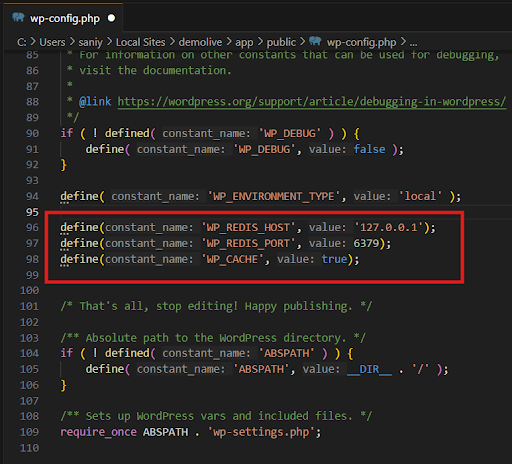
Redis Implementation:
php
// wp-config.php additions
define(‘WP_REDIS_HOST’, ‘127.0.0.1’);
define(‘WP_REDIS_PORT’, 6379);
define(‘WP_CACHE’, true);
B. Essential Tools for Backend Optimization
- Free WordPress plugin available from WordPress.org repository
- Identifies WooCommerce slow backend database queries in real-time
- Shows plugin-specific performance impacts with detailed timing information
- Displays admin dashboard performance metrics
B. WP-CLI Commands (requires command-line access)
- Automate routine maintenance tasks efficiently
- Clean database from command line without web interface limitations
- Schedule optimization tasks via server cron jobs
- Access via SSH or hosting provider’s terminal
C. Database Management Tools
- phpMyAdmin: Usually provided by hosting providers, visual database optimization
- Adminer: Lightweight alternative with better performance insights and modern interface
- MySQL Workbench: Advanced query optimization and indexing for advanced users
D. Application Performance Monitoring
- New Relic APM: Professional monitoring with 14-day free trial, then paid plans
- Query Monitor Pro: Advanced debugging capabilities, premium version of Query Monitor
- Debug Bar: Free WordPress plugin for basic performance insights
Admin Dashboard Performance Tuning
What This Covers
Your WooCommerce admin dashboard is mission control for your online business. Picture yourself managing a gourmet food delivery service – you need quick access to orders, inventory levels, customer data, and sales reports. A slow dashboard isn’t just inconvenient; it’s productivity poison that costs you time and money.
The admin interface performs complex operations:
- Loading order data
- Executing background jobs through Action Scheduler
- Rendering analytics widgets
- Processing AJAX requests.
When these systems aren’t optimized, simple tasks like viewing today’s orders can take minutes instead of seconds.
Common Dashboard Performance Bottlenecks:
A. Action Scheduler Overload
- Background tasks piling up in queues
- Insufficient processing capacity for scheduled jobs
- Memory-intensive tasks blocking other operations
B. WP-Cron Inefficiencies
- Unreliable triggering of scheduled tasks
- Multiple cron jobs running simultaneously
- Heavy operations blocking user interactions
C. Admin-Ajax.php Overuse
- Excessive AJAX calls for simple operations
- Unoptimized AJAX handlers processing large datasets
- Multiple widgets making simultaneous requests
D. Dashboard Widget Bloat
- Unnecessary widgets loading complex data
- Third-party widgets with poor performance
- Auto-refreshing elements consuming resources
People Also Read: Why is WooCommerce Slow? 7 Hidden Culprits And Their Quick Fixes
How to Optimize Admin Dashboard Performance
A. Action Scheduler Optimization
Suppose you run a subscription-based meal planning service. Your Action Scheduler handles thousands of tasks: processing recurring payments, sending meal notifications, updating inventory. Without proper optimization, these tasks create a traffic jam.
Optimization Strategies:
Add these code blocks in your theme functions.php file.
Increase Time Limit (if your server supports it)
php
// Increase from default 30 seconds to 2 minutes

function eg_increase_time_limit( $time_limit ) {
return 120; // 120 seconds
}
add_filter( ‘action_scheduler_queue_runner_time_limit’, ‘eg_increase_time_limit’ );

Batch Size Optimization
php
// Increase batch size from default 25 to 100 for faster processing
function eg_increase_action_scheduler_batch_size( $batch_size ) {
return 100;
}
add_filter( ‘action_scheduler_queue_runner_batch_size’, ‘eg_increase_action_scheduler_batch_size’ );

Concurrent Processing (use with caution on powerful servers only)
php
// Allow multiple processes to run simultaneously
function eg_increase_action_scheduler_concurrent_batches( $concurrent_batches ) {
return 5; // Increase from default 1
}
add_filter( ‘action_scheduler_queue_runner_concurrent_batches’, ‘eg_increase_action_scheduler_concurrent_batches’ );

WP-CLI Processing (recommended for high-volume sites)
bash
# Process queue via command line for better performance
wp action-scheduler run
# Or for specific hooks
- wp action-scheduler run –hooks=woocommerce_cleanup_sessions
D. WP-Cron Replacement Strategy
WordPress cron isn’t actually cron – it’s a pseudo-cron that relies on website visits. For a busy online store, this creates unpredictable performance issues.
Real Cron Implementation:
Disable WP-Cron
php
// Add to wp-config.php
- define(‘DISABLE_WP_CRON’, true);
Set Up System Cron (contact your hosting provider if you don’t have server access)
bash
# Add to server crontab – runs every 5 minutes
- */5 * * * * wget -q -O – https://yoursite.com/wp-cron.php?doing_wp_cron >/dev/null 2>&1
Alternative using curl
bash
# Use curl instead of wget if preferred
- */5 * * * * curl -s https://yoursite.com/wp-cron.php?doing_wp_cron >/dev/null 2>&1
Schedule Heavy Tasks During Off-Peak Hours
bash
# Run intensive Action Scheduler tasks at 2 AM
- 0 2 * * * wp action-scheduler run >/dev/null 2>&1
Struggling with a slow WooCommerce store?
A sluggish site can cost you sales. Turn it into a high-speed, high-converting machine with expert WooCommerce Speed Optimization services:
- In-depth Performance Audit
- Theme & Plugin Optimization
- Code & Database Cleanup
- Core Web Vitals Boosts
C. Heartbeat API Optimization
The WordPress Heartbeat API keeps the admin dashboard “alive” by sending regular requests to the server. While useful for autosave and notifications, it can overwhelm slower servers.
Configuration Options:
Frequency Adjustment
php
// Reduce heartbeat frequency
add_filter(‘heartbeat_settings’, function($settings) {
$settings[‘interval’] = 60; // Every 60 seconds instead of 15
return $settings;
});

Selective Disabling
php
// Disable on specific admin pages
add_action(‘admin_init’, function() {
if (isset($_GET[‘page’]) && $_GET[‘page’] === ‘wc-reports’) {
wp_deregister_script(‘heartbeat’);
}
});

D. Dashboard Widget Management
Let’s say you operate a digital marketing agency selling online courses. Your dashboard displays:
- Sales widgets
- Course completion rates
- Affiliate statistics
- Social media feeds.
Each widget makes database queries and API calls – multiply that by every admin page load.
Widget Optimization Process:
- Audit Active Widgets
- Document all dashboard widgets and their purposes
- Measure load time impact of each widget
- Identify widgets that provide minimal value
Remove Unnecessary Widgets
php
// Remove specific dashboard widgets
add_action(‘wp_dashboard_setup’, function() {
remove_meta_box(‘dashboard_quick_press’, ‘dashboard’, ‘side’);
remove_meta_box(‘dashboard_recent_drafts’, ‘dashboard’, ‘side’);
remove_meta_box(‘dashboard_primary’, ‘dashboard’, ‘side’);
});

Implement Lazy Loading
javascript
// Load widget content only when needed
jQuery(document).ready(function($) {
$(‘.dashboard-widget’).each(function() {
var widget = $(this);
widget.on(‘click’, function() {
if (!widget.hasClass(‘loaded’)) {
// Load content via AJAX
loadWidgetContent(widget);
}
});
});
});

E. Analytics and Reporting Optimization
Heavy reporting queries can bring your admin dashboard to its knees. Picture managing a multi-vendor marketplace – generating sales reports involves joining multiple tables, calculating commissions, and aggregating data across thousands of transactions.
Optimization Techniques:
Off-Peak Report Generation
php
// Schedule heavy reports during low-traffic hours
wp_schedule_event(strtotime(‘2:00 AM’), ‘daily’, ‘generate_sales_reports’);
Report Caching
php
// Cache expensive reports
$cache_key = ‘monthly_sales_report_’ . date(‘Y-m’);
$report_data = wp_cache_get($cache_key);
if (false === $report_data) {
$report_data = generate_monthly_sales_report();
wp_cache_set($cache_key, $report_data, ”, HOUR_IN_SECONDS * 6);
}

Paginated Results
php
// Implement pagination for large datasets
$orders_per_page = 50;
$offset = ($page – 1) * $orders_per_page;
$orders = wc_get_orders(array(
‘limit’ => $orders_per_page,
‘offset’ => $offset,
‘orderby’ => ‘date’,
‘order’ => ‘DESC’
));

C. Essential Tools for Dashboard Optimization
A. Performance Monitoring Tools
- Query Monitor: Free plugin for real-time admin page performance analysis
- New Relic: Professional application performance monitoring with detailed insights
- LogRocket: User interaction and performance tracking (includes free tier)
B. Cron Management Tools
- WP Crontrol: Free WordPress plugin for visual cron job management and debugging
- Advanced Cron Manager: Premium plugin with detailed cron job analysis and optimization
- System-level cron monitoring: Server-side task scheduling (requires server access)
C. Dashboard Customization
- Admin Columns: Free/premium plugin to optimize admin list views for better performance
- Admin Menu Editor: Free plugin to remove unnecessary menu items and reduce clutter
- Heartbeat Control: Free plugin for fine-tuning WordPress Heartbeat API settings
Struggling with a slow WooCommerce store?
A sluggish site can cost you sales. Turn it into a high-speed, high-converting machine with expert WooCommerce Speed Optimization services:
- In-depth Performance Audit
- Theme & Plugin Optimization
- Code & Database Cleanup
- Core Web Vitals Boosts
API Speed Enhancement for WooCommerce
What This Covers
Your WooCommerce API is the bridge connecting your store to the outside world. Whether you’re syncing data with a mobile app, integrating with third-party services, or powering a headless storefront, API performance directly impacts user experience and business operations.
| Consider running a subscription box service with a mobile app for customers to manage their subscriptions. Every tap in the app triggers API calls – checking order status, updating delivery preferences, processing payments. If your API responses are slow, customers experience frustrating delays, abandoned actions, and ultimately, cancelled subscriptions. |
WooCommerce provides both a REST API for general operations and a Store API specifically optimized for cart and checkout processes. Understanding how to optimize both is crucial for maintaining fast, reliable integrations.
Why API Performance Matters:
A. Mobile App Integration
- Real-time inventory checks
- Order status updates
- User authentication and profile management
B. Headless Commerce
- Fast product catalog loading
- Seamless checkout experiences
- Dynamic pricing and promotions
C. Third-Party Integrations
- ERP system synchronization
- Marketing automation platforms
- Accounting software connections
Common API Performance Issues:
A. Unfiltered Queries
- Returning entire product catalogs when only specific fields are needed
- Loading unnecessary relationships and metadata
- Processing requests without pagination limits
B. Large Response Payloads
- Including full product descriptions for simple listings
- Sending image URLs for every variation
- Returning complete order histories instead of summaries
C. Uncached Responses
- Regenerating the same data for repeated requests
- Database queries for static content
- Missing cache headers for client-side caching
People Also Read: Best WooCommerce Speed Plugins Compared: Which One to Use?
How to Optimize WooCommerce API Performance
A. Response Field Optimization
Imagine you’re building a mobile app for your artisan coffee subscription service. The app’s product listing page only needs product names, prices, and thumbnail images. Why download full product descriptions, reviews, and shipping information?
Field Selection Implementation:
javascript
// Efficient API call – only request needed fields
const response = await fetch(‘/wp-json/wc/v3/products?_fields=id,name,price,images’);
// Instead of the default call that returns everything
const inefficient = await fetch(‘/wp-json/wc/v3/products’);
Custom Field Filtering:
php
// Filter API responses to include only necessary data
add_filter(‘woocommerce_rest_product_object_query’, function($args, $request) {
if ($request->get_param(‘minimal’)) {
$args[‘fields’] = ‘ids’; // Return only IDs for autocomplete
}
return $args;
}, 10, 2);
B. Pagination and Filtering Strategy
Let’s say you manage a vintage clothing marketplace with 50,000 products. Loading all products at once would crash most mobile devices and consume enormous bandwidth.
Effective Pagination:
javascript
// Implement smart pagination
const loadProducts = async (page = 1, category = null) => {
const params = new URLSearchParams({
per_page: 20,
page: page,
orderby: ‘popularity’,
order: ‘desc’
});
if (category) {
params.append(‘category’, category);
}
const response = await fetch(`/wp-json/wc/v3/products?${params}`);
return response.json();
};
Date-Based Filtering:
javascript
// Only sync recent changes for mobile app
const syncRecentOrders = async (lastSync) => {
const response = await fetch(
`/wp-json/wc/v3/orders?modified_after=${lastSync}&_fields=id,status,date_modified`
);
return response.json();
};
C. API Request Batching
Instead of making multiple individual API calls, batch related operations together. Picture updating inventory for your electronics store – instead of 100 separate API calls for 100 products, make one batch call.
Batch API Implementation:
javascript
// Batch multiple operations
const batchUpdate = {
update: [
{ id: 123, stock_quantity: 50 },
{ id: 124, stock_quantity: 30 },
{ id: 125, stock_quantity: 75 }
]
};
const response = await fetch(‘/wp-json/wc/v3/products/batch’, {
method: ‘POST’,
headers: {
‘Content-Type’: ‘application/json’,
‘Authorization’: ‘Bearer ‘ + apiToken
},
body: JSON.stringify(batchUpdate)
});
D. Response Caching Implementation
Caching prevents your server from regenerating the same data repeatedly. For a home decor store, product categories and brand information rarely change – perfect candidates for caching.
Transient-Based Caching:
php
// Cache expensive API responses
function get_cached_products($category_id) {
$cache_key = ‘api_products_’ . $category_id;
$products = get_transient($cache_key);
if (false === $products) {
$products = wc_get_products(array(
‘category’ => array($category_id),
‘limit’ => 50,
‘status’ => ‘publish’
));
// Cache for 15 minutes
set_transient($cache_key, $products, 15 * MINUTE_IN_SECONDS);
}
return $products;
}
Object Cache Integration:
php
// Use Redis for API caching
function cache_api_response($endpoint, $data, $expiry = 300) {
wp_cache_set(‘api_’ . md5($endpoint), $data, ‘wc_api’, $expiry);
}
function get_cached_api_response($endpoint) {
return wp_cache_get(‘api_’ . md5($endpoint), ‘wc_api’);
}
E. Store API for Cart and Checkout
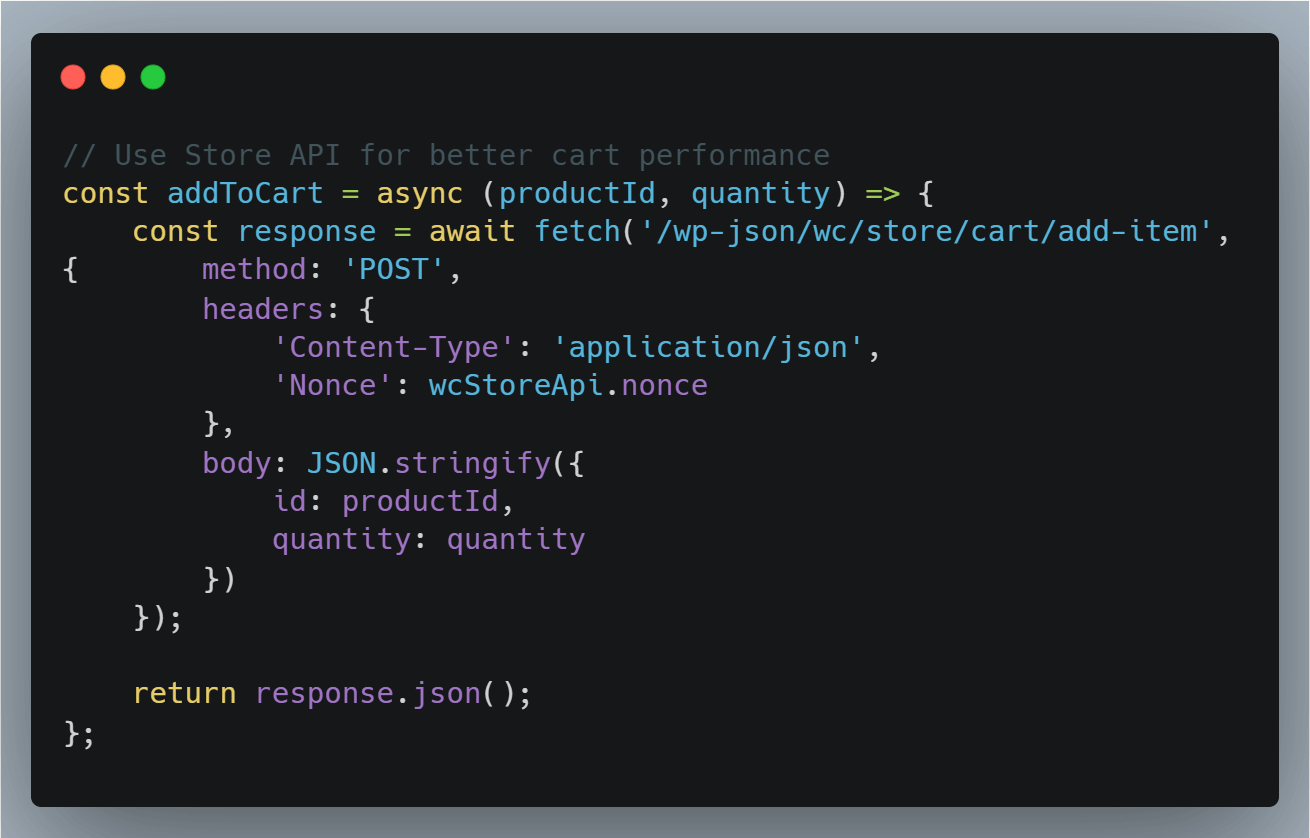
WooCommerce’s Store API is specifically optimized for frontend operations. For a fashion boutique’s checkout process, Store API provides faster cart operations and streamlined checkout flows.
Store API Implementation:
javascript
// Use Store API for better cart performance
const addToCart = async (productId, quantity) => {
const response = await fetch(‘/wp-json/wc/store/cart/add-item’, {
method: ‘POST’,
headers: {
‘Content-Type’: ‘application/json’,
‘Nonce’: wcStoreApi.nonce
},
body: JSON.stringify({
id: productId,
quantity: quantity
})
});
return response.json();
};
F. Rate Limiting and Security
Protect your API from abuse while maintaining performance for legitimate users. Imagine your handcrafted jewelry store’s API being overwhelmed by a poorly configured third-party integration, making thousands of requests per minute.
Rate Limiting Implementation:
php
// Implement API rate limiting
add_action(‘rest_api_init’, function() {
add_filter(‘rest_pre_dispatch’, ‘wc_api_rate_limit’, 10, 3);
});
function wc_api_rate_limit($result, $server, $request) {
$route = $request->get_route();
if (strpos($route, ‘/wc/v3/’) !== false) {
$client_ip = $_SERVER[‘REMOTE_ADDR’];
$cache_key = ‘api_rate_limit_’ . md5($client_ip);
$requests = wp_cache_get($cache_key);
if ($requests === false) {
$requests = 1;
wp_cache_set($cache_key, $requests, ”, 60); // 1 minute window
} else {
$requests++;
wp_cache_replace($cache_key, $requests, ”, 60);
}
if ($requests > 100) { // Max 100 requests per minute
return new WP_Error(‘rate_limit_exceeded’, ‘Too many requests’, array(‘status’ => 429));
}
}
return $result;
}
D. Essential Tools for API Optimization
A. API Testing and Development
- Postman: Free comprehensive API testing platform with automated test suites and team collaboration
- Insomnia: Free lightweight API client with GraphQL support and modern interface
- cURL: Free command-line testing tool for server-side debugging (built into most systems)

B. Load Testing Tools
- k6: Free modern load testing tool with JavaScript scripting (Grafana Labs)
- Apache JMeter: Free comprehensive performance testing with GUI interface
- Artillery: Free lightweight load testing tool perfect for continuous integration
C. Response Management
- WP REST API Controller: Free WordPress plugin to fine-tune response fields and caching
- Redis Object Cache: Free object caching solution for high-performance API responses
- Varnish Cache: Free server-level caching for static API responses (requires server configuration)
D. Monitoring and Analytics
- New Relic APM: Professional API performance monitoring with detailed metrics (free tier available)
- DataDog: Comprehensive application monitoring with API-specific insights (free trial, then paid)
- Google Analytics 4: Free tracking of API usage patterns and performance trends via custom events
Putting It All Together: A Systematic Approach
Optimizing your WooCommerce performance isn’t a one-time task – it’s an ongoing process that requires systematic monitoring and continuous improvement. Think of it like maintaining a high-performance sports car: regular tune-ups, quality fuel, and proactive maintenance keep everything running smoothly.
Start with backend optimization as your foundation, then move to admin dashboard improvements, and finally fine-tune your API performance. Monitor the impact of each change, and don’t try to implement everything at once.
A gradual, measured approach will help you identify which optimizations provide the biggest performance gains for your specific setup.
Remember, every WooCommerce store is unique. What works perfectly for a digital download site might not be optimal for a complex multi-vendor marketplace. Use these techniques as a starting point, but always test and measure the results in your specific environment.
| The investment in WooCommerce backend speed optimization pays dividends in improved user experience, higher conversion rates, and reduced server costs. Your customers will notice the difference, your team will work more efficiently, and your business will scale more smoothly as you grow. |