| Magento 2 allows you to customize your store’s frontend by overriding template files within a child theme. Instead of editing core files (which break during updates), you create a safe override structure and modify UI elements like buttons, layouts, and product sections. This guide walks you through the exact process, plus when it makes sense to customize vs redesign vs migrate. |
If you own a Magento 2.0 store on the cyberspace, you probably noticed how rigid the settings are when it comes to customizaing the various front end elements like fixed buttons, text for options and thumbnails.. you know the works. But you want your store to stand out. What’s the point of investing in an online store when it’s just like the other 200,00 or so stores that are powered by Magento?
But it’s not a lost cause. You can tweak and redesign your store to suit your style of business, and what’s more, at no extra costs whatsoever. Because unlike most other Magento customizations that have you spending thousands of dollars for bespoke developments, this is a Do-It-Yourself!

When Should You Use Template Override?
Before we begin, it is important to understand when this approach actually makes sense.
Template overriding works best when:
- You want to change small UI elements like button text or labels
- You want to tweak the layout structure slightly
- Your current theme is mostly fine and only needs minor adjustments
However, this may not be the right approach if:
- Your store design feels outdated
- Your user experience is confusing or cluttered
- You are planning a complete redesign
In such cases, template changes alone may not be enough.
Quick Check Before You Start
Before you proceed, ask yourself:
- Do you know how to access Magento files?
- Are you comfortable editing PHP/HTML files?
- Do you have a staging site to test changes?
If the answer is yes to most of these, you’re good to go.
If not, it’s better to proceed carefully or take help from a Magento developer.
The intent of this article is to guide you through modifying the basic templates of various front end elements in Magento 2.0 in 5 simple steps. These could be something as simple as changing the text for ‘Add to Cart’ button (as demonstrated) or changing the default layout and the look of any UI element. Magento 2.0 stores the design and formatting of various front-end elements in the form of templates, within the theme. All you need to do is locate and modify these templates.
Word of Caution: To successfully modify these template files you have to be extra careful; a single error can potentially harm the functioning of the entire theme and bring your site to a standstill. If you’re looking for a complete overhaul of your Magento 2.0 theme, it’s recommended you get in touch with a Magento expert.
Let’s begin!
How to Redesign a Homepage on WordPress Without Losing SEO?
Pre-Requisites
- An active installation of Magento 2.0. If you don’t have one, you can download it here.
- Working knowledge of Magento 2.0 and its various modules.
- Basic understanding of PHP, HTML, XML and CSS.
Note: This article is specific to Magento 2.xx.
Running Magento 1.xx ? Old Is Just Not Sold! Migrate to Magento 2.0 Today
[space]
Step 1: Creating Child Theme
To make sure that you don’t accidentally disrupt your theme and end up being stuck with a non functional site, you have to first create a child theme. This child theme will have the your current Magento theme as the parent theme.
The steps to create a child theme in Magento 2.0 can be found here. Make sure you include all the templates you want to modify in the child theme. I took the liberty of creating a child theme called Product Templates for the purpose of demonstration.
Modifying the child theme and not the original parent theme also makes sure that you don’t lose your changes with Magento updates.
| Template Override Replace Magento’s default template with your custom version. Child Theme .phtml File |
Step 2: Identifying The Template
The basic intention of overriding a template is that you want to change or alter or style a default UI element. But first, you need to first identify the template responsible for that UI element.
For example, let us consider the Add-To-Cart Button on single product page and change its text to Add-To-Basket.
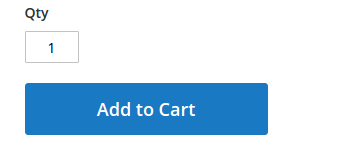
- Magento provides an option which you can use to find out the templates for different UI elements.
- Navigate to Stores -> Configuration -> Advanced -> Developer
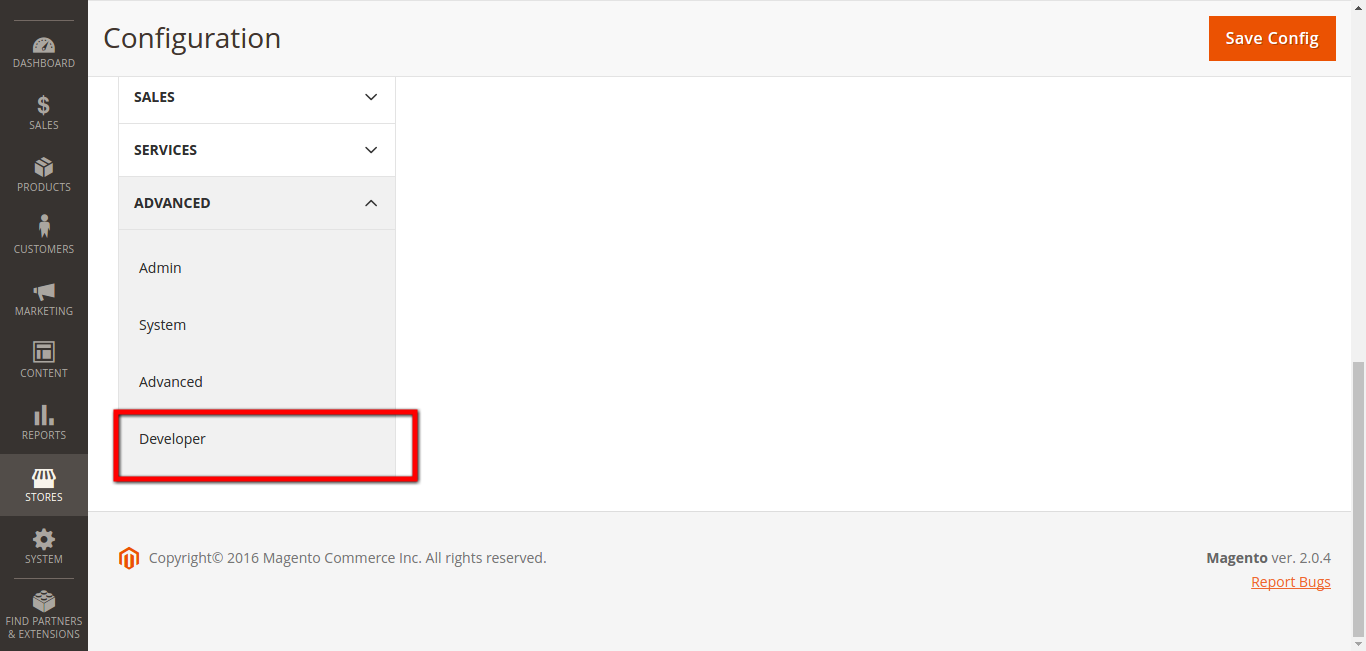
- On the Developers tab, under Debug, you should find an option Enabled Template Path Hints for Storefront.
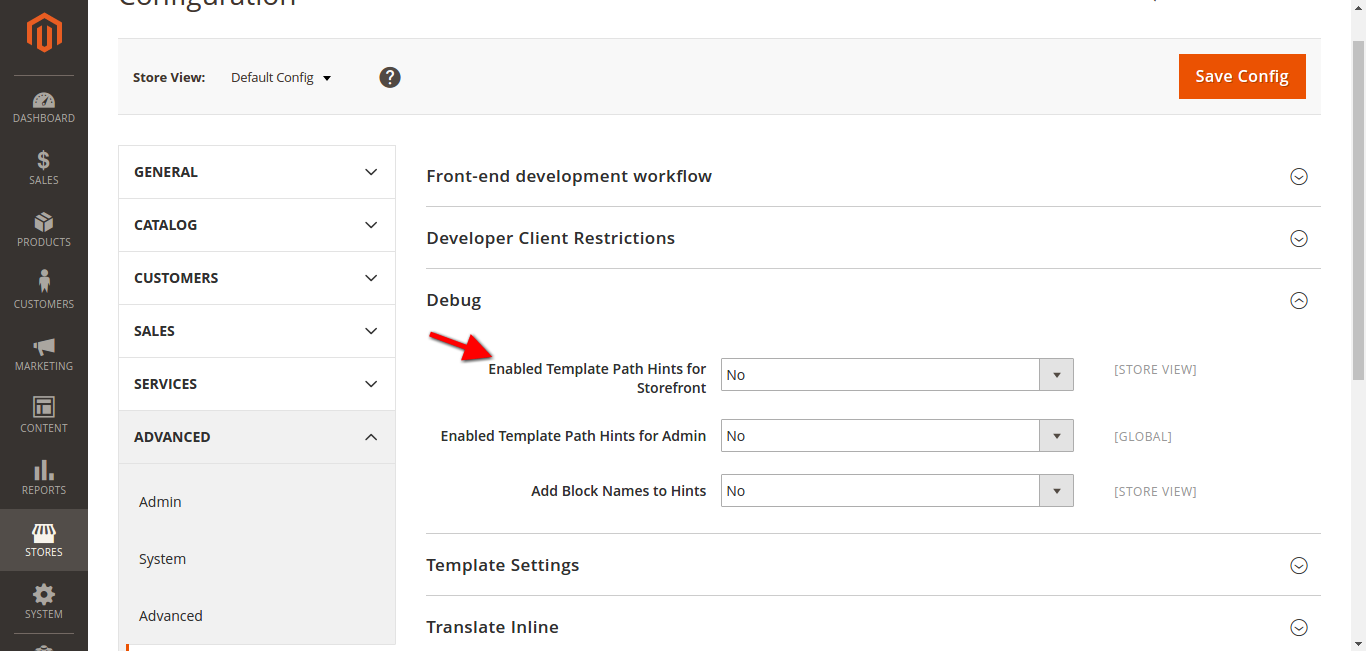
- Set that option to “Yes” and hit Save Config.
- Refresh Cache and then Navigate to one of the single product page on frontend.
- You will find various red statements on the page, which are nothing but paths to the templates that are responsible for frontend UI elements.
- Over the ”Add-to-cart” button, you will find the template location for Add-to-cart button as
“/var/www/html/public/vendor/magento/module-catalog/view/frontend/templates/product/view/addtocart.phtml”.
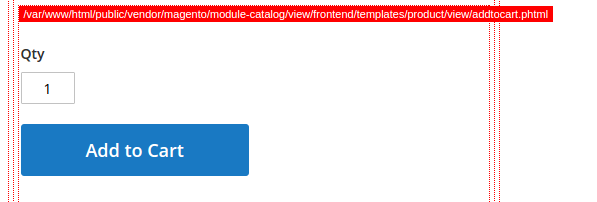
- Note that this template can be different based on the parent theme that you are using.
- Once you have identified the template file, move to Step 3.
Step 3: Overriding The Template
This is where we actually override the default setting for the template. In the child theme, you need to first create the Template Directory structure. Considering
“/var/www/html/public/vendor/magento/module-catalog/view/frontend/templates/product/view/addtocart.phtml”
as the template file path, the directory structure for overriding template would be :
“<path-to-child-theme-directory>/Magento_Catalog/templates/product/view/”
Copy the main template file i.e “addtocart.phtml” from
“/var/www/html/public/vendor/magento/module-catalog/view/frontend/templates/product/view/”
to
“<path-to-child-theme-directory>/Magento_Catalog/templates/product/view/”.
That’s it. You have overridden the base template file with your theme’s template file. To cross check, go to Stores -> Configuration -> General -> Design and select the child theme you created as the Design Theme.
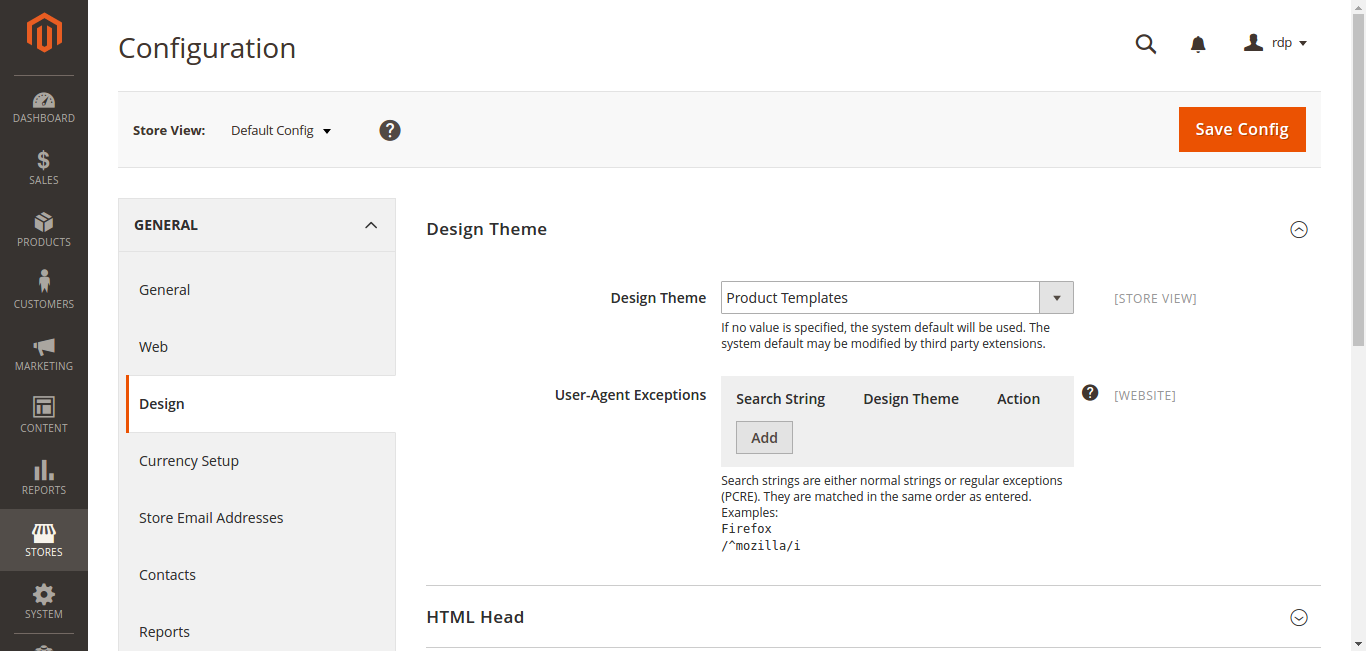
Save Config and refresh Cache.
Step 4: To Check If The Template Is Properly Overridden
Head to Single Product Page on the front end and check the template which is being shown in hints. If the template is properly overridden, then the hint should show your child theme as the template file path.
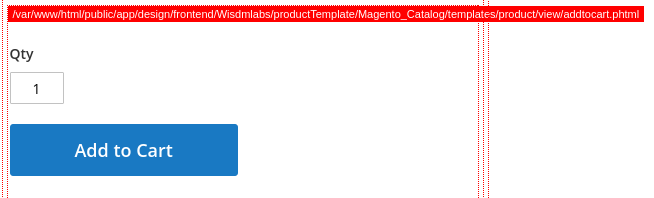
If not, there may be some error in the directory structure you created. Flushing Magento Cache might help you here.
| Tools That Can Help
While not mandatory, these tools can make your work easier:
|
Step 5: Make Changes
Once the template is overridden, it’s all yours to play around with; you can customize it in every possible way you can. For demo purposes, let’s change the “Add to Cart” text to “Add to Basket”.
- In the addtocart.phtml file, you will find a small piece of code as,[space]
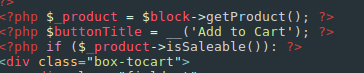
- Change that code to

- Check it on front end. Don’t forget to disable the hints.
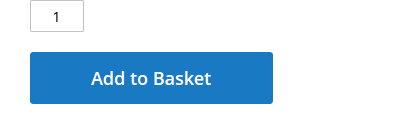
Good job! The template has been identified, overriden and successfully modified! The same procedure would apply to every other template, you shouldn’t have no problems whatsoever in giving your Magento Store a minor revamp!
Conclusion
Customizing your Magento 2 templates might seem a bit technical at first, but once you understand how templates work, it becomes much easier to take control of your store’s design.
The key takeaway here is simple:
you don’t always need expensive redesigns to make your store feel different.
Even small tweaks like changing button text, adjusting layouts, or refining UI elements can make your store feel more aligned with your brand and more intuitive for your users.
At the same time, it’s important to be careful.
Template overrides give you flexibility, but they also come with responsibility. Working within a child theme and testing changes properly will save you from unexpected issues later.
If you’re comfortable experimenting, this approach can go a long way in improving your store without additional costs.
And if you’re planning something more complex, getting expert support can help you move faster without breaking things.
Checkout this WordPress Redesign Best Practices if You are Thinking of a WordPress Redesign
When Customization Starts Feeling Limiting
There’s also a point where constant template tweaks start becoming difficult to manage.
If you find yourself:
-
repeatedly overriding templates
-
struggling with flexibility
-
or trying to make Magento behave in ways it wasn’t designed for
…it might not be a customization problem anymore. It might be a platform experience problem.
This is where many businesses start exploring WordPress (especially WooCommerce) because it gives you more control over design, content, and user experience without needing to override core templates for every small change.
Thinking of a More Flexible Setup?
If you’re considering a more flexible, easier-to-manage storefront, it might be worth looking at a structured redesign approach on WordPress.
You can explore how that works here:
👉 WordPress redesign services
It’ll give you a clearer idea of how design, performance, and conversions can be improved without constantly working around platform limitations.
Start Doing it Yourself Today:
Self-help guides to WordPress redesign
Before and After Metrics Every Business Should Track for a Redesign
Why WordPress Redesign Costs Vary So Much?