Hey everyone! Ever been cruising the web or trying to connect to a secure WordPress service, only to be slammed with a cryptic “TLS Client Credential Fatal Error”?
Transport Layer Security, better known as TLS, is a vital protocol when it comes to keeping our conversations over networks safe and sound. However, it is possible for users to sometimes encounter the “TLS Client Credential Fatal Error,” impacting the security as well as the connectivity of the Website.
In this blog, we will try to break down this error for you, figure out the reasons behind the error, and explore different ways to fix it.
Also Read: Comprehensive Guide to Resolve WordPress Fatal Errors
Getting to know Transport Layer Security
Think of TLS (Transport Layer Security) as the internet’s super-secure handshake protocol. Whenever you see that little padlock icon in your browser’s address bar (or connect to many other secure services), TLS is working behind the scenes to encrypt the data zipping between your computer (the client) and the server you’re trying to reach.
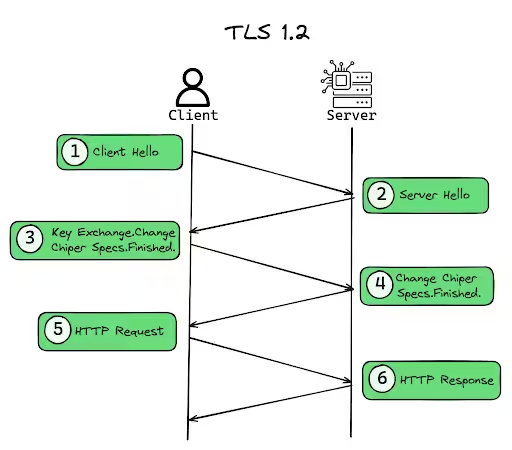
The objective of a secret wireline is to ensure the conversation remains private to the two applications, keeping your sensitive information like passwords, credit card numbers, or embarrassing search queries, safe from prying eyes.
Now, for this secure handshake to happen, both sides often need to prove they are who they say they are. The server usually presents a certificate to prove its identity to your browser. But sometimes, especially in more secure corporate environments or specific application setups, the server also wants your device (the client) to prove its identity. That’s where client credentials come into play.
Decoding the TLS Client Credential Error: What Does It Mean?
The term “fatal error” in the case of TLS may sound dramatic, and maybe for a good reason. In the context of a TLS handshake, a “fatal” error means that the handshake process cannot continue. It’s a showstopper for your business.
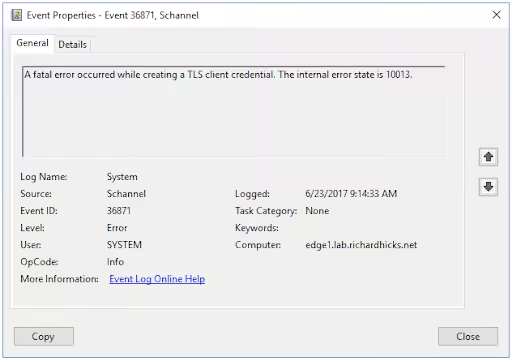
The TLS Client Credential Fatal Error typically occurs when there is a failure in creating a secure connection between a client and a server. The error message often includes an internal error state code, such as 10013, which helps in diagnosing this issue.
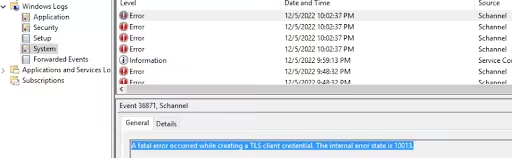
As a result of this error, the user might not be able to access the websites that mandatorily require secure connections.
What Causes the Error in TLS Client Credentials?
There are several factors that can lead to the client credential fatal error. We have listed a few below to help you understand this error in detail –
- Incompatible TLS Versions: The client and server may not support the same TLS versions.
- Cipher Suite Mismatch: The client and server cannot agree on a mutual cipher suite to use. This error particularly surfaces in cases where outdated protocols (e.g., TLS 1.0 or 1.1) are disabled without ensuring compatibility with newer ones like TLS 1.2 or 1.3.
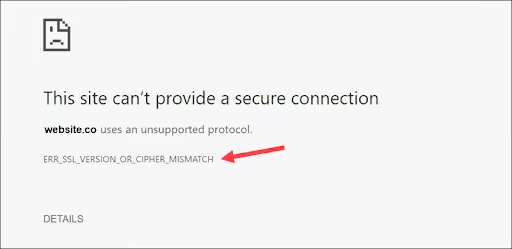
- Error in Registry Settings: Incorrect registry settings on Windows machines can cause this error.
- Using Outdated Software: Using outdated versions of software that do not support newer TLS versions.
- Certificate Revoked: The error is easy to understand. The Certificate Authority that issued the client certificate has officially declared it invalid before its natural expiration date. This usually happens if the certificate’s private key is compromised (or suspected to be), or the client is no longer authorized.
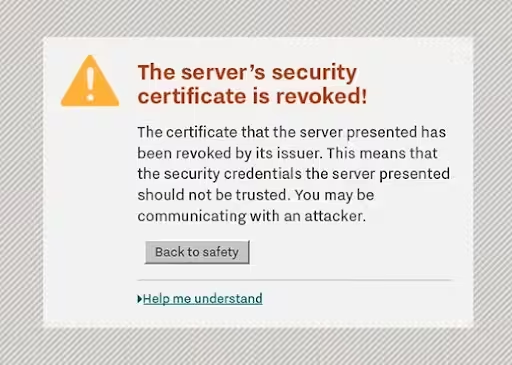
- Bad Certificate: It means the server received a certificate from the client that it considers invalid for some reason. The certificate might be malformed, its signature might not verify correctly, or it might contain information that the server doesn’t like.
- Access Denied: Sometimes, even if the certificate itself is technically valid (not expired, not revoked, issued by a trusted CA), the identity presented by the certificate might simply not be authorized to access the specific resource or service. The server authenticates you successfully, but then says, “Sorry, you are not allowed in here”.
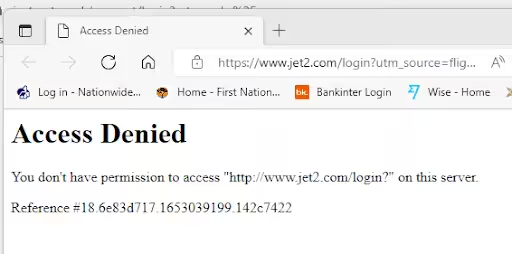
- Firewall or Network Restrictions: If the firewalls are blocking specific protocols, this may hamper the handshake process.
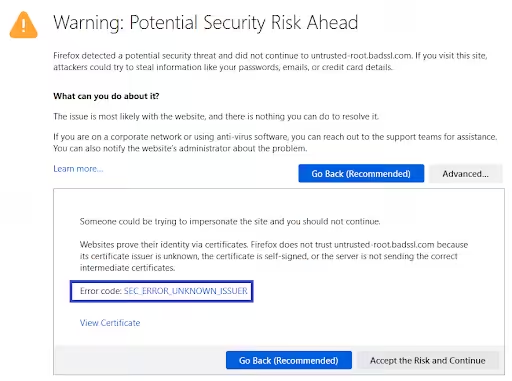
- Certificate Unknown: This error typically means the server doesn’t trust the issuer of the client certificate. Remember how certificates are issued by Certificate Authorities (CAs)? Servers have a list of CAs they trust. If your client certificate was signed by a CA that’s not on the server’s “approved list” or if the server can’t build a valid chain of trust up to a trusted root CA, it’ll throw this error.

Struggling With TLS Client Errors?
TLS credential issues can block users, hurt conversions, and damage trust. Let our experts resolve it before it impacts your business.
People Also Search For: Error 503 Backend Fetch Failed: A Quick Fix Guide
Troubleshooting the Error in TLS Client Credential: Corrective Action Guide
Here are some steps to troubleshoot and resolve the TLS Client Credential Fatal Error:
- Enable TLS 1.2 and 1.3
Ensure that all necessary and modern TLS versions are enabled on your system:
- Open Internet Properties and go to the Advanced tab.
- Check the boxes for TLS 1.2 and TLS 1.3 protocols under Security options.
- Click OK and restart your server.
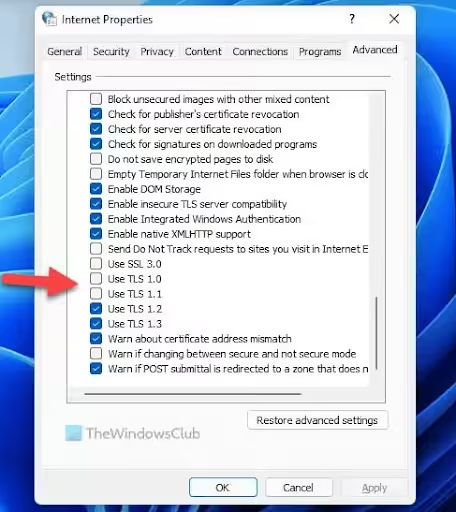
Pro-Tip: Create registry keys under HKEY_LOCAL_MACHINE\SYSTEM\CurrentControlSet\Control\SecurityProviders\SCHANNEL\Protocols\. Set DisabledByDefault to 0 and enabled to 1 for TLS 1.2 and 1.3
- Check Certificates and Firewall Settings
Check the proper installation of a valid SSL / TLS certificate on both client and server sides.
Also, review the firewall rules to confirm that traffic is allowed on all necessary ports (take the example of port 443 for HTTPS).
- Test the Connections
Use tools such as Wireshark to collect network traffic and pinpoint any handshake issues when trying to connect.
- Modify Registry Settings
Adjust the registry settings to ensure proper TLS configuration:
- Press Win + R to open the Run dialog.
- Type regedit and press Enter.
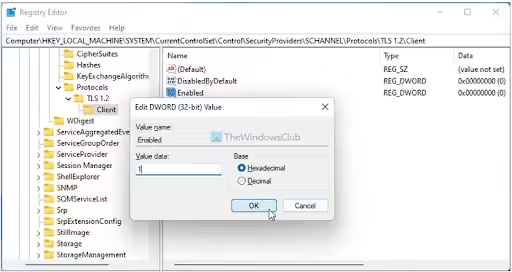
- Navigate to HKEY_LOCAL_MACHINE\SYSTEM\CurrentControlSet\Control\SecurityProviders\SCHANNEL\Protocols.
- Create subkeys for each TLS version under both client and server.
- Set DisabledByDefault to 0 and Enabled to 1.
- Update Softwares
Ensure that all software, including operating systems and applications, is updated to the latest versions that support modern TLS protocols.
This is especially crucial for WordPress websites. Go to Settings > General in your WordPress dashboard:
- Change “WordPress Address (URL)” from http:// to https://.
- Update “Site Address (URL)” to use https:// as well.
- Save changes and clear your cache.
- Update .htaccess for HTTPS Redirect
Add this code to your .htaccess file to force HTTPS redirects:

Place this code at the top of your .htaccess file. This will ensure that all HTTP requests automatically redirect to HTTPS.
- WordPress-related fixes
Add this line to your wp-config.php file before the “stop editing” comment

For sites behind load balancers, add the following

Need help fixing TLS Client Credential errors? Hire our WordPress experts to resolve it quickly
Best Practices for Prevention of TLS Client Credential Fatal Error
There are several ways you can prevent the TLS Client Credential Fatal Error from recurring in the future. We have listed below some of the best practices to help you avoid this error in the future:
- Monitor TLS Settings: Use tools like IIS Crypto to manage and configure TLS settings easily.
- Disable Weak Protocols: Disable all outdated protocols like SSL 2.0, SSL 3.0, and TLS 1.0. Make use of modern protocols such as TLS 1.2 or TLS 1.3.
- Check on Certificate Revocation: Try to implement mechanisms to regularly check for certificate revocation, such as OCSP (Online Certificate Status Protocol) or CRL (Certificate Revocation List).
- Enable Perfect Forward Secrecy (PFS): Use cipher suites that support Perfect Forward Secrecy so as to ensure that session keys are not compromised even in cases where the server’s private key is compromised.
- HTTP Strict Transport Security (HSTS): Implement HSTS to enforce secure connections and prevent downgrade attacks.
- Keep Software Updated: Ensure that all software, including web servers and applications, is updated with the latest versions that support modern TLS protocols and security patches to eliminate client credential fatal errors.
- Provide Informative Error Messages (if possible): Though the TLS protocol itself defines the alert messages, there may be situations wherein server applications can sometimes log more user-friendly or detailed errors.
- Clear Communication: If client certificates are required, provide clear instructions to users on how to obtain and install them.
Conclusion: Overcoming the Fear of TLS Client Credential Fatal Error!
Phew! That was a lot of information, but hopefully the “TLS Client Credential Fatal Error” doesn’t seem as intimidating anymore. At its core, this error is a security mechanism that ensures only authenticated and authorized clients get connected during sensitive interactions online.
While it can certainly disrupt your work, understanding its common causes, such as expired certificates and untrusted Certificate Authorities (CAs) – along with some basic troubleshooting steps- will empower you to either resolve the issue yourself or provide the necessary details to someone who can. So, the next time you encounter this error, take a deep breath, remember what you’ve learned here, and address it confidently!
Lastly, should you persist in facing secure communication issues despite implementing these steps, you can seek guidance from experts.
Frequently Asked Questions
A. What does the internal error state 10013 mean?
The internal error state 10013 indicates a failure in creating a TLS client credential, often due to incompatible TLS versions or cipher suites.
B. Can I disable older TLS versions permanently?
Yes, you can disable older TLS versions like TLS 1.0 and TLS 1.1 permanently, but ensure that all your applications support newer versions like TLS 1.2 and TLS 1.3.
C. How do I know if my system supports TLS 1.3?
You can check your system’s support for TLS 1.3 by reviewing the settings in Internet Properties or using tools like IIS Crypto.
D. If I am a developer, how can I get more detailed error information from my application?
This depends on the programming language and TLS / SSL libraries you’re using. Most libraries provide ways to access detailed error codes, peer certificate information (what the server sent or what the client tried to send), and the status of the TLS handshake.
However, you can enable verbose logging in your TLS library during development and testing. For example, in Java, you can use system properties like javax.net.debug=ssl,handshake.
E. Is it safe to modify registry settings?
Modifying registry settings can be risky for applications. Always back up your registry before making changes, and follow trusted guides only to prevent client credential fatal errors.
F. Why do some websites need client certificates and others don’t?
Most WooCommerce websites only use server certificates (the website proves its identity to you). Client certificates add an extra layer of security by requiring the user’s device to also prove its identity. This is more common in corporate networks, government systems, or applications dealing with highly sensitive data, where knowing exactly who is connecting is critical.