Imagine you’re halfway through migrating your WooCommerce store and BAM – this error message appears out of nowhere!!
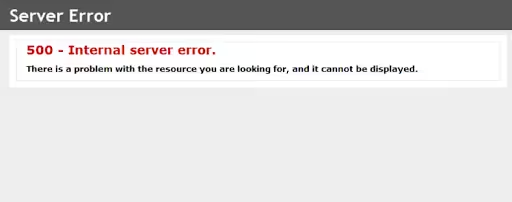
Errors like this can turn your ‘quick weekend project’ into weeks of troubleshooting, locking customers out of your WooCommerce store.
WooCommerce migrations are complex operations involving:
- Databases
- File systems
- Server configurations
- Third-party integrations
If any of these components fail to transfer correctly, your entire store can become non-functional, potentially costing you sales and customer trust.
“However, WooCommerce migration fails happen more often than you might think, and the vast majority can be resolved with the right diagnostic approach and recovery strategies.”
Whether you’re dealing with incomplete product transfers, broken payment gateways, missing images, or mysterious database errors, this comprehensive guide will walk you through proven solutions to restore your store’s functionality by fixing WooCommerce migration fails.
Also Read: PrestaShop to WooCommerce: Plugin vs Custom Migration in 2026
The 5-Minute WooCommerce Migration Health Check
When facing WooCommerce migration fails, your first priority is identifying exactly what went wrong. This systematic diagnostic approach will help you pinpoint the root cause quickly, saving hours of trial-and-error troubleshooting.
1. Immediate Technical Checks
🔌 Database Connectivity
Start by verifying that your new hosting environment can successfully connect to the database. Database connection failures are among the most common migration issues and can manifest in various ways, from blank pages to specific error messages.
| 💡 Tool Tip: Use the WP-CLI command wp db check to quickly test database connectivity. Alternative: Check WooCommerce > Status > System Status for database connection status. If pages load but display formatting issues, the database connection is likely working, but data may be incomplete. |

📁 File Permissions and Security
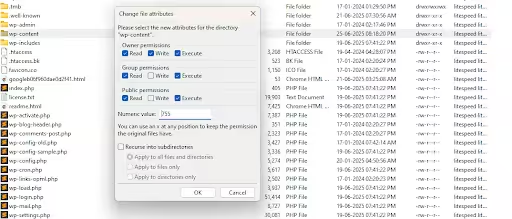
Incorrect file permissions can prevent WooCommerce from accessing essential files, particularly uploads and configuration files. Check that uploaded files have the correct permissions—typically 644 for individual files and 755 for directories.
| 💡 Tool Tip: Use FileZilla or cPanel File Manager to bulk-change permissions. Right-click folder > Properties > Permissions. Standard permissions: 644 for files, 755 for folders. |
🔌 Plugin and Theme Compatibility
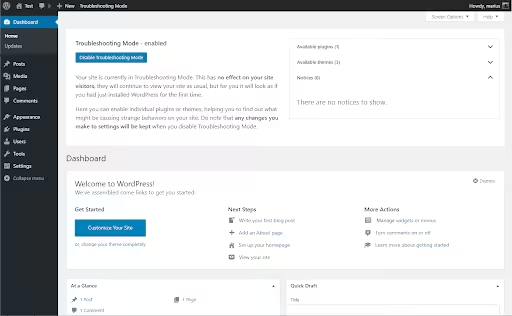
Plugin conflicts are notorious for causing migration failures, especially when moving between different server environments or PHP versions. Temporarily deactivate all plugins except WooCommerce itself and test your store’s basic functionality.
| 💡 Tool Tip: Use the “Health Check & Troubleshooting” plugin to test in troubleshooting mode without affecting live visitors. Keep a backup of your theme customizations in Appearance > Customize > Additional CSS. |
🖥️ Server Environment Verification
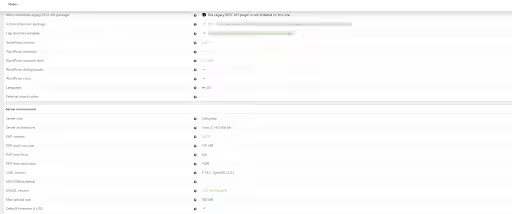
Ensure your new server environment meets WooCommerce’s requirements. This includes:
- PHP version compatibility (WooCommerce requires PHP 7.4 or higher)
- Adequate memory limits (at least 256MB for smooth operation)
- Proper server configurations
| Tip: Check your PHP version in WooCommerce > Status > System Status, or create a simple PHP info file with <?php phpinfo(); ?> to see detailed server information. If your hosting provider doesn’t allow memory limit adjustments through the control panel, you can often add ini_set(‘memory_limit’, ‘512M’); to your wp-config.php file. |
2. Data Integrity Verification
📦 Product and Content Verification
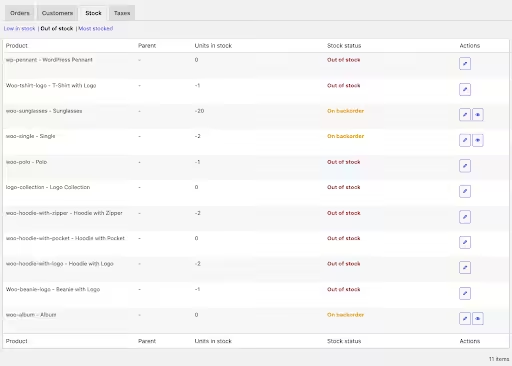
Compare product counts between your source and destination sites. Navigate to WooCommerce > Reports > Stock to see total product counts at a glance. Significant discrepancies indicate incomplete data transfer.
Beyond simple counts, verify that attributes, categories, and products are migrated correctly. Review a sample of products across various categories to ensure all data fields are populated correctly.
| Tip: Go to WooCommerce > Reports > Stock to see total product counts at a glance. Use WooCommerce > Products > All Products to verify that detailed product data has been transferred correctly. |
💳 Payment and Order System Testing
Test the complete checkout process using payment gateway test modes. Create sample orders with different payment methods to ensure the entire transaction flow works correctly.
This is crucial because payment gateway configurations often require updates after domain changes.
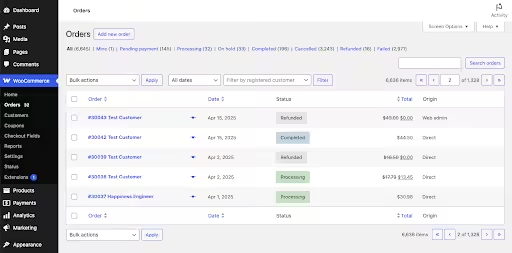
Verify that the existing order history displays correctly by filtering orders by date in WooCommerce > Orders. This ensures that customer purchase history and business records remain intact.
| Tip: Use payment gateway test modes and create test orders with different payment methods. Filter orders by date in WooCommerce > Orders to verify recent transactions transferred properly. |
👥 Customer Account Functionality
Test customer account access by attempting to log in with existing customer credentials. The “User Switching” plugin allows you to test customer accounts without knowing their passwords, making this process more efficient.
Verify that customer data, including addresses, order history, and saved payment methods, is transferred correctly. Customer data corruption can lead to significant trust issues and lost sales.
| 💡 Tool Tip: Use the “User Switching” plugin to test customer accounts without knowing their passwords. Check customer profiles in WooCommerce > Customers to verify data integrity. |
Related Blog: 7 Common Pitfalls with DIY WooCommerce Migration
The 4 WooCommerce Migration Fails That Kill Online Stores
Recognizing frequent failure patterns helps you diagnose issues faster and apply targeted solutions. These scenarios represent the majority of migration problems you’re likely to encounter.
💾 Database Import Failures
Many shared hosting environments limit database import sizes to prevent server overload, causing large WooCommerce databases to fail during import.
The Solution: For very large databases, splitting the .sql file manually or using tools like BigDump is more reliable than relying on a “Partial Import” feature in phpMyAdmin.
The concept of “Partial Import” often refers to importing only a portion of a file, not resuming a timed-out import. Rephrase to focus on splitting the database file into smaller chunks as the primary solution, and mention BigDump as a tool for this.
Clarify that while some phpMyAdmin setups might handle larger imports better, relying on a “Partial Import” feature for timeout recovery is not universally supported.
| 💡 Tool Tip: Use the BigDump script for large database imports that exceed hosting limits. It processes imports in small chunks automatically. Enable “Partial Import” in phpMyAdmin for better timeout handling. |
🖼️ Missing Product Images and Media
The Problem: File path changes during migration frequently cause product images to disappear, even when the actual image files are transferred successfully.
This happens because WordPress stores both relative and absolute paths to media files, and these references may not update automatically during migration.
The Solution: To fix incorrect image paths in the database, a search-and-replace operation on the database (e.g., using “Velvet Blues Update URLs” plugin or WP-CLI’s wp search-replace) can be used.
| 💡 Tool Tip: Use “Velvet Blues Update URLs” to fix hardcoded image paths. Check the wp-content/uploads folder permissions (755 for directories). |
💳 Payment Gateway Configuration Issues
The Problem: Payment gateway failures occur frequently during migrations because API keys, webhook URLs, and other integration settings typically reference your old domain. These services require explicit updates to function with your new site address.
The Solution: Reconfigure each payment method with your new domain’s URLs. PayPal, Stripe, and other major gateways require webhook endpoints to be updated to your new site’s address.
This process varies by provider but generally involves accessing your payment processor’s dashboard and updating notification URLs.
| 💡 Tool Tip: Test webhooks using tools like ngrok for local testing or webhook.site to verify payload delivery before going live. Document all API keys and webhook URLs before migration for easy reference. |
🔒 SSL Certificate and Security Issues
The Problem: SSL certificate problems manifest as security warnings on checkout pages, immediately damaging customer trust and preventing sales.
These issues often arise when SSL certificates don’t transfer automatically or when mixed content (HTTP resources on HTTPS pages) creates browser warnings.
The Solution: Verify SSL installation on your new hosting environment.
Most modern hosting providers offer free SSL certificates through Let’s Encrypt or similar services. After installation, update your WordPress site URL to use HTTPS in Settings > General.
| 💡 Tool Tip: Use SSL Labs’ SSL Test to verify proper certificate installation. “Really Simple SSL” plugin can handle mixed content issues automatically. Check that both WordPress Address and Site Address use HTTPS in Settings > General. |
Step-by-Step Recovery Procedures: Get Your Store Back Online Fast
Recovery from WooCommerce migration fails requires a systematic approach to avoid compounding existing problems. These detailed procedures provide safe paths back to functionality.
Method 1: Database Rollback and Controlled Retry
This approach involves returning to your pre-migration state and attempting the migration again with better preparation.
Step 1: Secure Backup Access
Access your hosting control panel and locate the database backup created before migration. Most cPanel hosting environments maintain automatic backups accessible through the “Backup Wizard” section. Download a fresh copy of this backup to ensure you have a clean restore point.
| 💡 Tool Tip: Most cPanel hosting keeps automatic backups in the “Backup Wizard” section. Download backups locally before proceeding with restoration. |
Step 2: Clean Slate Preparation
Using phpMyAdmin, carefully drop the current database tables after exporting them as a precautionary backup. Use the “Check All” option followed by “Drop” to remove all tables. While this seems drastic, it ensures no corrupted data remains to interfere with your fresh import.
| 💡 Tool Tip: Use “Check All” then “Drop” in phpMyAdmin. Always export before dropping as a safety measure. Consider using the “Export” tab to create a backup of the current state before dropping tables. |
Step 3: Original Database Restoration
Import your original, working database backup. If the import fails due to size restrictions, use the “Browse” option instead of copy-paste and enable “Partial Import” to handle large files more reliably.
| 💡 Tool Tip: If import fails due to size, use “Browse” instead of copy-paste and enable “Partial Import”. Consider compressing SQL files with gzip to reduce upload time. |
Step 4: Data Verification
Thoroughly verify that all products, orders, and customer data appear correctly after restoration.
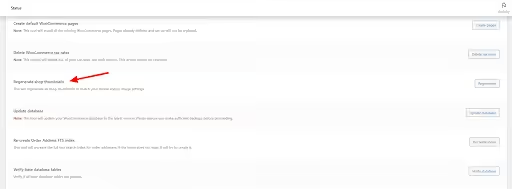
| 💡 Tool Tip: Run database query SELECT COUNT(*) FROM wp_posts WHERE post_type=’product’ to quickly verify product count. Check WooCommerce > Status > Tools for data integrity verification options. |
Step 5: Root Cause Analysis
Before attempting migration again, identify and address what caused the original failure. This might involve upgrading your hosting plan, optimizing your database, or choosing different migration tools.
Method 2: Partial Migration Recovery
This approach maintains your original site while methodically fixing the new installation, minimizing downtime and customer impact.
Step 1: Parallel Operation
Keep your original site fully operational while working on the new installation. Use a maintenance mode plugin on the new site to prevent customer confusion and search engine indexing issues.
| 💡 Tool Tip: Use a maintenance mode plugin on the new site to prevent customer confusion. “WP Maintenance Mode” or “Coming Soon Page” plugins work well for this purpose. |
Step 2: Selective Data Export
Instead of migrating everything at once, export only essential data: current products, active customers, and recent orders.
| 💡 Tool Tip: WooCommerce > Tools > Export allows selective data export by date ranges. Save export files locally as backup. CSV imports are more reliable than XML for large datasets. |
Step 3: Clean Import Process
Use WooCommerce’s native import/export tools for cleaner data transfer.
CSV imports are generally more reliable than XML for large datasets and provide better error reporting when issues occur.
Step 4: Manual Configuration
Manually reconfigure payment gateways, shipping settings, and other integrations rather than relying on automated migration. While time-consuming, this approach ensures each component works correctly in the new environment.
Document all settings in a spreadsheet before migration for easy reference during reconfiguration.
| 💡 Tool Tip: Document all settings in a spreadsheet before migration for easy reference. Take screenshots of complex configuration pages for visual reference during setup. |
Step 5: Comprehensive Testing
Test thoroughly before switching your domain to point to the new installation. This includes testing the complete customer journey from browsing to purchase completion.
Method 3: Plugin-Assisted Recovery
Migration plugins like All-in-One WP Migration, Duplicator Pro, or WP Migrate DB offer specialized recovery features designed for failed migrations.
Step 1: Consistent Plugin Installation
Install the exact same migration plugin version on your destination site that you used for the original migration attempt. Version mismatches can cause compatibility issues during recovery.
Step 2: Backup Restoration
Use the plugin’s restore function with your original backup file.
| 💡 Tool Tip: Increase PHP max_execution_time to 300 seconds for large backup restores. Add ini_set(‘max_execution_time’, 300) to wp-config.php or contact the hosting provider. |
Step 3: Guided Recovery Process
Follow the plugin’s specific recovery procedures, which often include automated URL updates and file path corrections.
| 💡 Tool Tip: Clear all caches after restoration using plugins like WP Rocket or W3 Total Cache. If no caching plugin is installed, use browser hard refresh (Ctrl+F5) to verify changes. |
Step 4: URL and Path Updates
Use the plugin’s interface to update URLs and file paths throughout your database.
| 💡 Tip: Double-check internal links using the “Broken Link Checker” plugin after URL updates. Use the “Search Replace DB” script for manual URL updates if the plugin interface doesn’t handle all cases. |
Related Blog: WooCommerce Migration Costs: DIY vs Professional Services
When Professional Help Becomes Necessary
Recognizing when you’re facing challenges beyond typical troubleshooting can save your business from extended downtime and potential data loss.
Some migration problems require specialized expertise that goes beyond standard WordPress administration.
🚩 Critical Warning Signs
Several red flags indicate you should seek professional assistance rather than continuing DIY troubleshooting efforts:
- Data corruption affecting order history or customer accounts
- Custom plugin integrations that break during migration
- Multi-site networks with intricate configurations
- High-volume stores that generate significant daily revenue
- Third-party API integrations requiring specialized configuration
🎯 Professional Advantages
Experienced developers bring several key advantages:
Advanced Capabilities:
- Advanced database repair capabilities
- Custom migration scripts for unique situations
- Failsafe procedures that prevent data loss during recovery attempts
Specialized Tools:
- Access to specialized tools is not available to general users
- Server-level troubleshooting capabilities
- Complex permission issue resolution
- Custom code debugging expertise
💰 Cost-Benefit Analysis
Professional Services: $200 to $800, depending on complexity, store size, and specific requirements
The Reality: While this might seem expensive, consider that extended downtime can cost significantly more in lost sales, especially for established stores with steady traffic.
Bottom Line: If your store generates substantial daily revenue, professional help often pays for itself through reduced downtime alone. Additionally, professionals can often complete migrations faster and with greater reliability than DIY approaches.
Migration-Proof Your Store: Never Break Again
Learning from migration failures helps prevent future headaches and ensures smoother transitions when you need to move your store again. These prevention strategies will save time, stress, and potential revenue loss during future migration projects.
📋 Comprehensive Pre-Migration Preparation
🔄 Complete Backup Strategy
Create comprehensive backups that include not just your database and files, but also plugin configurations, customizations, and third-party integration settings.
Store backup copies in multiple locations—cloud storage and local copies provide redundancy if one backup source fails. Test backup integrity by actually restoring them to staging environments before relying on them for migration purposes.
| 💡 Tool Tip: Use UpdraftPlus or BackWPup to create complete backups. Store copies in multiple locations (cloud + local). Test backup integrity by restoring to the staging environment before migration. |
📝 Documentation and Configuration Tracking
Maintain detailed documentation of all customizations, third-party integrations, API keys, and special configurations.
Record not just what integrations you use, but how they’re configured, including webhook URLs, API endpoints, and any custom code modifications.
| 💡 Tool Tip: Use a simple Google Doc or Notion page to track all customizations, API keys, and plugin settings. Include screenshots of complex configuration pages for visual reference. |
🗄️ Database Optimization
Clean your database before migration by removing unnecessary post revisions, spam comments, and unused plugin data.
Large, bloated databases are more prone to migration failures, so regular maintenance pays dividends during migration processes.
| 💡 Tool Tip: Use the “WP-Optimize” plugin to clean database tables and reduce backup size before migration. Remove post revisions, spam comments, and unused plugin data for faster transfers. |
🎭 Staging Environment Best Practices
Always test migrations on staging sites before attempting live site migrations. This allows you to identify and resolve issues without affecting your live store’s availability or customer experience.
Most hosting providers offer staging environments, or you can create one using subdomain setups.
| 💡 Tool Tip: Use the “Search Replace DB” script to safely update URLs in staging environments without breaking serialized data. Most hosting providers offer free staging sites – check your hosting control panel. |
⏰ Strategic Migration Timing
Schedule migrations during low-traffic periods, typically early morning hours or weekends, when customer impact is minimized. Avoid migrations during:
- Peak shopping seasons
- Promotional periods
- Any time when downtime would be particularly costly
Check Google Analytics to identify your store’s lowest traffic days and hours. Use “Coming Soon” or maintenance mode plugins to inform customers about scheduled maintenance windows, maintaining transparency about temporary unavailability.
Conclusion: From Migration Nightmare to Success
WooCommerce migration fails aren’t disasters—they’re solvable puzzles. Most issues stem from the inherent complexity of modern e-commerce stores, not technical impossibilities.
Your three-step foundation for migration success:
- Backup everything
- Test thoroughly in staging
- Never rush the process.
These fundamentals prevent 80% of common failures before they occur.
When problems do arise, systematic diagnosis beats panic every time. Follow the troubleshooting strategies in this guide, work methodically through each potential cause, and remember that virtually every migration challenge has a proven solution.
The expertise you build handling these recoveries becomes invaluable as your store evolves. Each successful WooCommerce migration strengthens your technical confidence and protects your business during future transitions.
Your customers depend on a seamless shopping experience. Master these recovery techniques now, and you’ll never fear a migration again.