

| Quick Answer
Critical CSS is the minimum stylesheet needed to render above-the-fold content. Inlining it in the document head while deferring the rest eliminates render-blocking CSS and typically cuts Largest Contentful Paint (LCP) by 30 to 50 percent on WordPress. For most sites, a plugin like WP Rocket, FlyingPress or NitroPack is the practical choice. A manual approach is worth it only for high-traffic landing pages where you need full control. |
Let me tell you about Emma—a consulting pro who recently launched her WordPress website. The design looked great, content was solid, but something wasn’t clicking. Visitors just weren’t sticking around.
When she ran a Google PageSpeed Insights test, her homepage was taking nearly 5 seconds to load on mobile.
That’s a problem because more than half of mobile users give up after 3 seconds. We’ve seen this issue a lot, and it can silently kill your chances of turning visitors into customers.
After a bit of digging, Emma focused on website speed optimization and tried something called Critical CSS, and lo and behold—her load time dropped to under 2 seconds. Bounce rates dropped almost a third, and bookings went up by 40% in about a month and a half after Critical CSS WordPress.
Pretty impressive, right?
But here’s the thing: this isn’t just her story—it’s a reality many WordPress site owners can tap into.

Also Read: Top Features You Can Only Build with Custom WordPress Website Development Services
What’s the Deal with CSS and Load Times?
When a browser fetches a WordPress page, it parses the HTML and then stops. It won’t paint the screen until it downloads every <link> stylesheet and builds the CSSOM (CSS Object Model).
This is called render-blocking CSS, and Google’s Chrome team lists it as one of the highest-impact performance improvements available on most real sites. A page with three render-blocking scripts and two stylesheets at 200ms each can show a blank white screen for over a full second before the first paint.
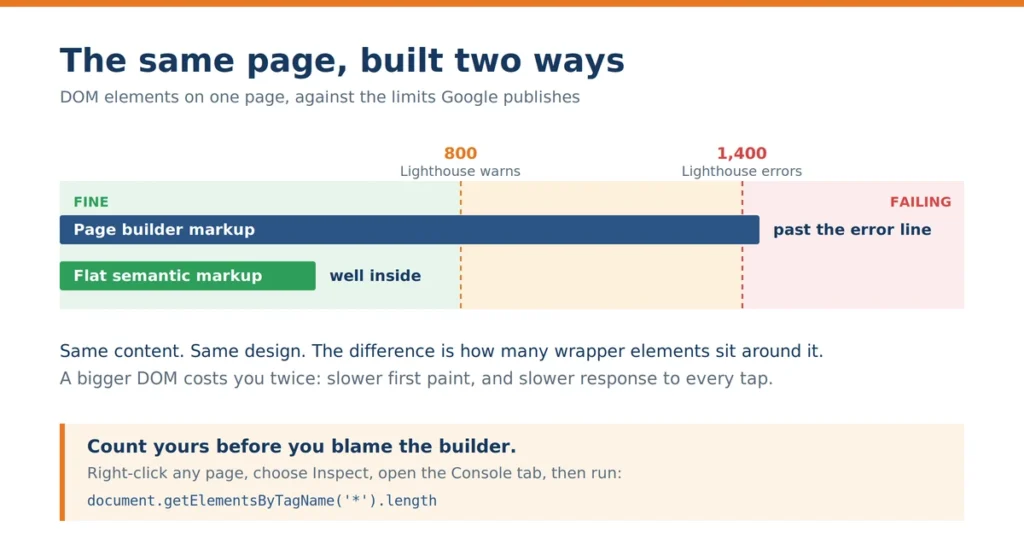
On WordPress the problem compounds. A typical page theme plus a few plugins can ship 200KB+ of CSS, almost none of it needed above the fold.
The conversion cost
The numbers here aren’t small:
• A 1-second delay in page load time leads to a 7% reduction in conversions, per Triotech Labs’ 2025 web performance analysis
• A 0.1-second improvement in mobile load time increases retail conversion rates by 8.4% (Deloitte Digital’s “Milliseconds Make Millions” study, cited in the same analysis)
• 63% of shoppers bounce from pages taking over 4 seconds to load
For a WooCommerce store doing $500K a year, a 2-second load time improvement can translate to an extra $40K to $80K in recovered revenue.
What Exactly Is Critical CSS?
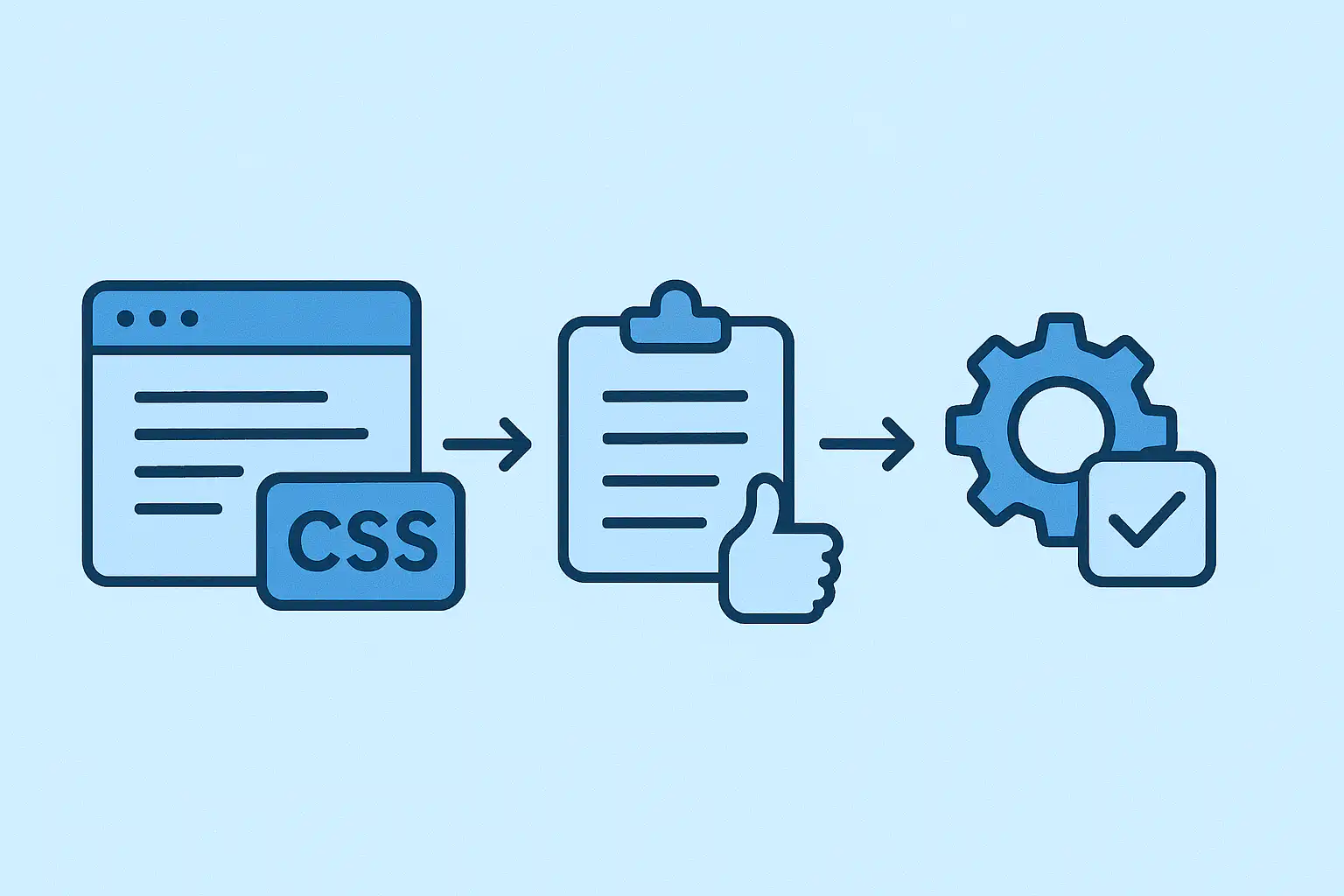
Critical CSS is the portion of your stylesheet required to render only the content visible on the first screen (above the fold).
Instead of forcing the browser to wait for the entire stylesheet, you:
- Inline this essential CSS directly in the <head>
- Load the remaining styles asynchronously in the background
This allows the browser to render the page immediately, without being blocked by unused styles.
In effect, users see a fully styled initial view right away, while the rest of the design loads progressively.
A simple way to think about it: you prioritize what the user needs to see first, instead of making them wait for everything at once.

What Kind of Improvements Are Realistic?
When implemented correctly, Critical CSS delivers noticeable performance gains—especially on mobile.
In most WordPress setups, you can expect:
- First Contentful Paint to improve significantly
- Largest Contentful Paint to drop by 30–50%
- Faster rendering of above-the-fold content
- Improved Core Web Vitals scores
- Lower bounce rates and better on-page engagement
It’s not unusual to see load times drop from 4–5 seconds to closer to 1–2 seconds, particularly on plugin-heavy or content-heavy sites.
For service businesses, this often translates into more enquiries or bookings.
For e-commerce stores, the impact usually shows up as reduced cart abandonment and higher conversions.
Plugin vs Manual: How to Choose the Right Approach
This is where most teams get stuck. Both approaches work—but choosing the wrong one can cost time without delivering meaningful gains.
Plugin approach (automated)
Best for: most WordPress sites, especially those with multiple page templates, frequent content updates, or non-technical owners.
Tradeoffs: less granular control, monthly or annual cost, occasional conflicts with other plugins.
Manual approach
Best for: high-traffic landing pages where every millisecond matters, custom themes where you control the CSS entirely, sites where plugin-generated Critical CSS breaks specific layouts.
Tradeoffs: significant upfront time, ongoing maintenance when you update the site, device and breakpoint testing needed.
| How to Decide Based on Your Situation
Here’s how this typically plays out across different types of WordPress sites: Small business site (5–20 pages): WooCommerce store with dynamic product pages: Page builder sites (Elementor, Divi): Custom-coded theme with a few high-traffic pages: Agency-built site with strict design control: Membership or logged-in content: |

Also Read: How Agencies Handle Large-Scale Custom WordPress Projects
How Do You Add Critical CSS WordPress to Your Site?
There are basically two roads here:
1. Let a Plugin do the Heavy Lifting
If you’re not deeply technical or just don’t have the time, a plugin is your friend. WP Rocket is a favorite. It’s paid but handles most scenarios well and plays nicely with other plugins.
NitroPack is cool if your content changes often and you want almost zero fuss. Hummingbird Pro and Autoptimize are good options too, depending on budget and needs.
Installation usually takes under an hour, followed by some testing. Most plugins also bundle caching and script minification, so it’s a nice one-two punch.
2. Roll Up Your Sleeves and Go Manual
For those of you comfortable with CSS, this approach lets you really fine-tune the experience. Use Chrome’s DevTools Coverage tab to see which CSS you actually need upfront.
Inline that CSS in your header. Load the rest asynchronously. Test across devices—this part can get tricky. And yes, you’ll probably spend several hours here upfront, plus ongoing tweaks when you update your site.
What To Watch Out For
These are the patterns we see cost teams the most time:
• Over-inlining. Dumping the full stylesheet inline “just in case” defeats the point. Keep Critical CSS focused on above-the-fold only.
• Ignoring mobile-specific rules. Mobile and desktop Critical CSS often need to be different. Most good plugins generate both; manual implementations frequently forget.
• Caching stale Critical CSS. When you change a template, regenerate it. A cached Critical CSS from last month styling this month’s homepage will break layouts.
• Testing only with PageSpeed Insights. Synthetic tests are useful but don’t reflect real user experience. Check CrUX data for your domain in Google Search Console’s Core Web Vitals report.
• Running multiple Critical CSS plugins at once. Pick one. More than one will fight, and the losing one usually takes your layout with it.
Measuring Success and Next Steps
A good baseline before making any changes:
• Run PageSpeed Insights on your homepage, top 3 landing pages, and a product or post page
• Record mobile and desktop scores for each
• Note current LCP, FCP, CLS, INP
After implementation, re-measure at 24 hours, 7 days, and 28 days. Real-user CrUX data takes 28 days to reflect field performance.
Targets for 2026:
• LCP under 2.5 seconds (mobile, 75th percentile)
• FCP under 1.8 seconds
• INP under 200ms
• PageSpeed Insights mobile score 90+
If LCP is improving but still above 2.5 seconds after Critical CSS, the bottleneck is elsewhere. Check server response time (TTFB), image format and size, and JavaScript defer/async patterns. Only 32% of WordPress sites have good TTFB in CrUX data, so server response is often the real culprit.
Should You Use a Plugin or Go Manual?
I usually tell folks:
- Use plugins if you want quick wins with minimal hassle. They’re well-tested and generally reliable.
- Go manual if you want total control, know your way around CSS, and don’t mind investing time for customization.
- Or start with a plugin, then fine-tune key pages manually for extra polish.
Wrapping Up
Speed matters, and Critical CSS WordPress is one of the smarter tweaks you can make without rebuilding your whole site. Give your users something to see fast—they’ll thank you with more engagement and better conversions.
If you want a hand choosing plugins or working through the manual process, just ask. I’ve helped clients navigate both routes and can share some real-world tips and gotchas. Let me know if you want me to create a simple setup checklist or recommend plugins tailored to your site’s needs!
Related Read: Fix JavaScript Fatal Errors: Your Go-To Guide
How to Setup a WordPress Website the Right Way: Secure, Fast & Scalable
Frequently Asked Questions
Is Critical CSS still necessary in 2026 with HTTP/2 and HTTP/3?
Yes. HTTP/2 and HTTP/3 make individual requests faster, but CSS is still render-blocking by default regardless of protocol. The browser can’t paint until it has the CSSOM. Inlining Critical CSS eliminates that dependency entirely for above-the-fold content. Protocol upgrades help, but they don’t replace Critical CSS.
Will Critical CSS break my page-builder site (Elementor, Divi, Bricks)?
It can, if implemented carelessly. Page builders often output inline and deferred styles with specific load order assumptions. The safe path is a plugin designed for page-builder sites (FlyingPress and WP Rocket both handle Elementor and Divi specifically). Always test on a staging environment, because Critical CSS generated against one template can break a second one with different markup.
Does Critical CSS help with Interaction to Next Paint (INP)?
Indirectly. Critical CSS primarily affects LCP and FCP. INP is about main-thread responsiveness during interactions, which is more about JavaScript. But reducing render-blocking work frees the main thread earlier, so a well-optimized Critical CSS setup usually improves INP by 10 to 20 percent as a side effect.
How much does a professional Critical CSS implementation cost?
A one-off plugin setup by an agency usually runs $200 to $500. Full Critical CSS plus caching, image optimization, and JS deferral on a mid-sized WooCommerce store typically runs $1,500 to $4,000, depending on theme complexity. Manual Critical CSS for a custom theme with 10+ templates can reach $5,000 to $10,000. The ROI on a conversion-heavy store usually pays back within a quarter.
What’s the difference between Critical CSS and “Remove Unused CSS”?
Critical CSS extracts and inlines only the CSS needed above the fold, deferring the rest. “Remove Unused CSS” eliminates CSS rules not used anywhere on a given page. They solve different problems and work well together. Most premium plugins offer both.