


 When we create a Genesis child theme in WordPress, the homepage by default displays the latest blog posts. To change the default homepage, to create something more suitable for your website, you will have to customize it.
To customize the look and content of a page, we need to create a new template, and assign it to a page. Thus one option to change the homepage is as follows:
-
Create a new page for your homepage. In your dashboard, go to Pages-> Add New. Name this new page as ‘Home Page’ or whichever name you prefer your homepage to have.
-
Create a custom page template and set this for the new page, that you have created.
-
Go to your Genesis theme and customize it. Set the Front Page to your newly created ‘Home Page’.
But We Have a Better Option
But we have another option. We can create a ‘front-page.php’ in our child theme. And WordPress will automatically assign this as our homepage.
Create a Custom Page in Genesis
Create a ‘front-page.php’ file in your child theme. This should be placed directly in your child theme folder.
[pre]<?php
/*
* Custom Front Page
*/
?>[/pre]
Set the Layout for the Page Template
Genesis provides several layout options, you can choose from. Each layout can be specified with it’s corresponding filter.
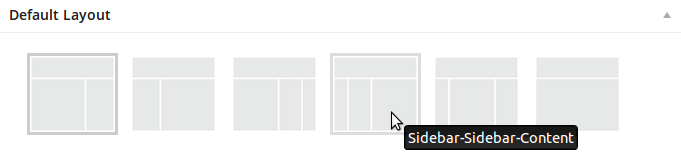
Just for our example, we can have chosen Full Width Layout for our page.
[pre]// set full width layout
add_filter ( ‘genesis_pre_get_option_site_layout’, ‘__genesis_return_full_width_content’ );[/pre]
Add your Custom Loop or Custom Structure
The Genesis default loop displays the blog posts in the page. For our custom homepage, we will remove the default loop and add our custom loop.
[pre]// remove Genesis default loop
remove_action( ‘genesis_loop’, ‘genesis_do_loop’ );
// add a custom loop
add_action( ‘genesis_loop’, ‘my_custom_loop’ );
function my_custom_loop () {
// add your queries or custom structure here
}[/pre]
Remember to call Genesis Function
We have to call a Genesis, genesis(), function to display title, header, menu, widgets and the footer. Thus, our final code for front-end.php will be:
[pre]<?php
/*
* Custom Front Page
*/
// set full width layout
add_filter ( ‘genesis_pre_get_option_site_layout’, ‘__genesis_return_full_width_content’ );
// remove Genesis default loop
remove_action( ‘genesis_loop’, ‘genesis_do_loop’ );
// add a custom loop
add_action( ‘genesis_loop’, ‘my_custom_loop’ );
function my_custom_loop () {
// add your queries or custom structure here
}
genesis(); ?>[/pre]
Conclusion
The creation of a custom page in Genesis is similar to creating a page in WordPress with a few minor changes. Genesis provides us layout options, and handles the display of page elements such as header, footer, title, etc.


