

Ever faced a scenario where you have been in the middle of updating your WordPress site and suddenly get interrupted by a scary-looking error message? Something like, “Fatal error: Allowed memory size of X bytes exhausted…”???
If you have nodded your head, you’re not alone in this. This is a classic case of WordPress Memory Management. Without enough memory, your website can slow to a crawl or even become completely unavailable to your visitors.
But don’t worry, you don’t need to be a tech wizard to solve this issue. In our detailed guide, we will guide you about various signs of memory overload on your site and how you can fix it, all in plain and simple terms.
Understanding WordPress Memory
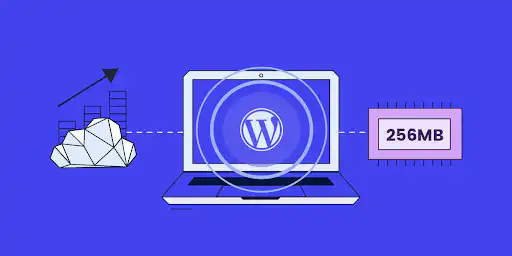
WordPress Memory is the amount of space available with your website at any given point of time to think and operate on your hosting web server. This memory is essentially the maximum RAM available to your website for use.
WordPress uses this memory to perform its functioning right from running its code to loading your plugins and managing all the different things your website needs to do.
By default, WordPress gets 32MB of memory, but you can increase this whenever you need to, so your website can handle more demands. If you’d rather have an expert handle this for you, you can hire WordPress developer.
This limit on the memory helps in stopping WordPress from using up too much of your web server’s resources, which would otherwise cause problems like slow loading times or even the website crashing.

Your website will offer the data to the customers only when your WordPress website has enough memory to run it smoothly. This is where memory management comes into picture.
Effectively managing allows your site to handle lots of visitors, use more sophisticated plugins, and load quickly for everyone.
Related Blog: How to Increase WordPress Memory Limit
Signs That Your WordPress Site Is Running Low on Memory
- Fatal Error Messages
- Allowed Memory Size Exhausted Error – This error message typically appears as “Fatal error – Allowed memory size of XXXXXXX bytes exhausted”. It basically means your WordPress site is using more memory than it’s allowed.
- Out of Memory Errors – These are like the “Allowed Memory Size Exhausted” error. These errors pop up when your WordPress site doesn’t have enough memory to run smoothly.
- Slow Website Performance
- Loading Delays – If people visiting your website find that it’s taking forever to load, it’s a sign your WordPress site might be having memory problems.
- Timeouts – If your website often times out or the connection gets reset, it could be because the server can’t dish out enough memory to handle everyone trying to access your site.
- Inability to Upload Files or Install Plugins
- Media Upload Issues – Difficulty uploading media files or installing plugins could be due to insufficient memory for these operations.
- Plugin Installation Failures – If you encounter errors while installing plugins, it might indicate that your site lacks the necessary memory to process the installation.
- Background Tasks Failures
- Backup Failures – Scheduled backups failing to complete could be a sign of memory constraints, as these tasks require additional resources.
- Cron Job Failures – If automated tasks (cron jobs) are not executing properly, it could be due to insufficient memory.
- Server Errors and Crashes
- Server Crashes – Frequent server crashes or downtime may indicate that your site is consuming too much memory, overwhelming the server.
- Error Logs – Checking server logs can reveal memory-related issues, such as repeated “Allowed Memory Size Exhausted” errors.
Causes and Methods for Diagnosing Memory Issues
Causes of Memory Issues
While resource intensive and incompatible themes and plugins are the major reasons for memory problems, below are some additional causes which might impact the website performance:
- Insufficient hosting resources
Sometimes the issue isn’t your website itself. If your WooCommerce website outweighs the resources and features offered by your hosting provider, the website might not function properly. Shared hosting plans, in particular, often have lower memory allocations.
- High Traffic Spikes
A sudden spike on your website traffic especially during periods like sale can put load on the server and increase the demand for memory beyond the web server’s capacity.
- Unoptimized Media Files
If your website is using large, unoptimized images and videos, it can put significant strain on web server resources, increasing memory usage and impacting the overall website performance.
- Plugin Overload
We all love plugins! They add cool features to our website and make it attractive for targeted audience. But some plugins, especially those that are poorly coded or have a lot of functionalities can put significant burden on the memory.
- Heavy-Duty Themes
A beautiful, resource-intensive theme with built-in features might also be contributing to the memory problems of WooCommerce website.
Related Blog: Comprehensive Guide to Resolve WordPress Fatal Errors
Methods for Diagnosing Memory Issues
- Using Plugins
Plugins like WP Memory and WP-Memory-Usage can help you monitor and manage your site’s memory usage. These tools provide insights into memory consumption and help identify potential issues.
- Server Logs
Server logs can also provide valuable information about memory-related errors. Checking these logs can help you pinpoint the source of the problem.
Methods to Increase WordPress Memory Limit – A Brief Overview
There are multiple ways you can increase the memory limit for your WordPress website to improve its performance and makes it faster to load the data when requested by the targeted audience.
A brief overview of different methods to increase memory limit is captured for you below:
- Editing wp-config.php file (recommended way)
This is the most common and effective method to solve your memory problem. Your wp-config.php file is a core WordPress file that contains your website’s basic configuration details. This file is located in the root directory of your WordPress installation.
You can access and edit this file by using the following steps:
- Connect to your WooCommerce website’s files using an FTP client (like FileZilla or Cyberduck) or the File Manager in your hosting control panel.
- Locate the wp-config.php file in the root directory of your WordPress installation.
- Right-click and choose to edit the file.
- Before the line that says, /* That’s all, stop editing! Happy publishing. */, add the following code:
define(‘WP_MEMORY_LIMIT’, ‘256M’);
Pro Tip – You can change this value if needed to 128M or 512M, but 256M is a good starting point for most sites.
- Modifying the .htaccess file
You can also increase the memory limit by modifying the .htaccess file located in the web hosting provider’s file manager.
- Find your .htaccess file (make sure to show all hidden files).
- Add this line to the bottom of the file:
php_value memory_limit 256M
- Using PHP.ini
If you have access to the php.ini file in the file manager, you can increase the memory limit by adding the following:
memory_limit = 256M
Pro tip – According to WooCommerce.com, if the line in your php.ini file specifies 64M, try 256M instead.
Best Practices for WordPress Memory Management
An effectively managed website with good memory helps is faster and efficient website management. WordPress Memory Management is not a one-time activity. It requires you to continuously monitor your website for memory issues amongst other things.
Following is a list of some of the best practices to help you with effectively managing your WordPress website.
- Deactivate Unnecessary Plugins
Impact – Each active plugin consumes memory and hence reducing the number of plugins can significantly improve the website performance by freeing up unnecessary space.
Action required – You should regularly conduct site wide audits including the installed plugins and deactivate or delete plugins that are not in use.
- Using Lightweight Themes
Impact – Some themes include a host of built-in features resulting in extra memory usage. When you make use of lightweight themes, it frees up website resources and help your website run faster.
Action required – Consider using lightweight themes like Astra or GeneratePress for your website.

- Optimize Your Database Regularly
Impact – Over time, your WordPress database collects unused data like old revisions, spam comments, or transient files, which can slow down your site.
Action required – Make use of plugins like WP-Optimize to clean up your website database and improve the website efficiency.

- Implement Caching
Impact – Caching reduces the load on your server by serving static versions of your website’s content to the users, thus optimizing the memory usage.

Action required -You can use WordPress supported caching plugins like WP Super Cache or W3 Total Cache.
- Monitor Resource Usage
Impact – Understanding which plugins or processes consume the most memory helps you make necessary adjustments. Plugins can have a variety of issues like poor coding, heavy features and media usage etc.
Action required – For monitoring usage, you can use tools like Query Monitor or your hosting control panel to monitor resource usage.

- Regularly Update Plugins and Themes
Impact – Keeping plugins and themes updated ensures they are optimized for memory usage and reduces the risk of compatibility issues.
Action required – Regularly check for updates to various themes and plugins in your WordPress dashboard and respective plugin websites and apply them promptly.
- Increase Memory Limit When Necessary
Impact – If your site frequently encounters memory-related errors, increasing the memory limit can help you in improving the website performance.
Action required – You can increase the memory limit by editing the wp-config.php, .htaccess, or php.ini files, or you can make use of plugins like WPMemory.
Tools for Memory Management
- WP Memory Plugin

Features: The WP Memory plugin provides comprehensive tools for monitoring and managing your site’s memory usage. It alerts you when memory is low and logs memory usage for each page.
Benefits: Offers easy management of WordPress memory without requiring coding knowledge.
Drawbacks: This plugin may not be useful for small business websites and can complicate your WordPress dashboard for non-tech users.
- WP-Memory-Usage Plugin

Features: The WP-Memory-Usage plugin displays memory usage in the dashboard and admin footer on a real time basis, helping you keep track of memory consumption.
Benefits: Helps identify memory-intensive plugins and optimize performance of your website.
Drawbacks: This plugin can turn out be technical if you are a beginner to website management.
People Also Search for: WooCommerce REST API: A Friendly Guide for Website Owners
Conclusion
WordPress Memory Management is crucial for keeping your WordPress site fast and reliable. When your memory space is ample, the various plugins and tools connected to your website function effectively.
By comprehending common memory issues, diagnosing problems, and executing best practices, you can guarantee that your WordPress WooCommerce website operates smoothly and efficiently.
Frequently Asked Questions
- What is the default WordPress memory limit?
The default memory limit for any WordPress website is 32MB.
- What is the ideal WordPress Memory Limit?
For most modern WordPress WooCommerce websites, a memory limit of 256M can be a good starting point. However, if you’re running a large e-commerce site or a website with a lot of plugins, you might need 512M or even more memory.
- What tools can I use to manage WordPress memory?
Plugins like WP Memory and WP-Memory-Usage can help you monitor and manage your site’s memory usage.
- How can I check my current WordPress memory limit?
You can make use of Site Health (which is built into WordPress) to see your current memory limit and other server information.
- Is it safe to edit the wp-config.php file?
As long as you’re careful, Yes. However, it’s always a good idea to back up your wp-config.php file before making any changes. If you make a mistake, you can simply restore the backup.