If you are an online business owner running a WordPress website, fatal errors in WordPress can be a nightmare that you wish to avoid.
These WordPress Fatal Errors cause your website to crash and prevent visitors and potential customers from accessing your website. These kinds of errors typically show up as a blank screen, sometimes called the “White Screen of Death”, or they might show specific PHP error messages.
Therefore, it is super important to figure out what’s causing these errors and fix them quickly, so your website stays accessible to your visitors and keeps providing a smooth shopping experience.
In this guide, we will help you understand what fatal errors are, what causes these fatal errors in WordPress Development, and the various corrective actions to fix them quickly and effectively.
What are WordPress Fatal Errors?
WordPress Fatal Errors are critical issues that restrict your website from operating as intended. This error happens when your website’s PHP code encounters a problem it can’t recover from.
The error is often reflected through a message like “There has been a critical error on this website”. When a WordPress fatal error occurs, your entire website becomes inaccessible to both you and your visitors.
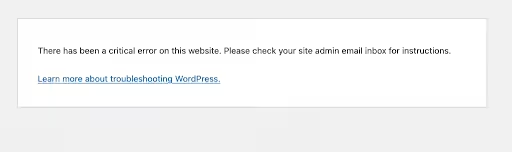
These errors can be caused by individual factors or a combination of one or more factors, including but not limited to plugin conflicts, theme issues, or server problems.
If you’re struggling with plugin conflicts, theme issues, or server errors causing WordPress fatal errors, our expert WordPress developers can help you resolve them quickly.
Also Read: How to Increase WordPress Memory Limit
Common Causes of WordPress Fatal Errors
WordPress Fatal Errors rarely appear without a reason. They are usually triggered by specific issues within your WordPress installation or its hosting environment. Getting to understand these common culprits, as we have listed below, is the first step toward effective resolution.
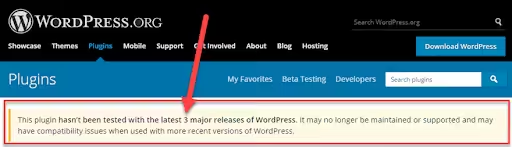
- Plugin Conflicts: This is one of the most common causes of fatal errors in WordPress. Incompatible or poorly coded plugins will conflict with other features and themes on your website, thereby causing WordPress fatal errors.
- PHP Memory Limit: Some plugins or themes may require more memory than what is provided by your hosting provider.
- Theme Compatibility Issues: Outdated or poorly coded themes can impact the performance of your WordPress website. This severely restricts the website’s visibility and accessibility. You can see the compatibility issues pop up immediately upon installation or once you make an update to the existing theme.
- Incompatible Code or Syntax Errors: Mistakes in your website’s code syntax, such as missing semicolons or unclosed brackets, can cause WordPress Fatal Errors. These are often called “compile-time parse errors”.
Another related issue is a “call to undefined function” error, which means WordPress is trying to use a piece of code (a function) that simply does not exist or isn’t accessible.
- Webserver Problems: Sometimes the problem might not be within your website, but with your web hosting provider. If the web hosting provider has initiated maintenance or downtime with issues, it can also cause a fatal error in WordPress. Similarly, server overload or misconfigured server settings can all halt your website operations.
- Essential File Error: If there are corrupted or missing files, such as core WordPress files, it is highly likely that your customer will not be able to access your website.
Tip: WordPress Fatal errors commonly occur after an update to WordPress core, a theme, or a plugin.
| Symptom | What It Means (in brief) | Common Causes (in brief) |
| White Screen of Death (WSoD) | The site is completely blank, with no error message. | Plugin/theme conflict, memory limit, and general PHP error. |
| PHP Error Message | Specific code error displayed. | PHP memory exhaustion, plugin/theme issue, code typo, or missing file. |
| Briefly Unavailable for Scheduled Maintenance | The site is in update mode. | WordPress core, theme, or plugin update in progress (can get stuck). |
| 500 Internal Server Error | General server issue. | Corrupted .htaccess, PHP memory limit, plugin/theme conflict, server misconfiguration. |
| 502 Bad Gateway | Server communication issue. | Server overload, malicious attack, issues with PHP processes, or web server. |
| 503 Service Unavailable | Unresponsive script. | Increased load, unresponsive WordPress script, cron job failures, exhausted PHP resources. |
| 504 Gateway Timeout | Proxy request failed to reach the destination. | The server is taking too long to respond, often due to heavy processing or server overload. |
| 403 Forbidden | Access denied to resource. | Incorrect file permissions, corrupted .htaccess, security plugin blocking access. |
| 404 Not Found | Page or file not found. | Broken links, corrupted .htaccess file, missing files. |
| 429 Too Many Requests | The server is blocking excessive requests. | Poorly coded plugin, server configuration issues, and traffic spikes. |
| Error Establishing a Database Connection | The site cannot connect to its database. | Incorrect database credentials, corrupted database, database server down, or overloaded. |
How to Identify the Source of the Fatal Error in WordPress
- Reading Error Messages: Error messages often contain clues about the issue.
- Checking Server Logs: Server logs can provide additional information about the error.
- Using Debug Mode: The debug mode can help you identify the root cause of the error.
Also Read: Comprehensive Guide To WordPress Memory Management
Quick Fix to WordPress Fatal Errors
If you have come across any of the dreaded fatal errors for your WordPress website, don’t panic. We have created a quick-fix actions table for you to resolve the daily issues:
| Action | Why (Briefly) |
| Don’t Panic! | Stay calm; most fatal errors are fixable. |
| Check Admin Email for Recovery Mode Link | WordPress might tell you the problem directly. |
| Backup Your Website | Your safety net before making any changes. |
| Enable Debug Mode (WP_DEBUG, WP_DEBUG_LOG, WP_DEBUG_DISPLAY) | Get detailed error messages in a log file. |
| Check debug.log for clues | Pinpoint the exact file or line causing the error. |
| Try Deactivating All Plugins (via admin or FTP) | Rule out plugin conflicts quickly. |
| Switch to a Default Theme (via admin or FTP) | Rule out theme conflicts quickly. |
| Increase PHP Memory Limit | Give your site more resources if memory is low. |
| Clear Site Cache | Remove old or corrupted cached data. |
Step-by-Step Troubleshooting Guide to Common Fatal Errors in WordPress
- Enable Debug Mode and Check Error Logs
Error logs are like your site’s diary – they record everything that goes wrong. Debug mode will help you identify the detailed error messages. To enable it, follow the steps below:
- Access your website files via an FTP client (like FileZilla) or a file manager.
- Open the wp-config.php file.
- Add these lines before /* That’s all, stop editing! */

- Once it is done, this will create a debug.log file in the /wp-content/ directory with detailed error information.
Pro-Tip: Once you have identified and resolved the issue, don’t forget to revert WP_DEBUG back to false (or remove the added lines) for security reasons.
- Deactivate All Plugins
Deactivate all plugins on your website to see if the error is caused due to a plugin conflict. You can do this via the WordPress dashboard or by renaming the plugins folder in the wp-content directory as detailed below:
- If you can access your WordPress dashboard:
- Go to Plugins > Installed Plugins
- Select all plugins
- Choose “Deactivate” from the Bulk Actions menu and click on Apply.
- If your website starts working after deactivation, it means the error might be due to a plugin.
- Start reactivating plugins one by one to find the culprit.
- If you can’t access your dashboard:
- Connect via FTP or file manager
- Navigate to /wp-content/plugins/
- Rename the plugins folder to plugins-disabled
- Check your website. If the website comes back online, a plugin was indeed the cause of the fatal error in WordPress.
- Rename the plugins_disabled folder back to its original name i.e., plugins.
- Go inside the plugins folder. Start renaming each individual plugin folder (e.g., change plugin-name to plugin-name-deactivated) one by one.
- After renaming each folder, check your website. When the error returns, the last plugin you renamed is the problem.
- Switch to a Default Theme
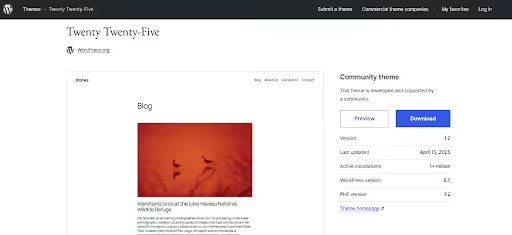
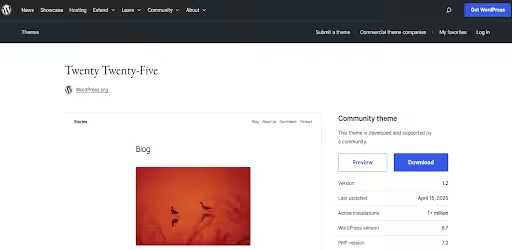
Theme issues are another common cause of WordPress Fatal Errors. In order to resolve this issue, switch to a default WordPress theme like Twenty Twenty-Five to check if the error is caused by various themes used on your website.
Method 1 – Via WordPress Dashboard
- Access the WordPress dashboard.
- Go to Appearance > Themes.
- Activate the latest default theme – Twenty Twenty-Five. You can use previous default themes as well, like Twenty Twenty-Three or Twenty Twenty-Four.
- After switching to the default theme, if the error disappears, your original theme was the problem.
Method 2 – Via FTP or File Manager
- Navigate to /wp-content/themes/
- Rename your active theme folder.
- WordPress will automatically switch to a default theme.
- If the error is resolved, your website theme was the issue.
- Increase PHP Memory Limit
You can use this solution to resolve the memory exhaustion issue for your website. There are 3 methods to do the same as detailed below:
Method 1 – Using the wp-config.php file
Add the following to the wp-config.php file:

Method 2 – Using .htaccess file
Add the following to the .htaccess file:

Method 3 – Using php.ini file
Add the following to the php.ini file:

Pro-tip: You can try 512M if 256M isn’t enough for your website.
- Fix Database Issues
Use WordPress’s built-in database repair tool by adding the following line to your wp-config.php file:
define(‘WP_ALLOW_REPAIR’, true);
Then, navigate to http://yourdomain.com/wp-admin/maint/repair.php to repair the database.
- Syntax Errors: Correcting Coding Errors
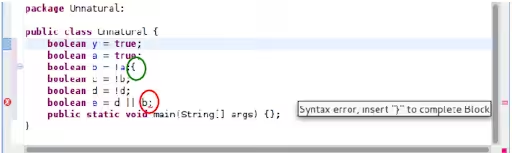
You can resolve the syntax issues through the following action steps:
- Identify the problematic file: Check the error message. It will provide you the exact file path and line number where the syntax error occurred.
- Access the problematic file: Use an FTP client or your hosting provider’s file manager to navigate to the specified file.
- Review the code: Open the file and look for common issues in the line number highlighted in the error message:
- Missing semicolons (;) at the end of statements.
- Unmatched curly braces ({}), parentheses (()), or square brackets ([]).
- Incorrect or missing opening (<?php) or closing (?>) PHP tags.
- Misplaced or missing single (‘) or double (“) quotes for strings.
- Use a code editor with syntax highlighting: If possible, download the file and open it in a dedicated code editor like Sublime Text or Visual Studio Code. These editors visually distinguish different code elements and make it much easier to spot missing characters or structural errors.
- Correct, save, and upload: Fix any syntax mistakes you find. Save the modified file and re-upload it to your server, overwriting the old one.
- Restore from backup: If you’re unsure about the fix or can’t identify the error, it’s safer to revert the file to a previous version from your backup. Always test any custom code on a staging site before applying it to your live website.
- Correcting Missing or Corrupted WordPress Core Files
Sometimes, a fatal error in WordPress can be caused by essential WordPress core files being missing, damaged, or corrupted. This can happen due to update failures, malware infections, or even accidental deletion. The solution involves reinstalling the WordPress core files, but it is crucial to do this safely to preserve your site’s content and settings.
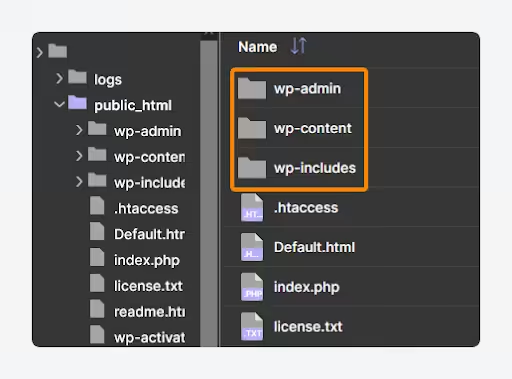
Below is your guide to safely install the WordPress Core Files:
- Download a fresh copy of WordPress: Go to the official WordPress.org website and download the latest version of WordPress.
- Extract the downloaded ZIP file: Unzip the file on your computer. You will see a folder named WordPress.
- Connect via FTP / cPanel: Use your FTP client or hosting file manager to connect to your website’s server.
- Upload core files: Navigate to your WordPress installation’s root directory on the server. Upload the wp-admin and wp-includes folders from the newly downloaded WordPress package to your server, overwriting the existing ones.
- Check file permissions: After re-uploading, it’s a good practice to quickly verify that your file permissions are set correctly.
Important Notes:
- Do not upload or overwrite the wp-content folder, as this contains all your themes, plugins, and media uploads.
- Do not overwrite your wp-config.php file, as this contains your unique database credentials and custom settings. Overwriting these would result in data loss and further issues.
People Also Search for: How To Prevent TLS Client Credential Fatal Error
Preventing Strategies to Avoid Future Fatal Errors in WordPress
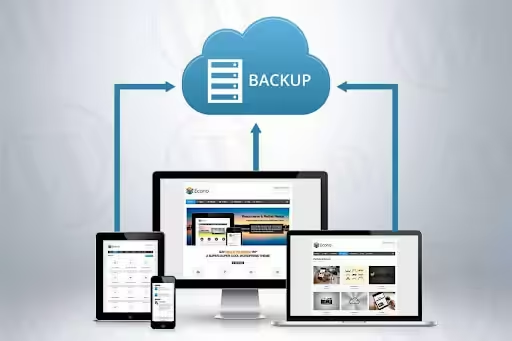
- Regular Backups (Your safety net): Backup is your most reliable safety net against such WordPress fatal errors. However, you must remember that it is a continuous process. Make automated regular backups of your website using plugins like UpdraftPlus to quickly restore it and avoid website data loss.
Pro Tips:
- A good thumb rule for backup is the “3-2-1 rule” – keep 3 copies of your data, on 2 different types of storage, with 1 copy off-site.
- Regularly verify the integrity of your backups by performing periodic restoration tests to ensure they can be successfully restored if needed.
- Keep Everything Updated: Ensure WordPress, themes, plugins, and other software connected or implemented on your website are always up to date.
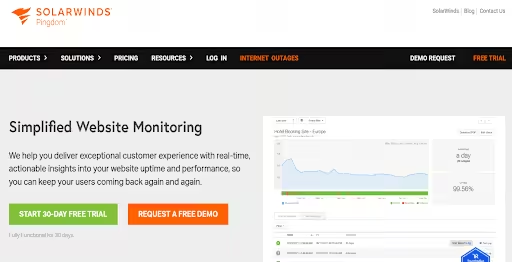
- Monitor Website Performance: Make use of different monitoring tools such as Pingdom and Uptime, etc., to keep an eye on your website’s performance.
- Implement Security Measures: Even the basic security measures can help you prevent many issues that lead to fatal error in WordPress.
- Reliable Hosting Provider: Your web hosting provider is the backbone of your website’s long-term health. They can assist with complex server-related issues that are beyond your control. Additionally, choose a host that keeps its PHP versions up to date and allows you to easily manage your website’s PHP environment.
Conclusion
Dealing with a fatal error in WordPress can be stressful for a business owner, but these problems are common and can usually be fixed. The best way to handle them is through a clear troubleshooting process and proactive prevention.
Now that you have the tools and knowledge, you can identify and fix many common WordPress fatal errors. You will learn to recognize different symptoms and their causes, and you can follow step-by-step solutions for issues like plugin conflicts, memory problems, and server errors.
If you come across an issue you cannot solve, do not hesitate to ask your hosting provider or a WordPress expert for help.
Frequently Asked Questions
A. I’m getting a WordPress fatal error. What should I do?
Don’t panic! A WordPress fatal error can usually be resolved. Here’s a step-by-step approach: turn on debugging, take a look at your error logs, try deactivating your plugins one by one, revert to a default theme, give your site more PHP memory if it needs it, check for any database problems, and as a last resort, you might need to reinstall the WordPress core files.
B. Is there any way to stop WordPress Fatal Errors from happening again?
Absolutely! You can take several steps to avoid these errors down the road. Regularly back up your site, keep everything, including WordPress core, your themes, and plugins, updated, keep an eye on your website’s performance, and put some basic security measures in place.
C. Is it safe to edit WordPress core files when fixing errors?
Never edit WordPress core files directly. Always work with configuration files like wp-config.php and .htaccess, or deactivate problematic plugins and themes. Core file modifications get overwritten during updates.
D. What if I can’t access my WordPress dashboard?
If your WordPress dashboard is not accessible, you will need to use an FTP client (like FileZilla) or your web hosting provider’s file manager (in cPanel) to make changes directly to your WordPress site’s files. This will allow you to deactivate the plugins, switch themes, or edit files like wp-config.php.
E. How long do WordPress Fatal Errors usually take to fix?
If the error is caused by simple plugin or theme conflicts, it can be fixed in minutes. However, more complex issues like database problems or server configurations might take longer to resolve. Most common errors get resolved within 30 minutes if you follow proper troubleshooting steps.
F. Is it safe to update WordPress core, themes, and plugins?
Yes! Rather, it is crucial that you keep everything updated for security and compatibility. However, always create a full backup before updating, and ideally, test updates on a staging environment first to catch any potential conflicts before they affect your live site.
G. What should I do if I can’t fix the error myself?
If you are not able to fix the error yourself even after following the measures we have provided in this blog, try seeking help from a professional WordPress support service personnel or reach out to our expert team at Wisdmlabs.