A practical, field-tested playbook to diagnose and resolve the most common WordPress errors—fast. Whether you have dashboard access or are locked out, use the quick path below, then jump to specific fixes for HTTP/browser errors, database issues, limits, media, permissions, updates, and security.
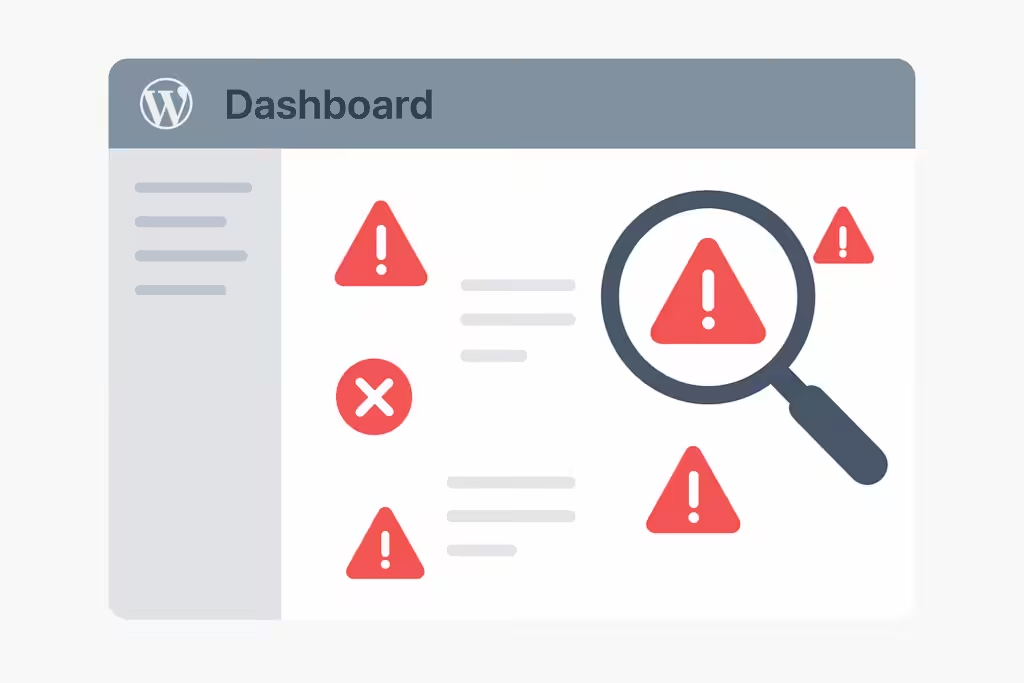
Quick Fix: WordPress Error Fast‑Path
Use this when you see “There has been a critical error on this website,” a blank white screen (WSoD), or cannot access the wp‑admin.
Capture context
Note the last change (plugin/theme update, new code, migration, cache purge, DNS change).
If you received a recovery email, open it and follow the recovery link.
Turn on safe logging
If you have file access, enable WordPress debug logging without showing errors to visitors by adding to wp-config.php just above “Happy blogging”:
define('WP_DEBUG', true);
define('WP_DEBUG_LOG', true);
define('WP_DEBUG_DISPLAY', false);
Disable all plugins and switch to a default theme
Rename /wp-content/plugins to plugins.deactivated. Then test.
If still broken, temporarily switch to a default theme (e.g., Twenty Twenty‑Four) by renaming your active theme folder or activating the default via WP‑CLI: WP theme activate twentytwentyfour
Clear caches and retest
Clear browser cache, server cache (host panel or WP‑CLI), and CDN cache. wp cache flush
If you’re facing the “There has been a critical error on this website” message or can’t access wp-admin, follow this streamlined process below — or check out our step-by-step WordPress Critical Error Fix guide for a detailed walkthrough with recovery mode and safe-debug methods.
A blank screen usually points to a PHP fatal error or memory issue — also known as the White Screen of Death (WSoD). You can follow this dedicated WSoD troubleshooting guide to isolate and fix it quickly without losing dashboard access.
Error → Fix Mapping (At a Glance)
Use this quick map, then jump to the detailed section.
| Error | Likely Root Cause(s) | Fastest Fix | Where to Read More |
| Critical error / WSoD | Plugin/theme conflict, PHP fatal, memory | Disable all plugins, default theme, check debug.log | Quick Fix, Plugin/Theme Isolation |
| Error establishing DB connection | Wrong creds, DB down, corruption | Verify wp-config.php, run DB repair | Database Errors |
| 500 Internal Server Error | Unknown PHP/server error | Clear caches, isolate plugins/themes, check logs | HTTP and Browser Errors |
| 403 Forbidden | Permissions, security rules, .htaccess | Fix perms, regenerate rules, temp disable WAF | Permissions and Access, HTTP |
| 404 on posts/pages | Broken permalinks/rewrite | Resave permalinks or wp rewrite flush –hard | HTTP and Browser Errors |
| Too many redirects | URL mismatch, conflicting redirects | Align Site/WordPress Address, purge caches | HTTP and Browser Errors |
| 502/503/504 | Upstream timeout, resource limits | Bypass CDN, check origin/logs, raise limits | HTTP and Browser Errors, PHP/Env |
| 429 Too Many Requests | Rate limiting, brute force | Reduce retries, change login URL, WAF rules | HTTP and Browser Errors |
| Memory exhausted | Low PHP memory, heavy plugin | WP_MEMORY_LIMIT 256M, optimize culprit | PHP/Environment Limits |
| Max execution time | Long‑running script | Raise timeout to 300s, fix slow code | PHP/Environment Limits |
| Upload too large | upload_max_filesize/post_max_size | Increase limits in php.ini/.user.ini | PHP/Environment Limits |
| HTTP image upload error | Session/permission/editor issues | Re‑login, rename image, fix perms/extensions | Media and File Errors |
| Destination folder exists | Duplicate slug/folder | Remove stale folder, reinstall/update | Media and File Errors |
| Pluggable.php / open stream | Wrong paths, extra output, perms | Fix referenced file, remove stray output | Media and File Errors |
| Not allowed to access page | Capabilities, prefix, perms | Disable plugins, verify roles/prefix, perms | Permissions and Access |
| Login loop/logs out | Cookie/URL mismatch | Align URLs, clear cookies, check .htaccess | Permissions and Access |
| Maintenance/update stuck | Stale lock/.maintenance | Delete .maintenance, remove lock option | Update/Install Issues |
| Mixed content/SSL errors | HTTP assets, TLS mismatch | Replace http→https, fix cert/TLS | HTTP and Browser Errors |
Plugin/Theme Isolation
Reactivate plugins carefully
- Restore the plugins folder name, then activate plugins one by one (or in small batches), testing after each activation.
- When the error returns, you’ve found the problematic plugin. Replace, update, or contact the developer.
Theme conflicts
- Temporarily activate a default theme. If the site stabilizes, your previous theme is the likely cause. Update or replace it, and validate custom code (functions.php, custom hooks, child theme).
Conflict hygiene
- Keep only essential plugins. Remove duplicates/overlapping optimization plugins to avoid conflicts (e.g., multiple caching/minify tools).
Faster isolation with binary search
- If many plugins are active, disable half, test, then halve again to pinpoint the conflict quickly.
Recovery mode (if available)
- If WordPress sent a recovery email, use its special login to deactivate the faulty component without fully taking the site down.
HTTP and Browser Errors
Covers: 403, 404, 429, 500, 502, 503, 504, too many redirects, Chrome security warnings.
403 Forbidden
- Likely permissions or rules issue. Regenerate .htaccess (or Nginx rules), review security/firewall/WAF hotlink/hot‑block settings, and check directory permissions.
- Ensure directory indexes and authorization rules aren’t blocking /wp-admin/ or /wp-includes/ unintentionally.
- Temporarily disable security plugins/WAF to confirm a false positive.
404 Not Found (posts/pages)
- Resave Permalinks (Settings → Permalinks). If locked out, regenerate rules via .htaccess/server config. Ensure no conflicting redirects.
- Flush rewrite rules via WP‑CLI:
wp rewrite flush –hard
Too Many Redirects / ERR_TOO_MANY_REDIRECTS
- Remove conflicting redirects, ensure WordPress/Site Address (URL) match, and clear caches. Temporarily disable CDN/WAF.
- Check HTTPS enforcement isn’t looping (e.g., both plugin and server rules forcing redirects).
500/502/503/504
- Start with caches and plugin/theme isolation. For 503/504, look for resource exhaustion or upstream issues; try disabling CDN/WAF, verify DNS, and consult host error logs.
- 502/504 behind a CDN often indicate origin timeouts—bypass CDN, test origin directly, and review long‑running PHP processes.
SSL/Browser security warnings
- Ensure valid SSL, fix mixed content (force HTTPS assets), and update TLS support. Clear HSTS/CDN caches if applicable.
- For ERR_SSL_PROTOCOL_ERROR/obsolete versions, update the browser/OS, ensure server supports modern TLS, and reissue the certificate if needed.
- For Mixed Content, run a safe search‑and‑replace to convert lingering http:// URLs to https:// (preferably on staging first).
Database Errors
Covers: “Error establishing a database connection”, corrupt tables, credential issues.
Verify credentials
- In wp-config.php, confirm DB_NAME, DB_USER, DB_PASSWORD, DB_HOST are correct.
- If the host uses a socket or nonstandard port, confirm the correct connection string.
Repair tables
- Temporarily add to wp-config.php:
define(‘WP_ALLOW_REPAIR’, true); - Visit /wp-admin/maint/repair.php, run repair/optimize, then remove the constant.
Restore or rebuild
- Restore from a known‑good backup if corruption persists. For migrations, confirm table prefixes and URL replacements.
- If only a subset of tables are corrupt, export healthy tables first to preserve recent content before a full restore.
PHP/Environment Limits
Covers: memory exhausted, max execution time exceeded, upload size limits, missing extensions.
Increase limits
- Raise memory/timeouts/upload limits via wp-config.php, .user.ini, php.ini, or hosting panel:
define(‘WP_MEMORY_LIMIT’, ‘256M’); - Typical targets: memory 256M, max_execution_time 300, upload_max_filesize and post_max_size sized for your needs.
Upgrade PHP
- Use a currently supported PHP version per your host. Test in staging before upgrading production.
Required extensions
- Install/enable GD (image edits) and others reported missing in Site Health → Server.
Spot the real hogs
- Identify heavy plugins/queries using Query Monitor, then optimize or replace them; increasing limits is a short‑term fix.
Permissions and Access
Covers: 403 from permissions, “Sorry, you are not allowed to access this page”, file write errors.
Correct permissions
- Directories: 755; files: 644; wp-config.php: 600/640.
- Ensure web server ownership is correct. Avoid 777.
- Command‑line example (Linux):
find . -type d -exec chmod 755 {} \;
find . -type f -exec chmod 644 {} \;
chmod 600 wp-config.php
Access errors
- Confirm correct user role/capabilities and prefix in the database. Recreate .htaccess/server rules if custom restrictions block admin.
- “Sorry, you are not allowed to access this page” can stem from incorrect file permissions, a mismatched table prefix, or a role capability plugin conflict. Test with all plugins disabled and a default theme.
- If locked out, verify the admin user directly in the database (wp_users, wp_usermeta) and reset via password hash update.
Write/Upload errors
- If “Failed to write file to disk”, verify disk space and tmp directory availability; fix permissions on wp-content/uploads.
- If the temporary folder is missing, define a temp dir in wp-config.php and create it:
define(‘WP_TEMP_DIR’, dirname(__FILE__) . ‘/wp-content/temp/’);
Media and File Errors
Covers: HTTP image upload error, destination folder already exists, pluggable.php conflicts, “failed to open stream”.
Image upload HTTP error
- Refresh and re-login, rename/resample images, test plugin/theme conflicts, and validate permissions on uploads.
- Check image editors: enable GD or Imagick; large images may exceed resource limits—try smaller dimensions.
- Disable conflicting optimization plugins temporarily and retry.
Destination folder already exists
- Remove the stale plugin/theme folder in /wp-content/plugins or /wp-content/themes and re-install.
- If the item is already installed, update instead of reinstalling; avoid duplicate slugs.
Pluggable.php or “failed to open stream”
- Usually caused elsewhere (e.g., functions.php, wp-config.php). Follow the error path/line number; remove stray whitespace/extra output; ensure referenced files exist.
- For “failed to open stream: Permission denied/No such file or directory”, verify the path, permissions, and any custom stream wrappers.
Update/Install Issues
Covers: stuck in maintenance mode, failed auto-update, “another update in progress.”
Maintenance mode
- Delete .maintenance from the WordPress root, then reload.
Failed core/plugin/theme updates
- Perform manual updates. If “another update in progress” persists, clear the lock in the database (e.g., core_updater.lock row in wp_options).
- WP‑CLI helpers:
wp option delete core_updater.lock
wp core update
wp plugin update –all
wp theme update –all
Safe process
- Backup, test on staging, then update in production. Limit concurrent bulk updates.
- When running many updates, disable object/page caching temporarily to reduce false negatives.
Security and Malware Checks
Scan and clean
- Use reputable security tools to scan for malware/backdoors and remove suspicious files in wp-content/uploads and custom directories.
Lock down
- Enforce MFA, strong passwords, least-privilege roles, and a WAF. Keep plugins/themes to well-maintained, trusted options.
Core integrity
- If core files look altered, replace wp-admin and wp-includes with fresh copies; keep wp-content and wp-config.php intact.
- Validate .htaccess/server config weren’t modified by malware; review scheduled tasks and unknown admin accounts.
Post‑Fix Hardening and QA
QA checklist
- Verify homepage, admin dashboard, search, forms, media upload, and editor UI.
- Check sitemap, RSS, and scheduled tasks (cron). Review error logs for fresh entries.
- Test on mobile and multiple browsers. Validate 200/301 responses and no unexpected 5xx or 4xx spikes.
Monitoring and alerts
- Enable uptime/performance monitors and error notifications. Track spikes in errors or resource usage.
- Add log alerts for PHP fatal errors and frequent 500/503/504/302 loops.
Cleanup
- Remove unused plugins/themes, document the root cause, and schedule a follow-up review.
- Re‑enable CDN/WAF with proper whitelisting. Confirm backups ran successfully after the fix.
Prevention: Maintenance and Monitoring
- Backups: Automate daily backups (files + DB), store offsite, and test restores.
- Updates: Apply core, plugin, and theme updates routinely (test major updates on staging first).
- Performance: Use a single well-configured cache solution and an appropriate CDN; avoid overlapping optimizers.
- Environment: Keep PHP current, monitor resources (memory, CPU, disk), and ensure required extensions are present.
- Security: Enforce MFA, audit logins, scan regularly, and keep a lightweight security policy active.
- Cron: Prefer a system cron over WP‑Cron for high‑traffic sites; ensure scheduled tasks run reliably to avoid missed schedule issues.
Frequently Asked Questions
How do I fix the WordPress critical error without dashboard access?
Enable debug logging, disable all plugins by renaming the plugins folder, switch to a default theme, clear caches, and check wp-content/debug.log for the failing plugin/theme/file.
What causes “Error establishing a database connection”?
Wrong credentials, unavailable DB server, or corrupted tables. Verify wp-config.php, run the DB repair tool, and check host logs.
How do I get out of maintenance mode?
Delete the .maintenance file in your site root, then reload the site.
How do I increase the WordPress memory limit?
Add define(‘WP_MEMORY_LIMIT’, ‘256M’); to wp-config.php or update limits via hosting panel/php.ini/.user.ini.
I’m seeing 403 Forbidden in wp-admin only—why?
Security rules or incorrect permissions may block admin paths. Temporarily disable security layers, regenerate .htaccess, and ensure no deny rules target admin paths.